Build workbooks from PDF and image uploads with Sigma Assistant

Sigma Assistant in Build Mode can now pull the context your company depends on from your uploaded files, like a company brand guide, business requirements doc, or initial wireframe, and plan and build directly from it. Attach images and PDFs to a request in plan or build mode, and Sigma Assistant works directly from the files, rather than relying on your summary of them. Starting from your documents gets you a faster, more accurate first draft of a new workbook.
Why attach files to Sigma Assistant in Build Mode?
Sigma Assistant already builds from your request and your data, finding relevant sources through semantic search or using sources you attach. However, some of the context it needs to build well, like style or business requirements, often lives in separate files. Until now, builders had to bring that context into the chat by describing a wireframe in words, typing out brand colors, or pasting in content from long requirements docs.
We recently wrote about the previous build agent’s architecture, where lossy context handoffs between subagents were common. Retyping or summarizing a file’s contents into the chat is a similarly lossy handoff, this time between you and Sigma Assistant.
4 ways to build from files with Sigma Assistant
Attach any image or PDF that guides Sigma Assistant what you want to build, like a visual style guide, a screenshot of a wireframe, or a list of requirements. Sigma Assistant reads each file as reference material and builds from it. If your organization has chat history turned on, the file stays with the conversation when you come back to it. Here are four of our favorite ways to use files with Sigma Assistant:
1. Build from a brand guide
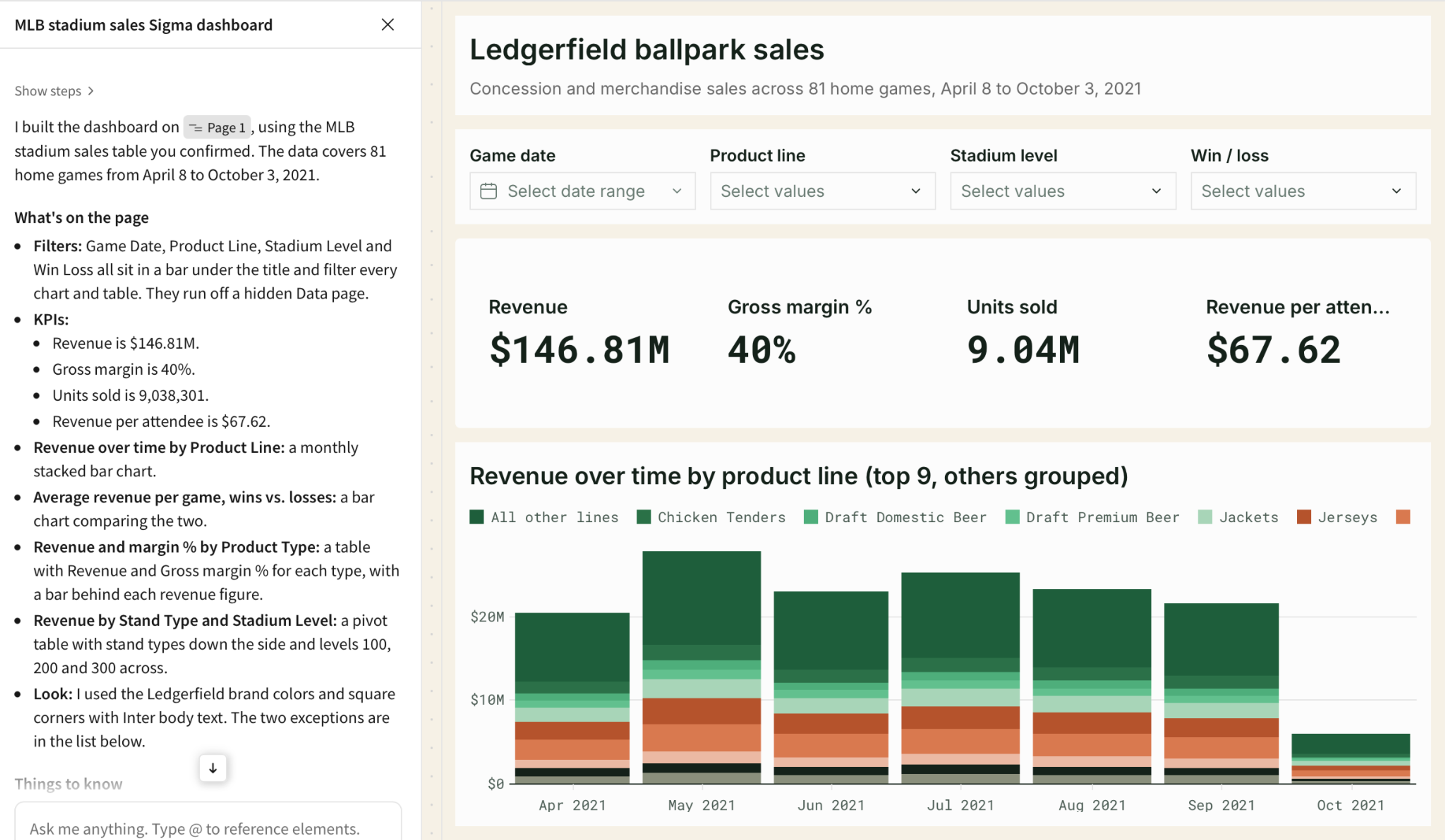
Attach your brand guide as a PDF and ask for a dashboard that follows it. When the guide explicitly lists colors and fonts, Sigma Assistant reads them from the file.
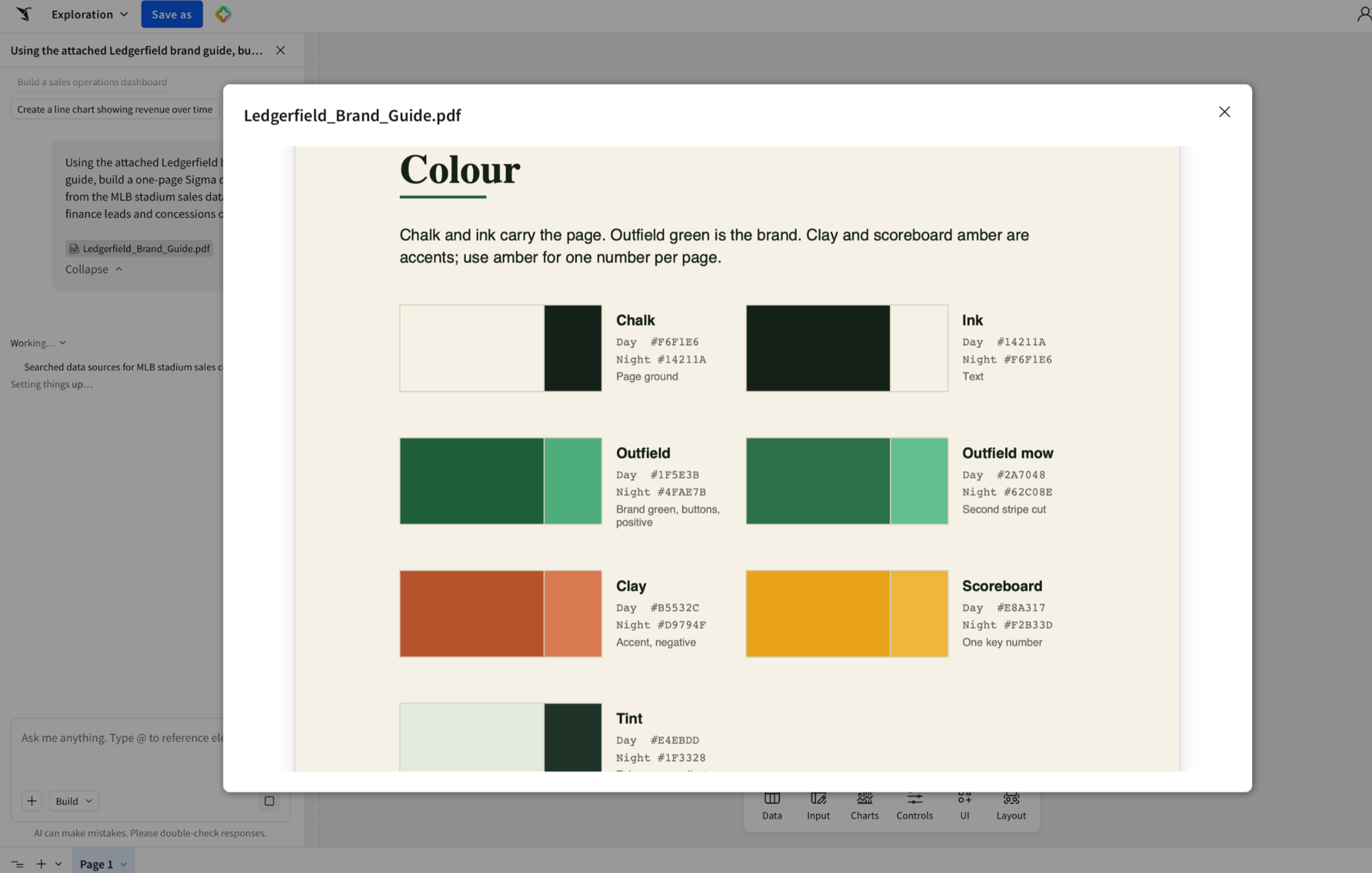
Here, Sigma Assistant pulls the colors and fonts from the attached PDF and applies them to the dashboard.
2. Build from a requirements doc
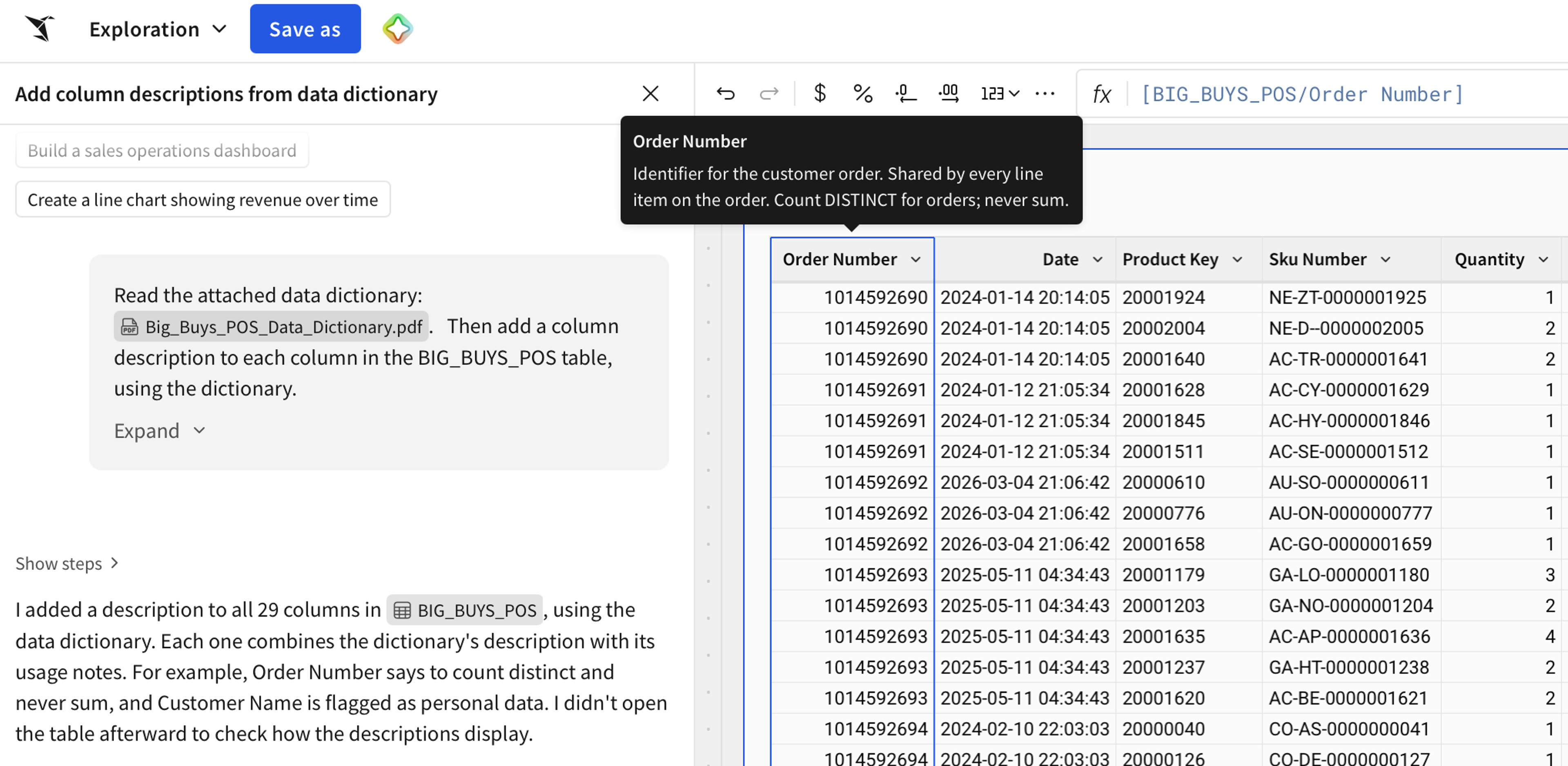
Attach a business requirements doc as a PDF. In plan mode, you can review the plan against the doc before anything gets built, and the attachment carries over to build. As an example, one of our solutions engineers attached a PDF containing data dictionary information and had Sigma Assistant add column descriptions to a table, work they used to do by hand.
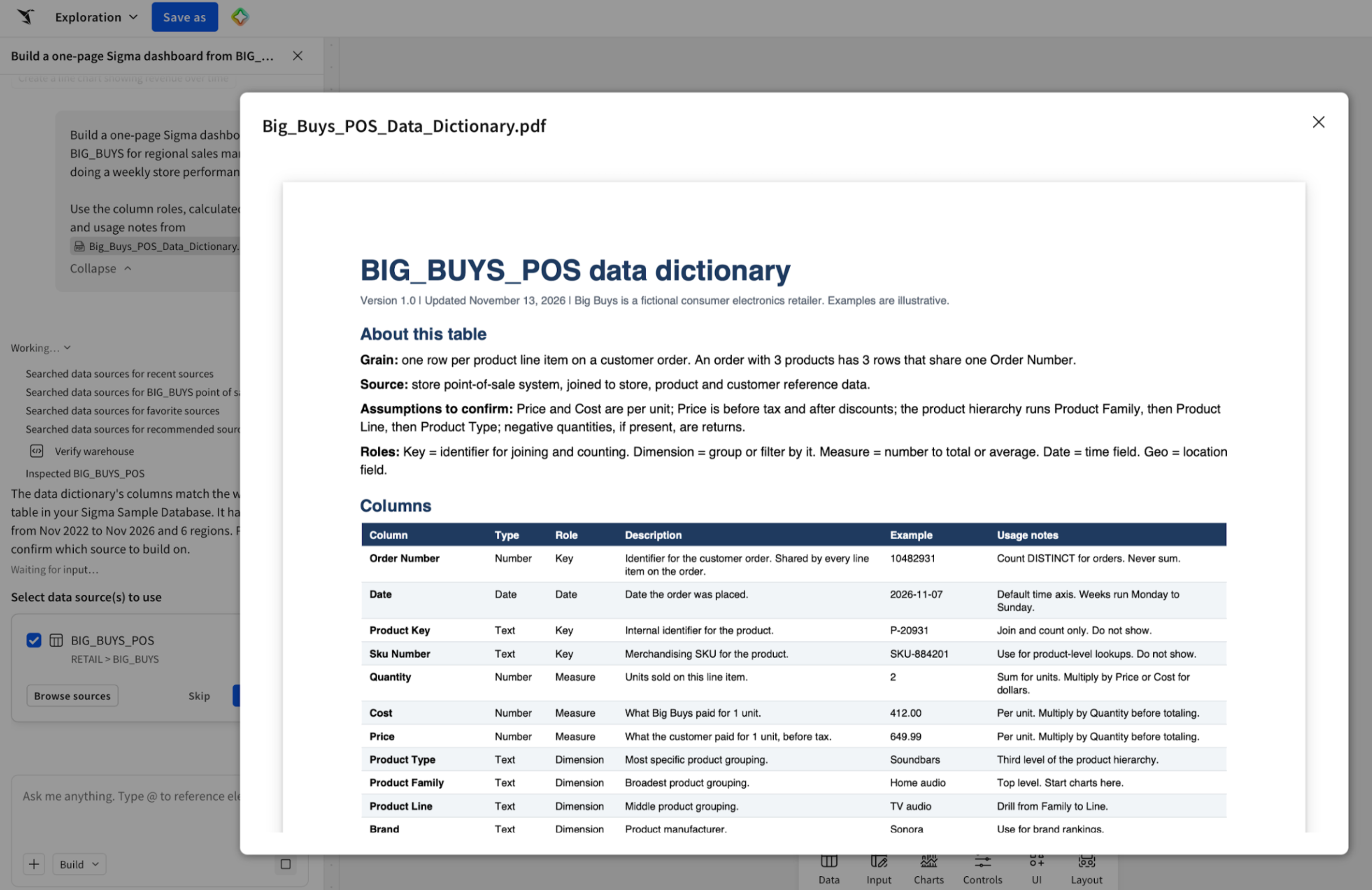
In another example, we attached a short PDF with data dictionary information. Sigma Assistant read it and automatically added in the descriptions for all 29 columns.
3. Build from a wireframe or mockup
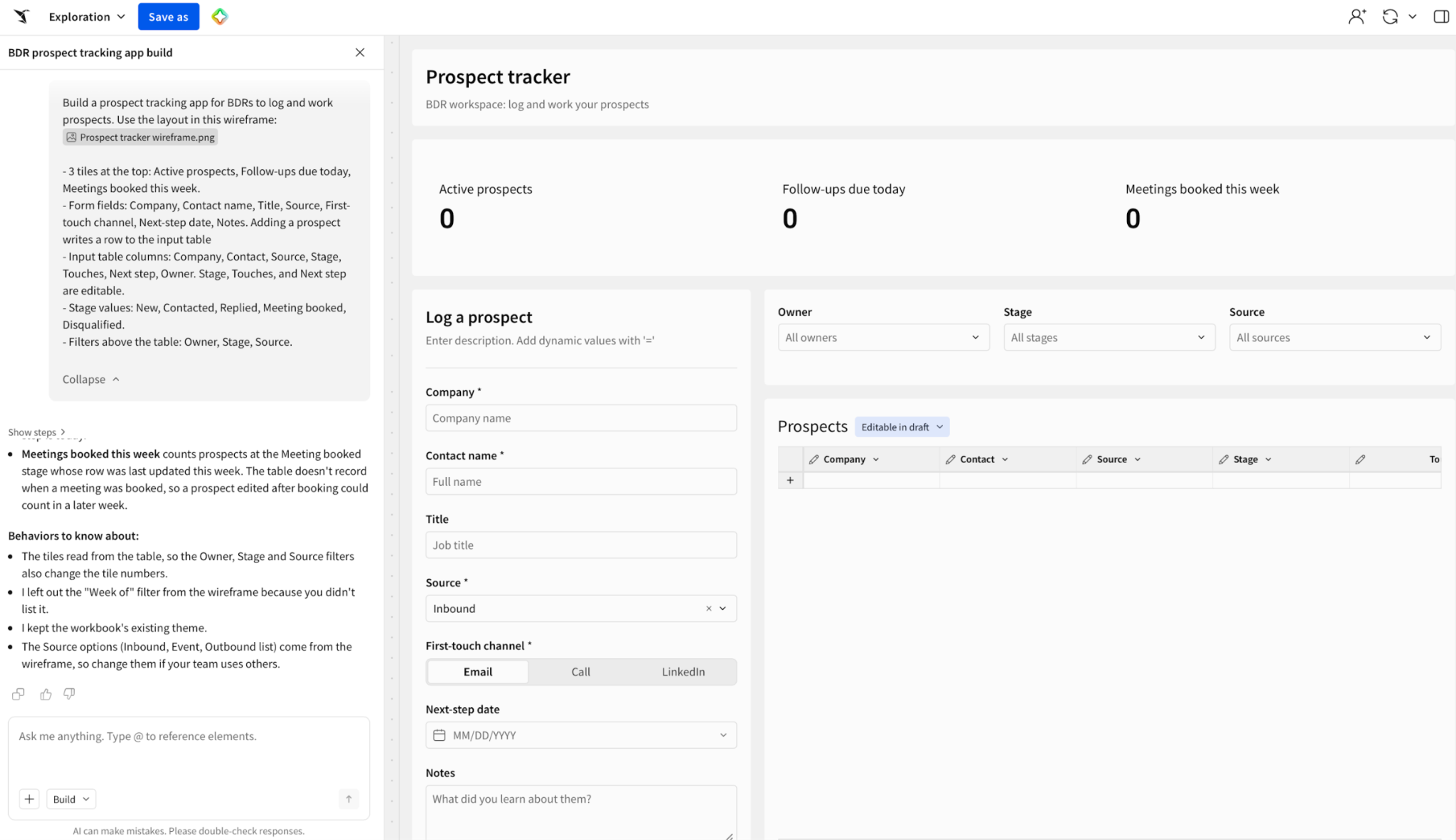
Attach a wireframe image or a PDF mockup, and Sigma Assistant can use its layout or other properties as the starting point for the dashboard
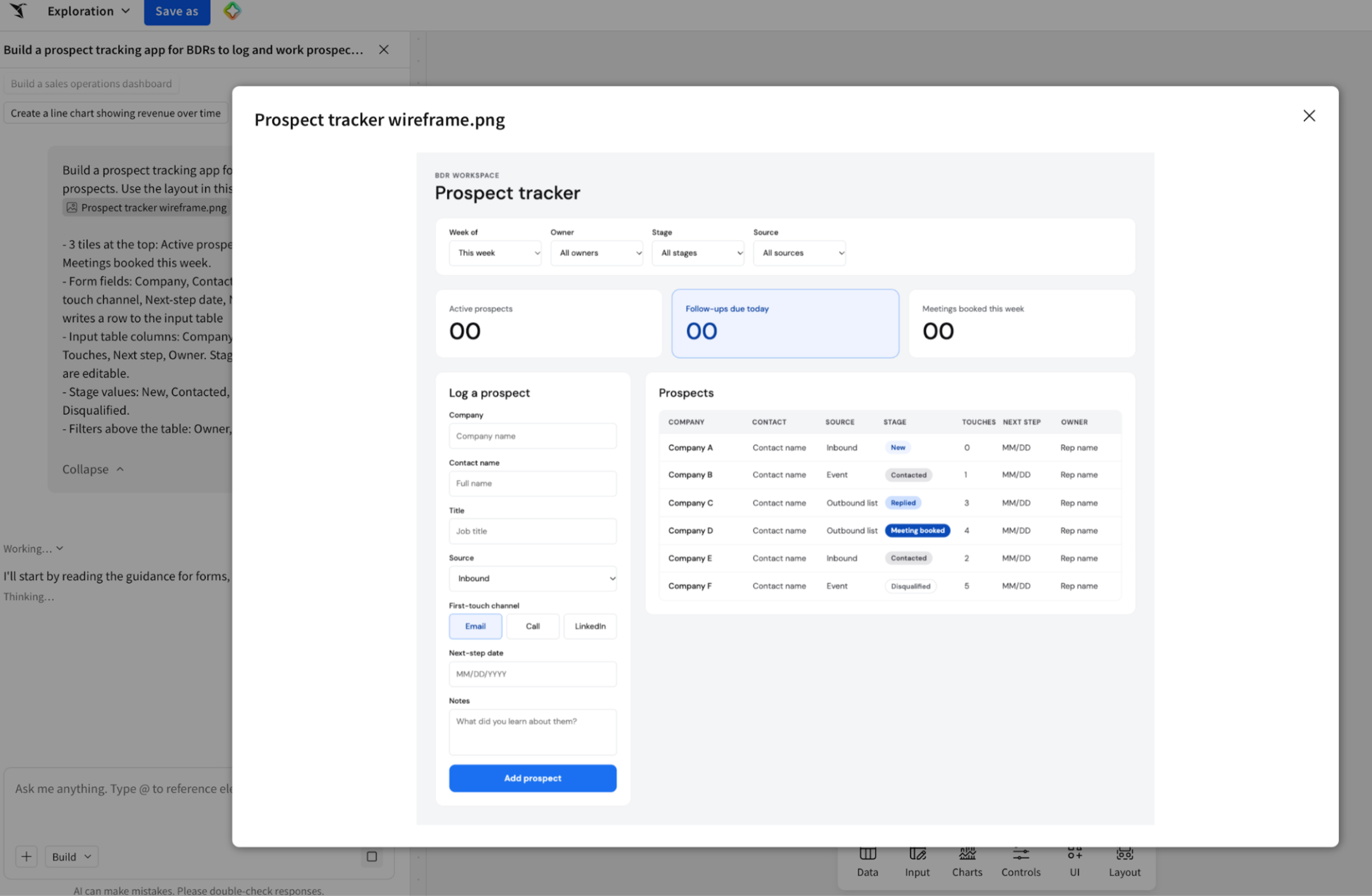
Here, we gave Sigma Assistant a screenshot of a mockup for a prospect tracking app and a few instructions for what to build. Sigma Assistant then recreated the mockup in the workbook.
4. Add images to your build
Attach a logo or other image, and Sigma Assistant places it on the canvas as an image element or a container background.
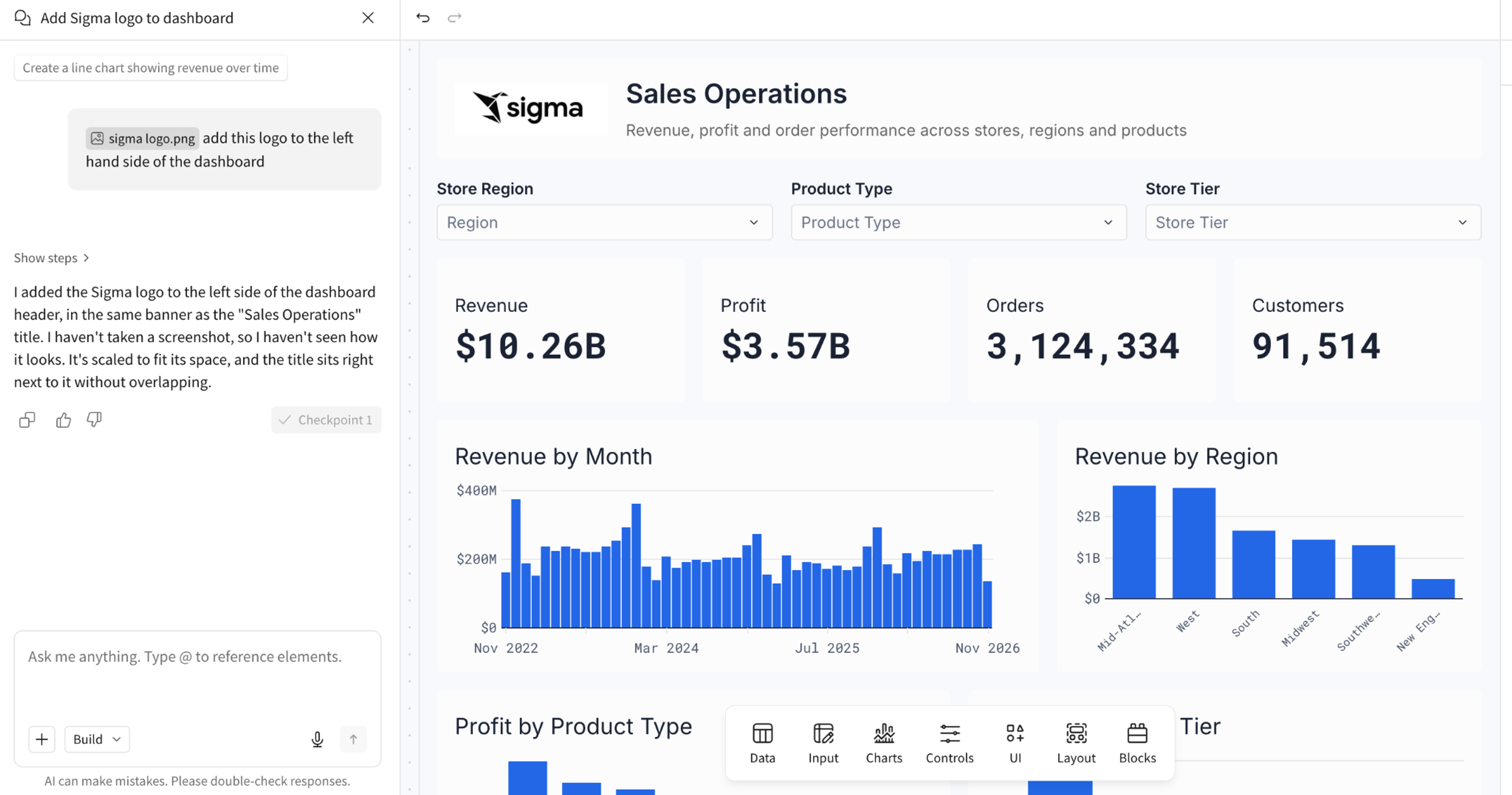
In this example, we attached a business logo and asked Sigma Assistant to add it to a sample sales operations dashboard
File uploads follow your organization's rules
Bringing outside files into a build raises fair questions for admins about control and data governance. That’s why in Sigma, image and PDF attachments work within the controls your organization already has set:
- Admin setting: New with this release, admins can turn file uploads off for the whole organization in AI settings. File uploads are on by default.
- Reference only: Attached files serve as reference material to guide the build. The workbook’s data comes from live queries against your governed warehouse.
- Editable output: Sigma Assistant builds standard workbook elements, so you can edit anything it creates.
The context your dashboards depend on already lives in your team’s files. Now Sigma Assistant can build from it too.
Start building from your files today
Image and PDF attachments are generally available today in plan and build modes with Sigma Assistant. Sigma customers can review the documentation and start using it today.
New to Sigma? Request a demo to see Sigma Assistant build from your own files.
Frequently asked questions
What file types and sizes can I attach? You can attach JPEG, PNG, GIF, and WebP images and PDFs, up to 8 images and 4 PDFs per message. PDFs, GIFs, and WebP files can be up to 3 MB each. JPEG and PNG files can be up to 20 MB and are compressed automatically to fit the 3 MB limit. Images can be up to 8,000 pixels on the longest side. Sigma Assistant skips any file over a limit and shows an error so you can resize it and try again.
Can admins turn file uploads off? Yes. Admins can turn uploads off for the whole organization under Administration > AI settings > General > Chat file uploads. When uploads are off, the attachment menu shows that an admin turned them off.
Where are attached images stored? During a chat, Sigma Assistant holds attached images in memory. If your organization has chat history turned on, images are also saved with the chat. Images that Sigma Assistant adds to a workbook are uploaded to cloud storage and stay with the workbook after the chat ends.