Sigma Assistant build mode is GA: generate dashboards and apps in minutes


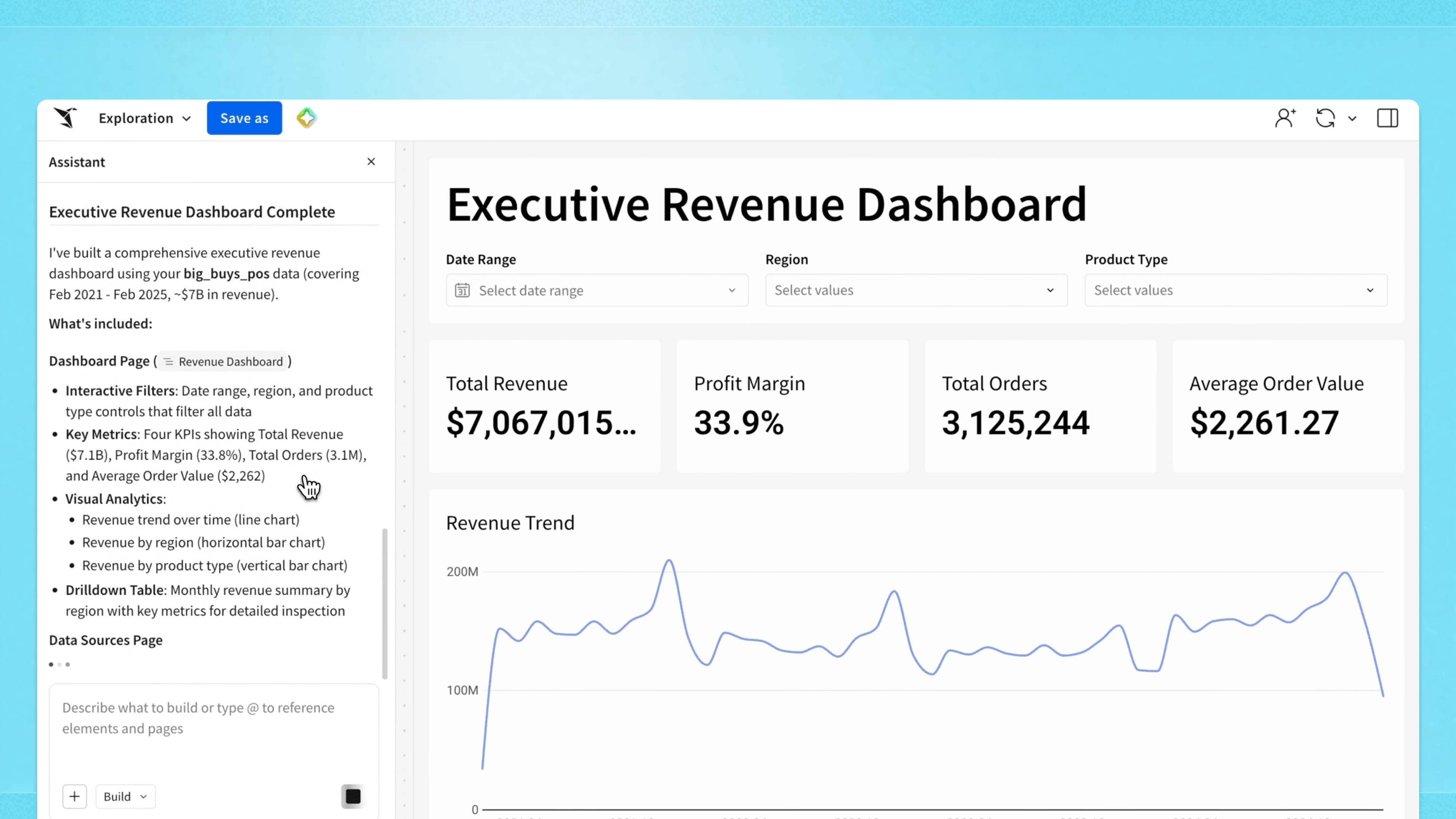
Sigma Assistant build mode is now generally available. Describe the dashboard or simple app you want, and Assistant builds it in your workbook: charts, filters, layout, conditional formatting, pivot tables, input tables, and more. If it's a Sigma element, Sigma Assistant can build it. Everything runs live against your warehouse tables, using your data models and with your permissions already applied.
With build mode, anyone can plan, build, and iterate on dashboards and apps in minutes. There's no need to spend hours perfecting a layout or hunting down fixes by hand. Describe what you want and let Sigma Assistant handle the build, so you can get to analyzing and acting on the data right away.
3 ways to use Sigma Assistant build mode
Build mode starts from a request in natural language and ends with governed results and familiar elements in your workbook. Here's the range of what that covers today:
1. Build a dashboard from a single request
Describe the dashboard you’re envisioning and Sigma Assistant builds it, complete with all the Sigma elements.
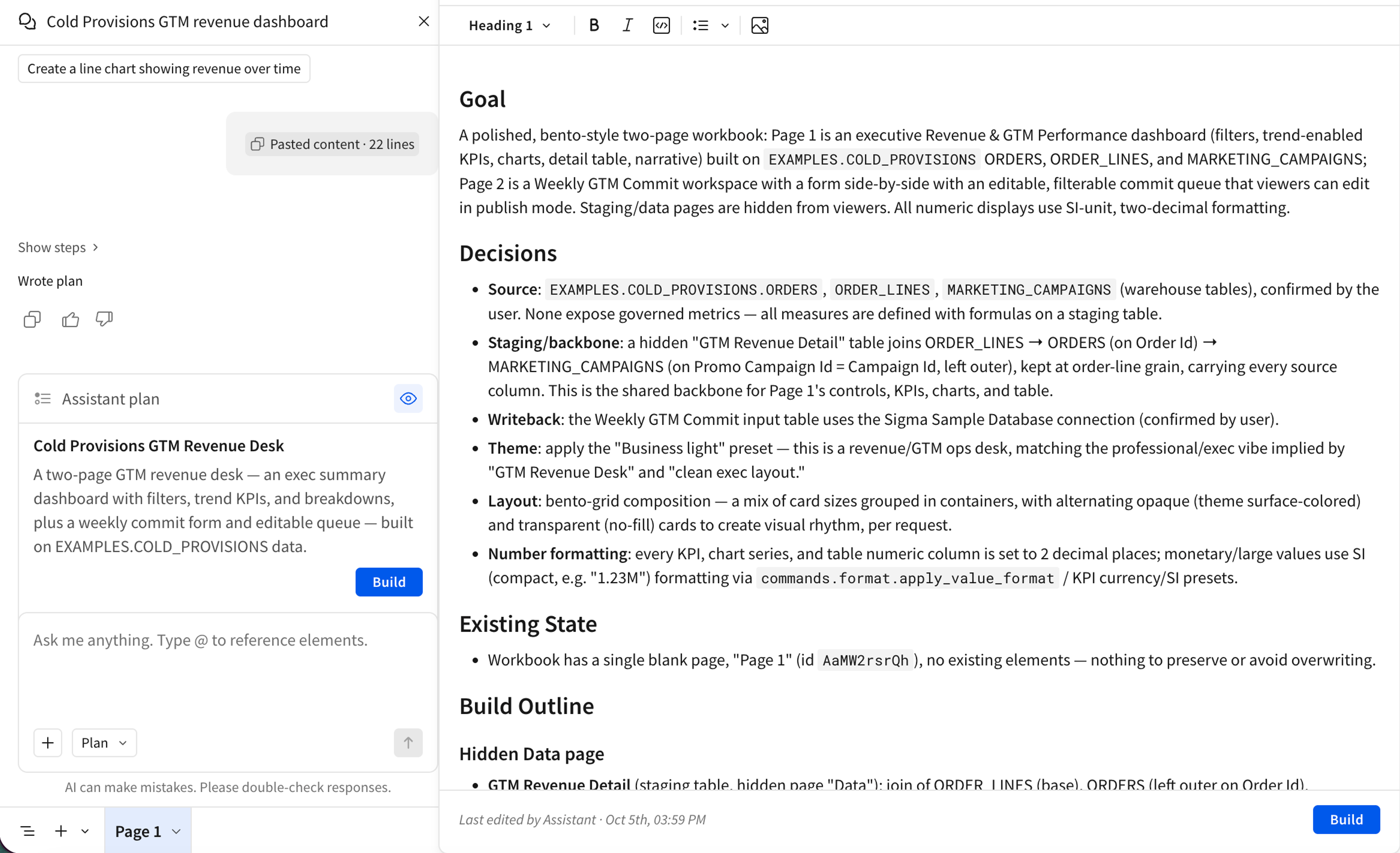
Use plan mode for more substantial builds
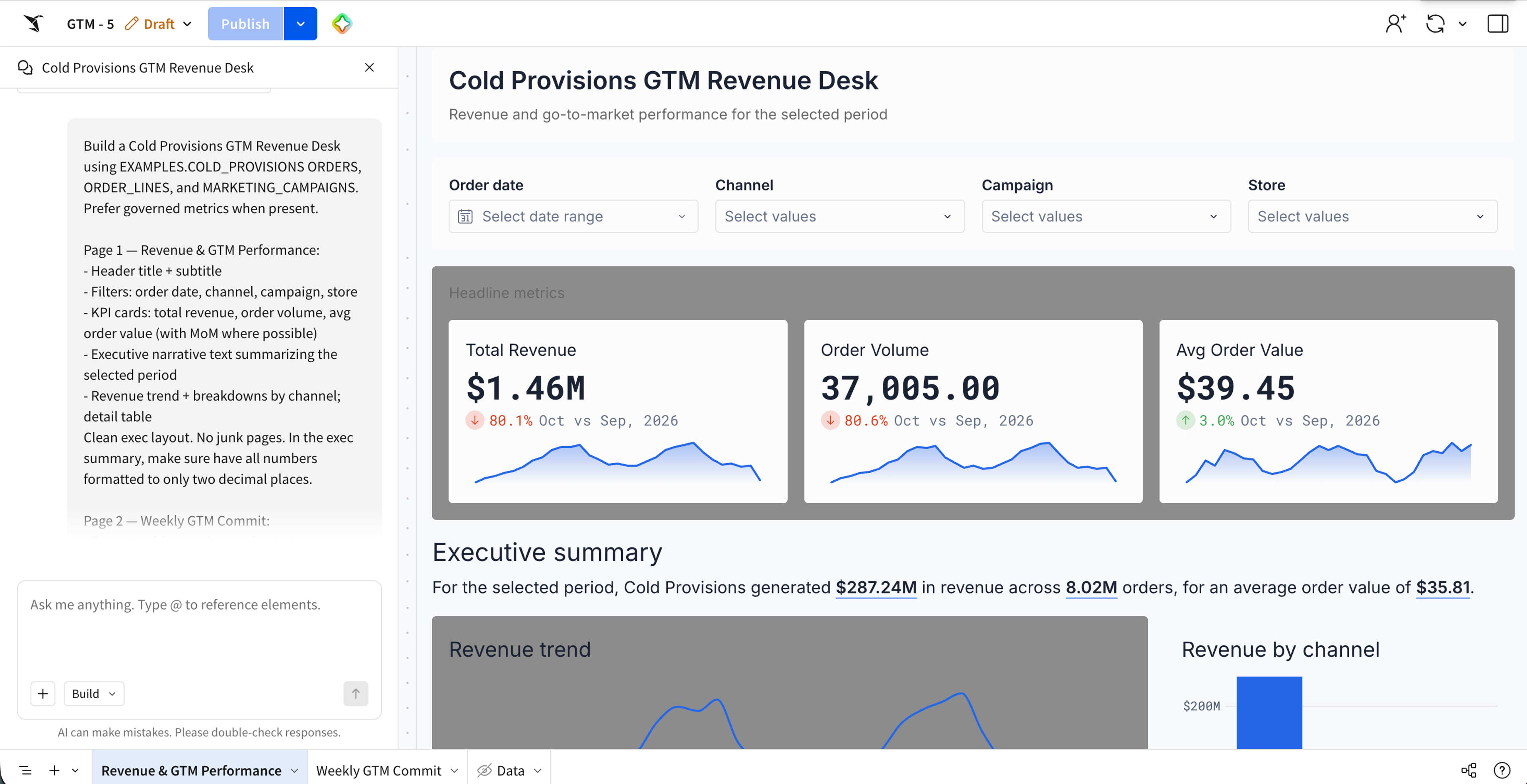
For a more complex or open-ended request, switch to plan mode first. Sigma Assistant proposes an approach without touching the workbook: which pages and elements it intends to create, the structure it has in mind, and the data sources it plans to use. Review it, edit the plan directly, or refine it, then ask Sigma Assistant to build it.
2. Build a simple app
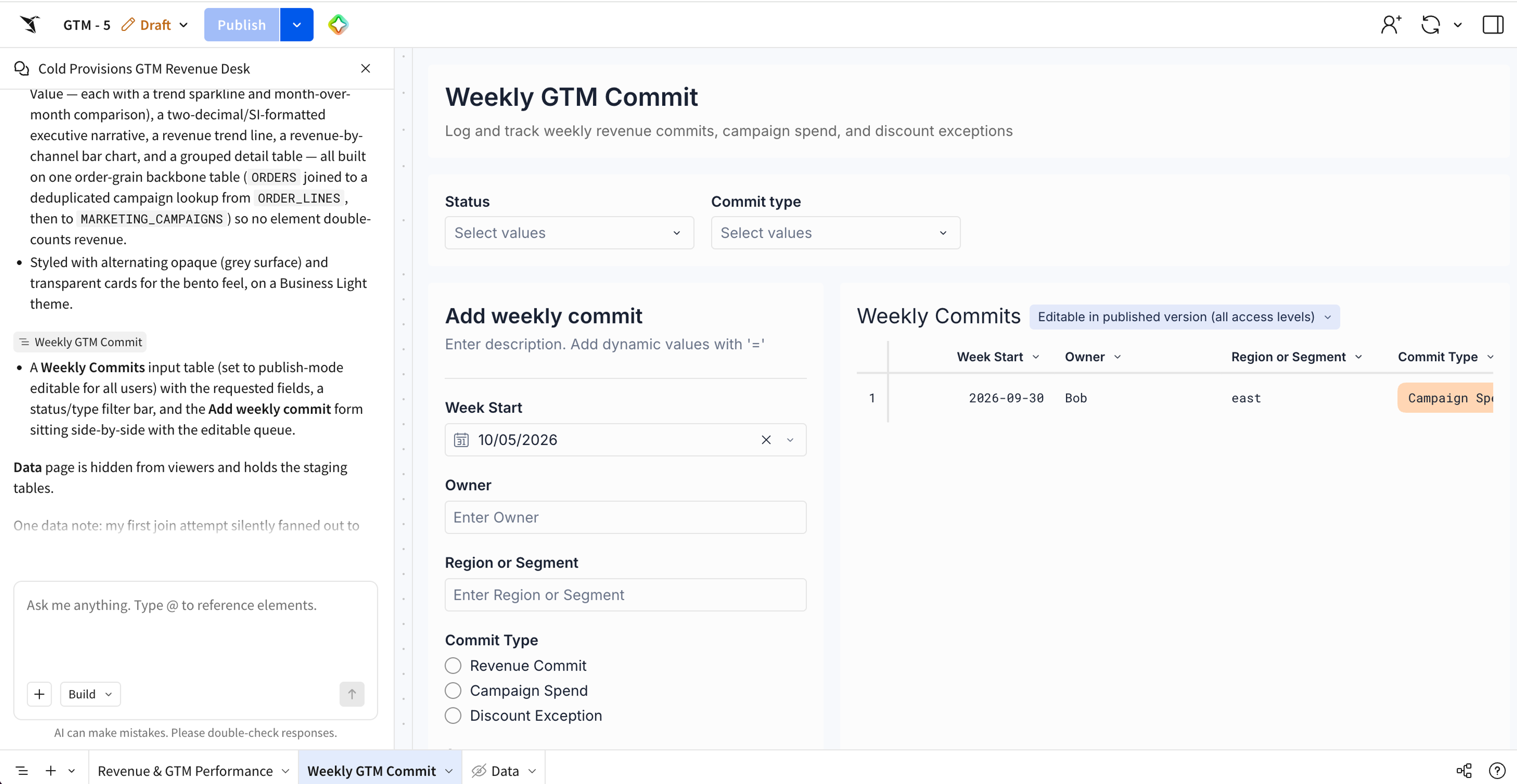
In Sigma, you can turn any dashboard into a functional application by adding in actions, forms and input tables, which write data back to the warehouse. Sigma Assistant can build these simple apps.
For example, ask for a forecast review where regional managers enter their own adjustments, or a pipeline app where reps update close dates, and Sigma Assistant builds the input tables alongside the charts, forms, actions and the layout that connects them all into one build.
Actions are what turn a page into a workflow. A finance team collecting budget inputs can have a form to fill, notify the department owner, and refresh the view, without anyone wiring that sequence up by hand. Entries go back to your warehouse as row-level inserts.
3. Build on top of existing workbooks
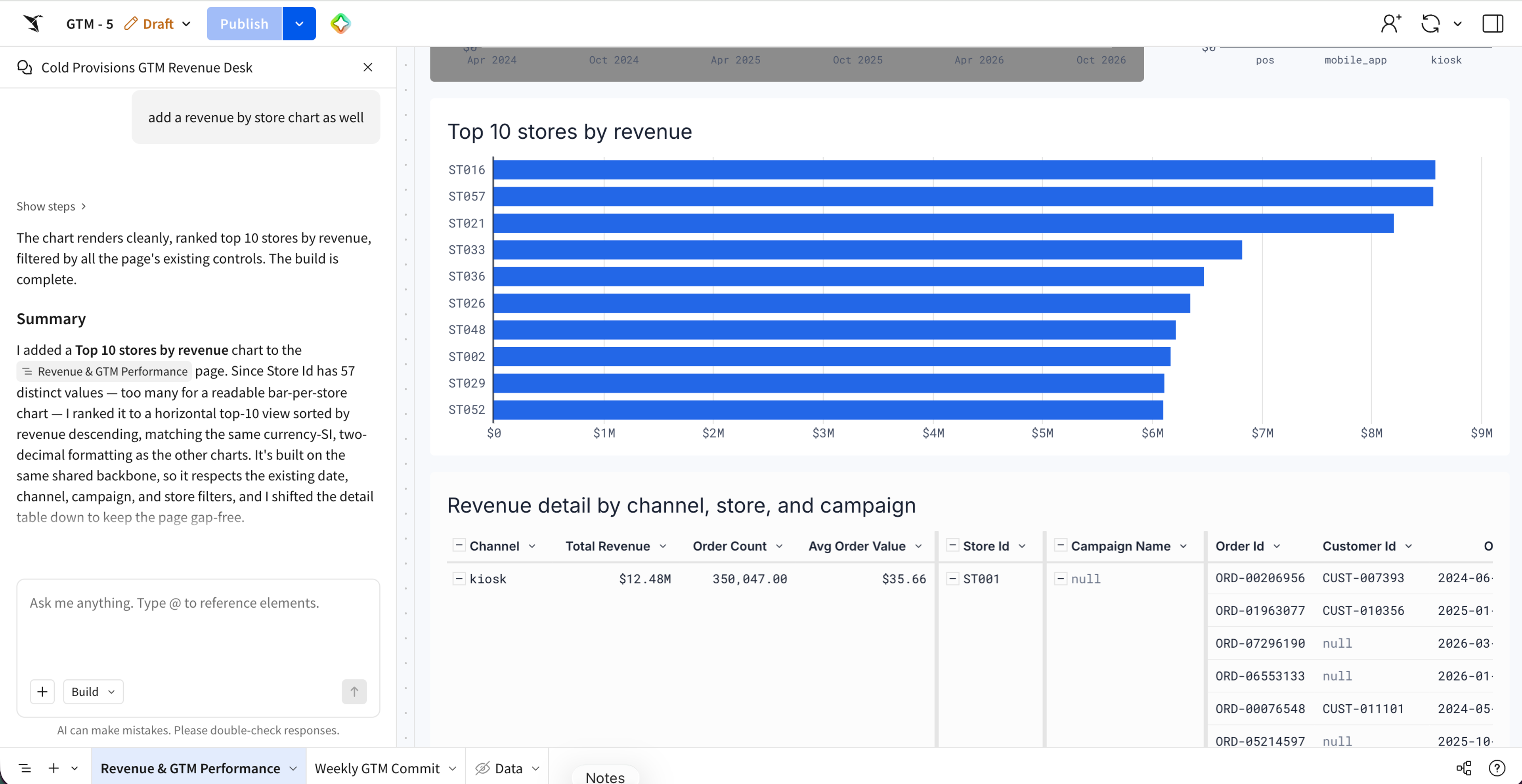
While Sigma Assistant is great for building from scratch, it is also a very capable copilot that can help you iterate, investigate, and edit existing dashboards and apps.
Point it at a workbook you've already built and ask for another page, another set of tiles, or a section, and it adds to the existing structure instead of producing a new copy alongside it.
For instance, adding a regional breakdown to a quarterly review takes a simple prompt. Every workbook your team has already built becomes a starting point instead of something to work around.
Benefits of using Sigma Assistant build mode
Reduce build time
The time it takes to build a dashboard typically determines which ones get built. The big recurring ones are worth an afternoon. The smaller, more specific questions get a CSV export that nobody can find next week. Building a dashboard or app generally can involve a lot of upfront work: tables, joins, chart types, layout, filters, and formatting to name a few. Build mode lowers that threshold, where now it takes a few minutes to generate the first iteration and time can be spent on analysis and decision making based on the dashboard.
Enable anyone to build with complex logic
Sigma’s flexibility is its strength. From one interface you can design a dashboard, bring in live data, turn it into an app with actions and writeback, schedule pixel-perfect reports, and add in AI automations. There are limitless ways to use Sigma. But the flip side of that means not everyone building in Sigma knows what capabilities are available, or knows how to build with more complex logic.
Sigma Assistant build mode takes the burden of prior knowledge off the user. You don't have to know every Sigma feature or analytical concept. Simply describe what you need, like “show me trailing 12-month revenue by region, with a filter for product line” or “add a form where managers submit headcount requests and route them for approval,” and Sigma Assistant builds it. No prior knowledge required.
Validate anything built with AI
Sigma Assistant builds from the context your organization has already established: data models, certified metrics, and endorsed workbooks that signal which sources your data team stands behind.
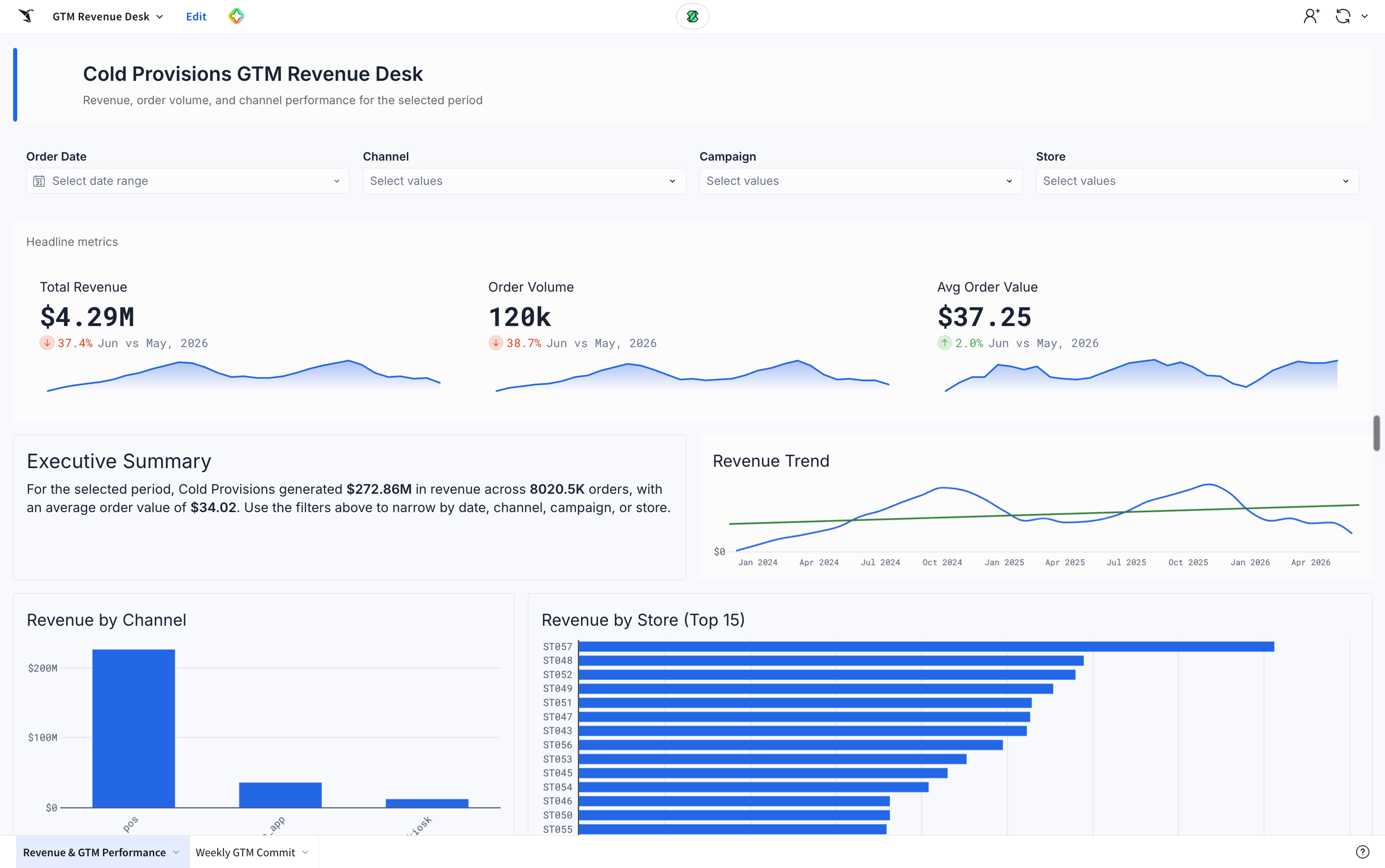
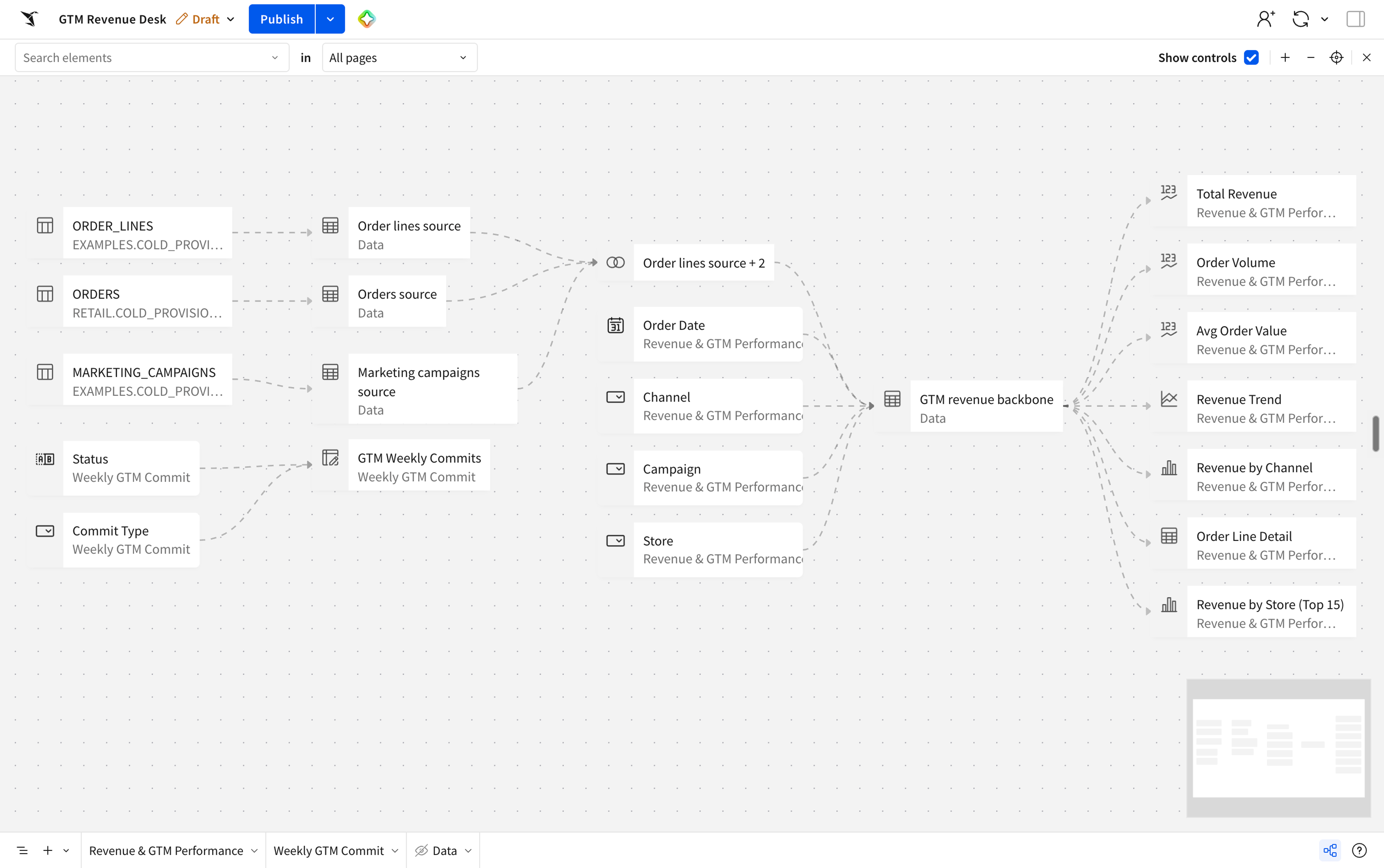
Every element traces back to the warehouse tables and data models underneath it, so you can check the lineage before you share. Because everything runs inside Sigma, viewers see only the data their permissions allow, just as they would in anything you build by hand.
Refine any part without rebuilding the rest
The first version of a dashboard is rarely the last, because questions change and stakeholders ask for one more view. Build mode lets you change one thing and leave the rest of the workbook as it is:
- Switch between prompting Sigma Assistant and editing in Sigma's drag-and-drop UI at any point.
- Select a single element and ask to edit with a prompt to change that element.
- Point Sigma Assistant at a workbook you've already built and ask for another page, section, or set of KPIs. It adds to the existing structure instead of creating a copy.
Why build dashboards and apps with Sigma Assistant
The Sigma Assistant build mode works on the same governed platform you already use for analytics, so what it produces inherits your controls rather than sitting beside them.
- Governed by default: permissions come from the account and connection you already configured. Sigma Assistant won't show a viewer data they aren't cleared for.
- Built on live warehouse data: builds run against your warehouse and reuse the data models your team already defined. There are no extracts to refresh and no second security model to keep in sync.
- Editable, familiar output: everything Sigma Assistant produces is a Sigma workbook element. There's nothing to maintain separately.
- Built on what you already have: point Sigma Assistant at existing work and it extends it rather than producing a parallel copy.
What's coming next for Sigma Assistant build mode
Next we're working on building from existing assets you share, so Assistant can match the style of your workbooks, elements, uploaded images, PDFs with minimal direction. We're also adding the ability to author your own skills, so your team's way of building something complex doesn't have to be described from scratch each time.
Start building with Sigma Assistant
Already using Sigma? Open a workbook and ask Sigma Assistant for what you want to build. The docs for using Assistant to build dashboards and apps cover setup and the data source settings your admin controls.
New to Sigma? Request a demo to see build mode work on your own data, or start a free trial.
Frequently asked questions
What do I need to do to use build mode? To use Sigma Assistant build mode, you will need:
- A supported AI provider configured for your organization
- The Use Assistant permissions on your account type
- The create, edit, and publish workbooks permissions on your account type
What's the difference between plan mode and build mode? Plan mode proposes an approach without changing anything, so you can review and edit the plan first. Build mode creates and modifies workbook content.
Can I control which data Sigma Assistant builds from? Yes. Attach a specific table, data model or element and Sigma Assistant builds from that. You can attach more than one, and they stay available as context for follow-up requests.
Can I keep editing after Sigma Assistant builds something? Yes. Everything it produces is an ordinary Sigma element. Edit it by hand, select it and use “Ask or edit with prompt” to change just that one, or keep going in the Sigma Assistant chat interface.