Introducing AI Budgets: Set limits on AI spend in Sigma

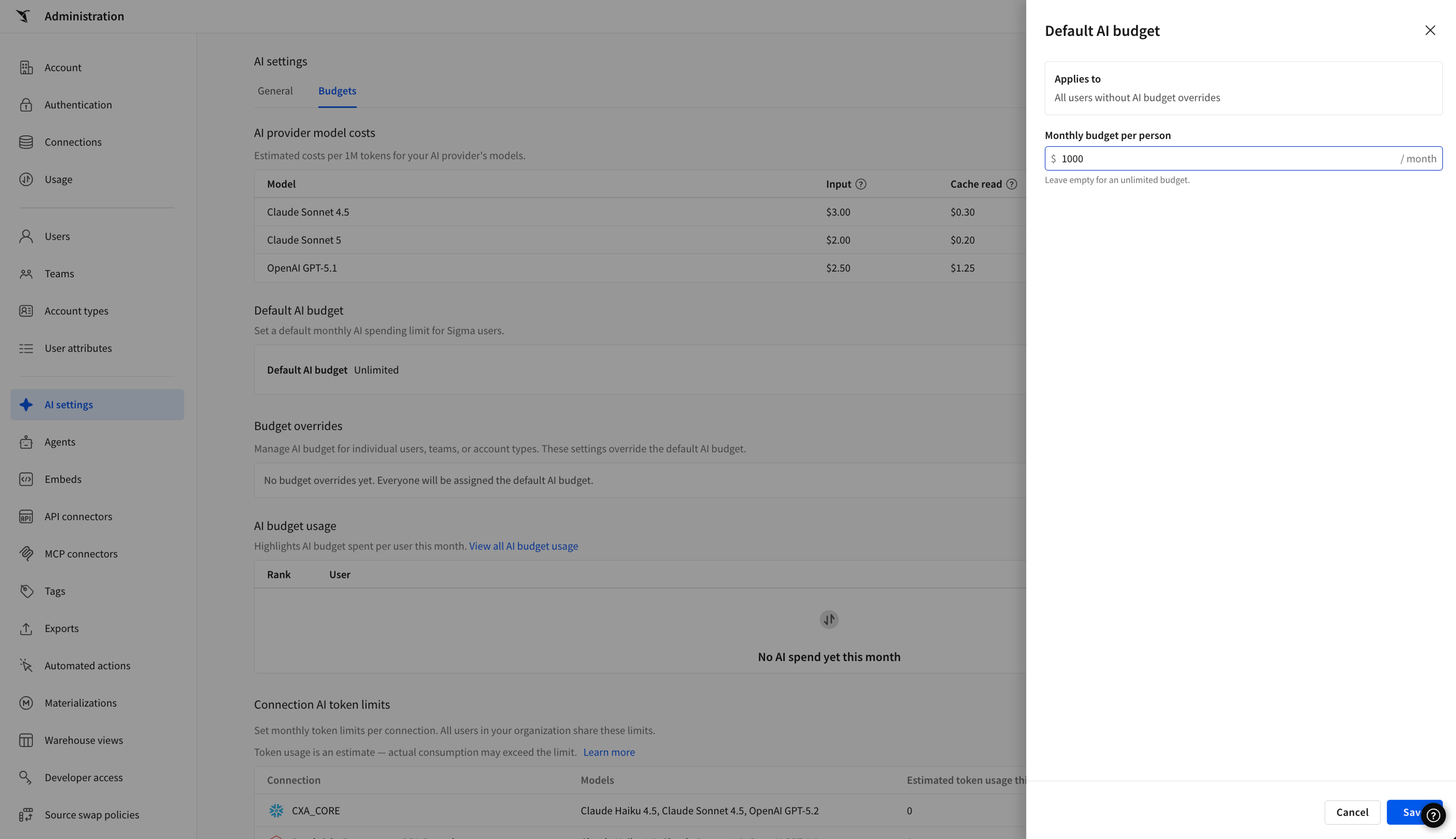
Today we're launching AI Budgets in public beta. With AI Budgets, Sigma admins can now set a monthly AI spend cap for every user in their organization. Start with a default budget, then override it as needed for specific teams, account types, or individual users.
With AI Budgets, your spend on Sigma AI features stays within the cap you planned for, and the users who generate high value from AI usage still get the access they need.
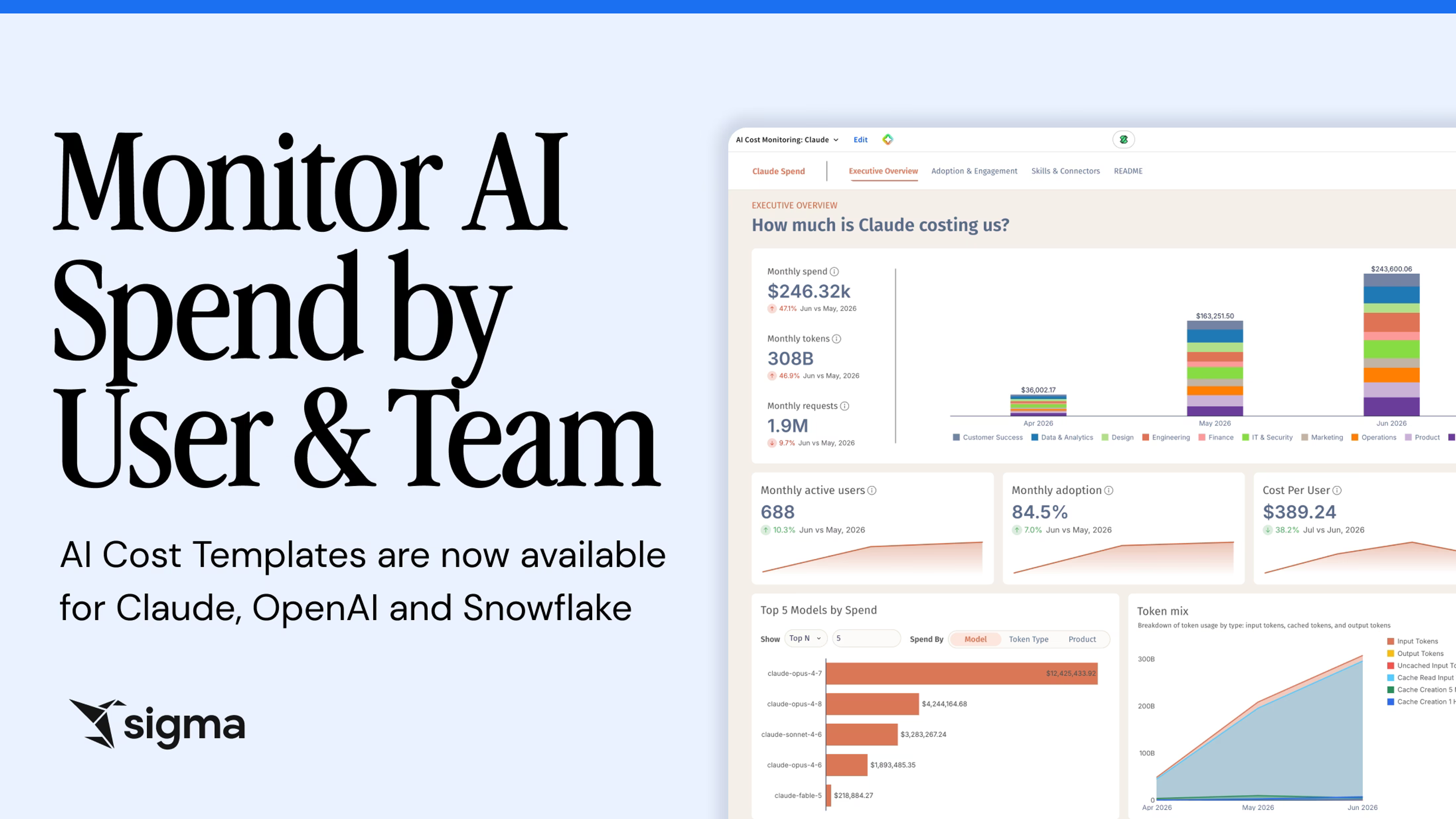
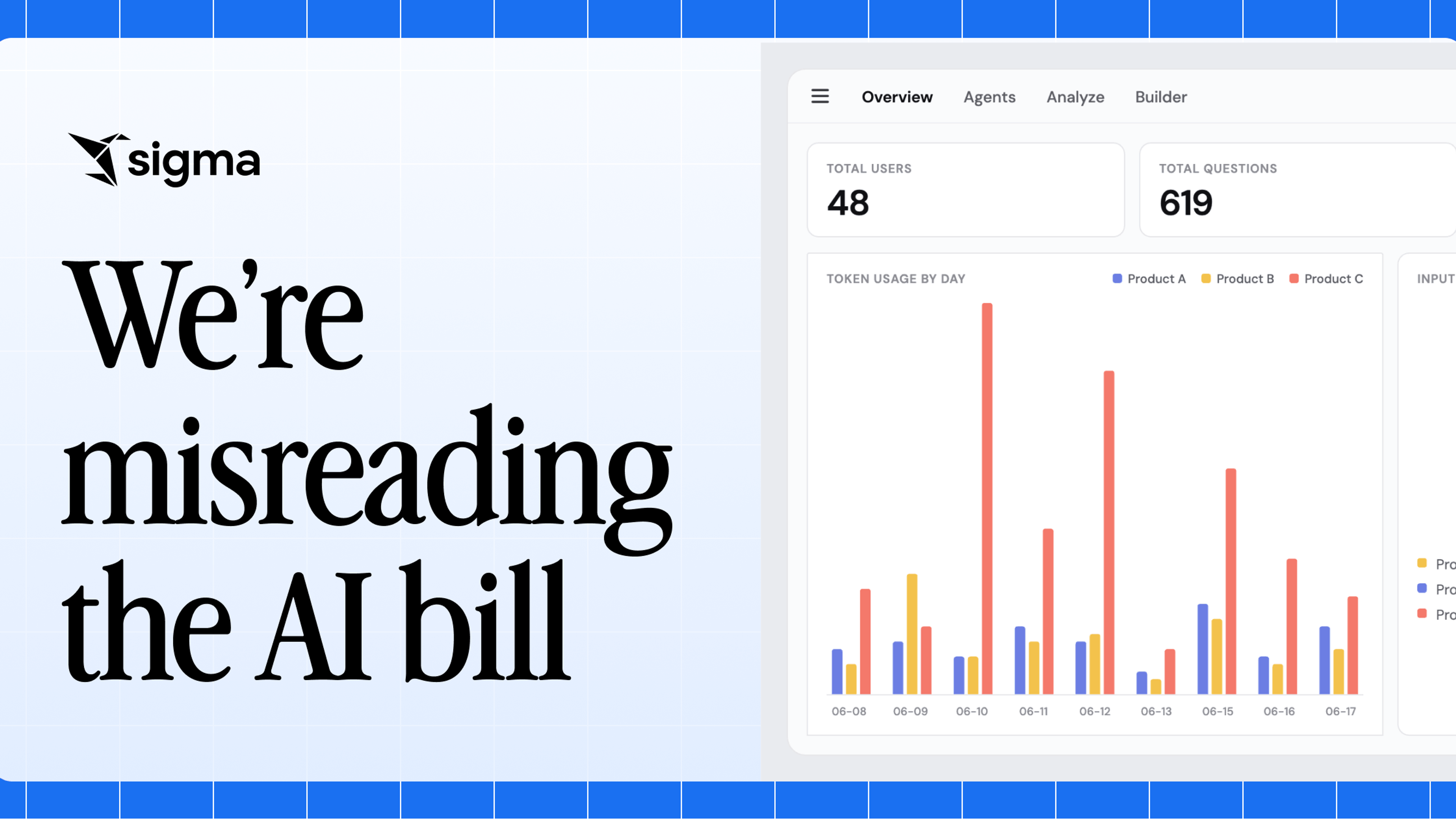
You can already see how AI is used inside Sigma with the AI usage dashboard, and track AI spend outside Sigma, across Claude, OpenAI, and Snowflake, with Sigma’s AI cost monitoring templates. Now, with AI Budgets, you can control AI spend in Sigma, too. AI Budgets is available for all Sigma customers today.
Why set AI budgets?
AI is moving fast across the industry. New models ship every few months, teams keep finding new ways to use them, and AI spend grows along with the value. In most organizations, cost controls haven’t caught up. By the time the invoice arrives or the dashboards refresh, the money is already spent. As Sigma releases more powerful AI capabilities like Sigma agents and Sigma Assistant build mode, we’re building these guardrails in from the start so you can scale AI usage with confidence.
Without those guardrails, teams often run into:
- The one heavy user: One person uses more tokens than the rest of the team combined.
- The expensive default: A new, highly capable model launches and becomes the go-to for everything, including work a cheaper model handles just as well. Spend climbs even though no one decided it should.
- The budget timing mismatch: Finance sets the AI budget annually or quarterly, but costs come in monthly and fluctuate. Without a monthly check, it’s hard to tell whether you’re on track until you’ve already gone over.
- The policy no one can enforce: Usage guidelines are easy to write but hard to apply consistently across platforms, models, teams, users, and workflows.
When AI spend runs over, the blunt fix is to cut access for everyone, which slows down the teams getting the most value. With AI Budgets, you can set limits strategically and keep high-value work moving.
Three ways Sigma admins control spend with AI Budgets
AI Budgets gives admins three ways to shape spend.
1. Set a default budget for every user
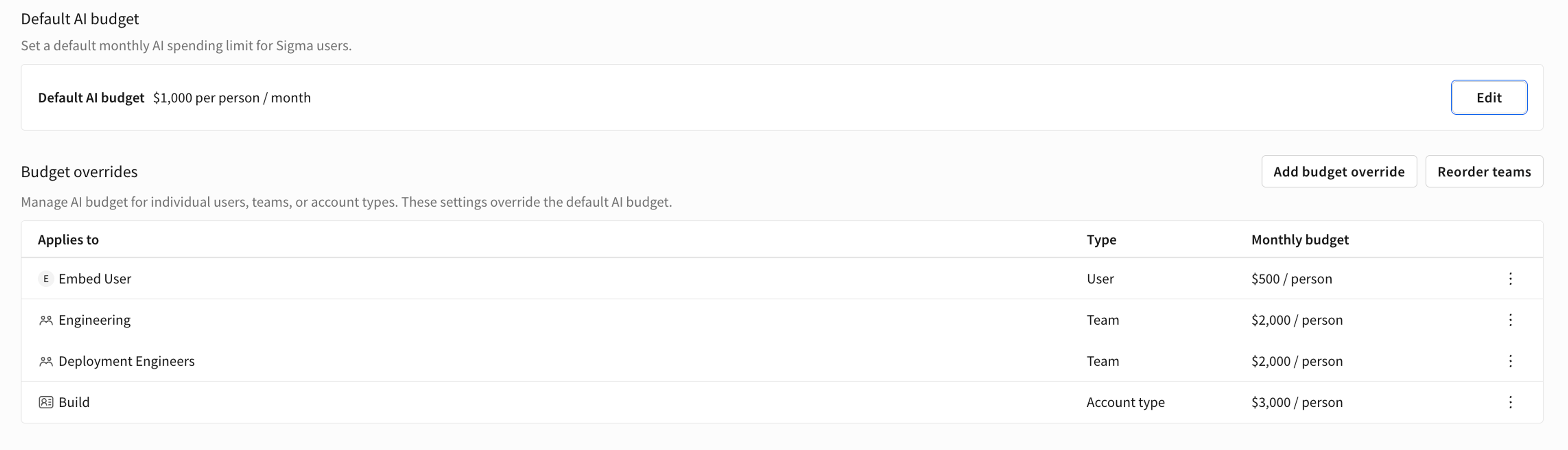
The default budget is a personal monthly limit for everyone who doesn't have a more specific budget. Set it once, and every user in your organization is set to the same default cap, including embed users and guest users.

2. Give specific users more room, permanently or temporarily
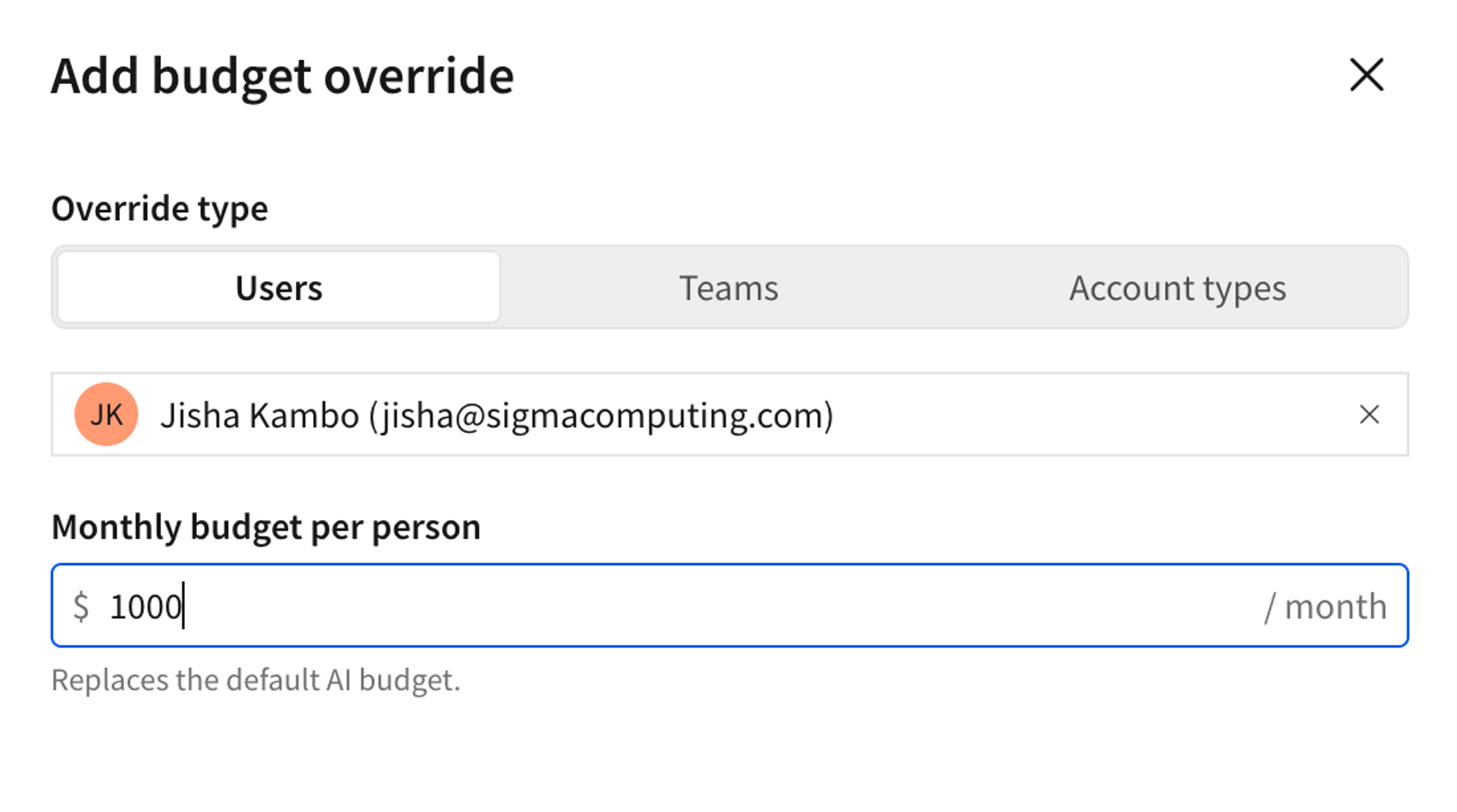
Admins can set overrides to raise or lower budgets from the default limit. These can be added or removed at any time. Give an analyst who builds data apps a permanently higher budget, or give someone a temporary bump while they finish an AI-heavy project, then delete the override when they're done.
3. Match budgets to team and account types
Aligning AI budgets with your organizational structure is simple with team and account type overrides. For example, many users with the Build license in Sigma use Sigma Assistant—a powerful AI feature—to build apps and workbooks. Therefore, a Sigma admin can assign higher spending limits to users with the Build license compared to those with the View license.
Admins can also define department-level budgets to keep AI expenses aligned with each team's allocated budget. For embedded analytics products, where AI spend from your customers' users appears on your organization's bill, you can place each customer's users into a dedicated team and assign a team budget—ensuring usage stays strictly within your negotiated agreement.
When a user has more than one budget, the most specific one applies: a user override first, then a team override, then an account type override, then the default. If someone belongs to several teams with overrides, you set which team takes priority.
What happens when a user reaches their budget?
Before each AI request, Sigma checks the user's spend for the month. Once they reach their budget, Sigma blocks new AI requests and shows a message that they've reached their monthly AI budget and should contact their Sigma admin. The request that crosses the line can finish slightly over budget, and the next one is blocked.
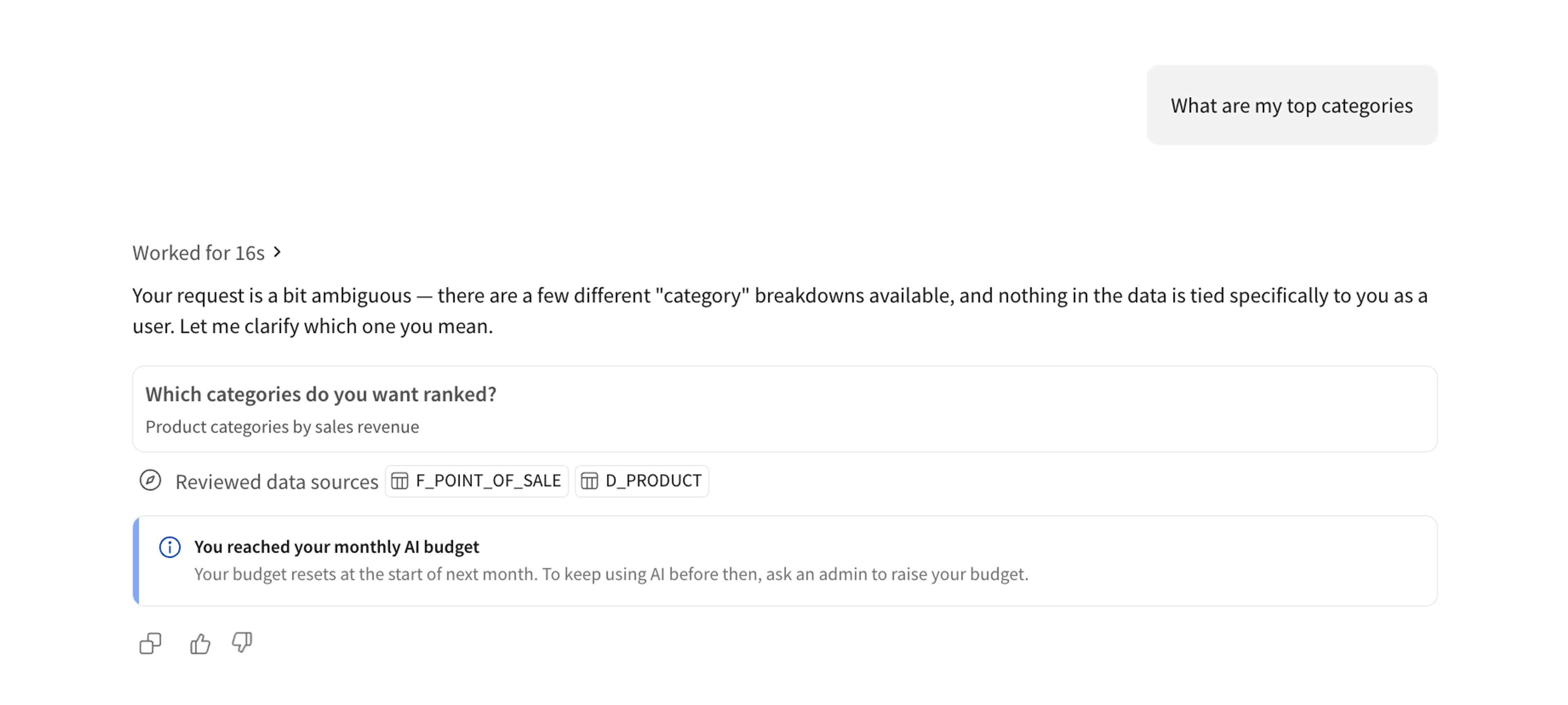
The user gets access back to AI features when an admin raises or removes their budget, or when the budget resets at the start of the next calendar month.
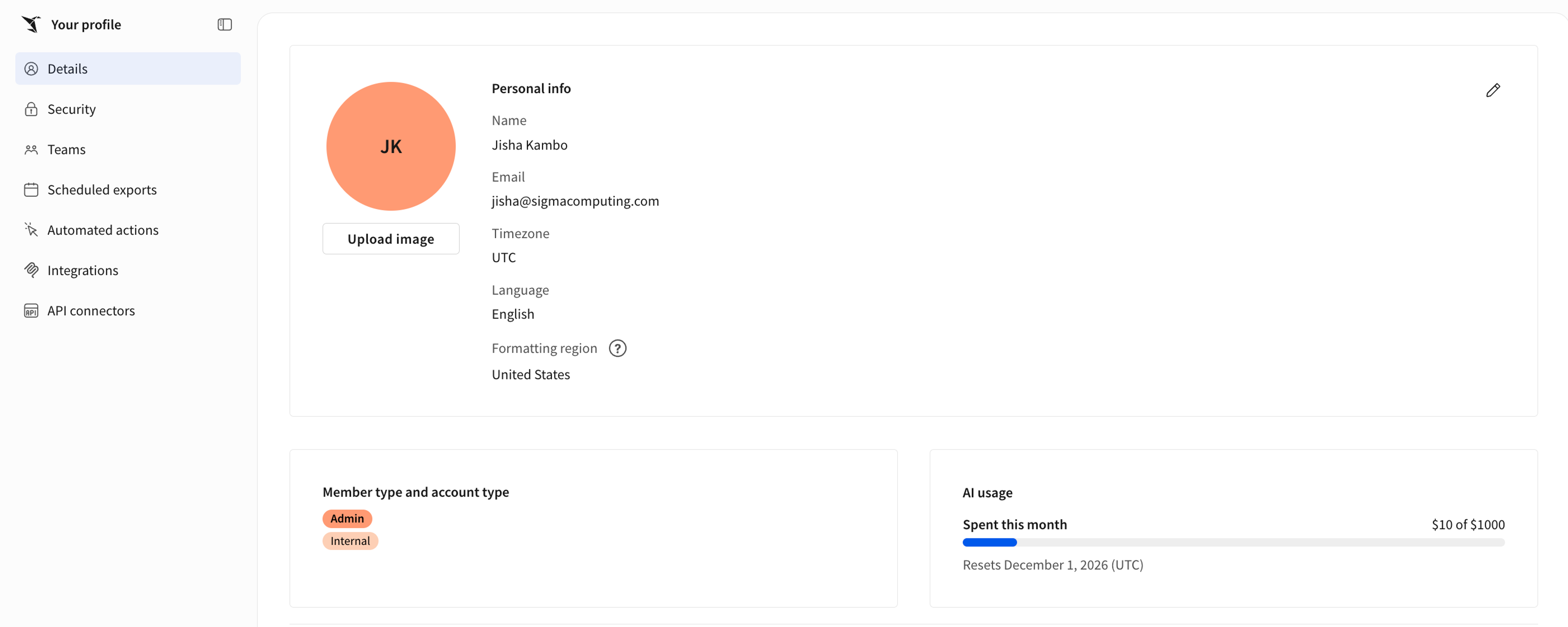
Users get warned when they reach 80% of their budget, and can also see their monthly budget and how much of it they've used in the AI usage section of their user profile, so they always know how close they are to the limit.
Why manage AI spend in Sigma?
AI Budgets sets personal monthly limits enforced per user. Each budget covers that person's usage across every tracked AI feature in Sigma, so one heavy user reaches their own limit without cutting off the rest of the organization.
AI Budgets lives where your users, teams, and account types already do:
- Built on the structure you already manage: Budgets use the teams and account types you already have in Sigma, so there's no separate system to keep in sync.
- Priced at your rates: Custom model prices let budgets reflect your negotiated contract.
- Covers every user type: Budgets apply to internal users, embed users, and guest users.
What’s next?
Selecting specific LLM providers and models for Sigma’s AI features provides another powerful mechanism for controlling costs and enhancing AI governance. Next, you’ll be able to assign providers with your choice of models to individuals and teams in your org, allowing you to further optimize your AI spend.
Start using AI Budgets in Sigma
Already a Sigma customer? If you're a Sigma admin, go to Administration > AI settings > Budgets to set your first budget. New to Sigma? Request a demo to see how Sigma keeps AI spend governed and predictable.
Frequently asked questions
Is there a default budget?
No. Until an admin sets a default budget for the org or an override, every user's budget is unlimited.
What model prices are used to enforce budgets?
Budget spend is an estimate. Sigma calculates spend using the model prices set in Sigma, so it can differ from your provider's invoice. Setting custom model prices instead of list prices brings it closer to what you actually pay.
Do teams share a budget?
No. A team or account type budget applies separately to each person in that group.
Can I get alerts when I approach my budget?
Yes, individual users see a notification above the chat box when they reach 80% of their usage or above. Admins can also monitor and alert on spend in the AI usage dashboard.
Can budgets use a currency other than US dollars, or a period other than a month?
No. Budgets are calculated in US dollars and reset each calendar month.
What counts toward an AI budget?
Review this list of features covered by AI Budgets.