Build Sigma apps with a single request using ChatGPT

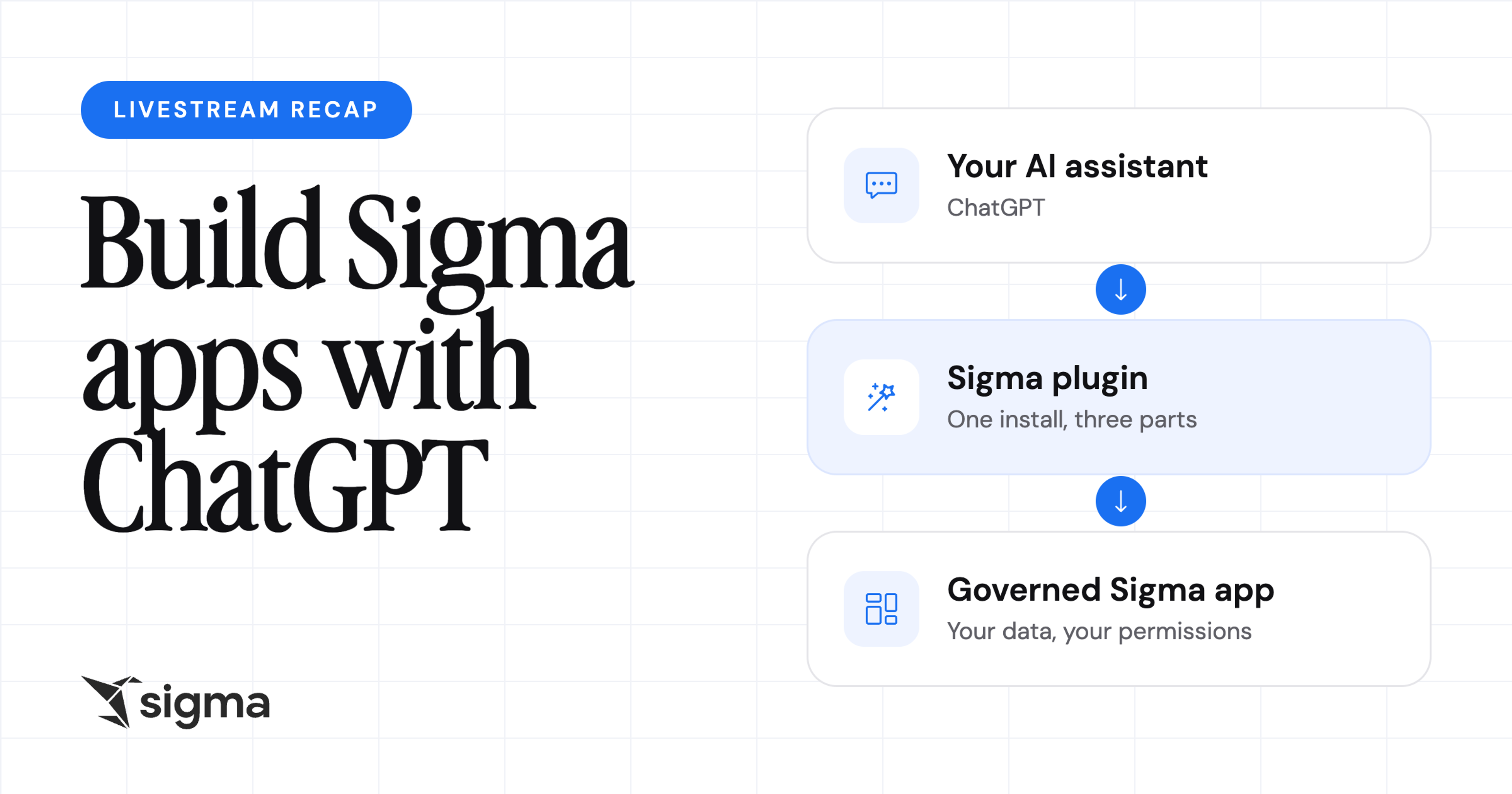
With the Sigma plugin for ChatGPT, you can describe an app in plain language and have ChatGPT build it in Sigma, on your team’s trusted, governed data. The Sigma plugin for ChatGPT is a single install that bundles three things: a connector to your Sigma organization (the Sigma MCP server, built on the Model Context Protocol, or MCP), agent skills that teach ChatGPT how to build in Sigma, and the ability to assess and iterate its own work through screenshotting the build.
Sigma is a cloud analytics platform where teams build dashboards, reports, and apps directly on their data warehouse. In our recent livestream, Build Sigma Apps with a Single Prompt using ChatGPT, our product experts showed the build process, from setup and initial prompt to a finished app. This livestream recap covers how to set up the Sigma plugin for ChatGPT, what the livestream demo built in less than an hour, and how to get better results when building in Sigma with AI assistants.
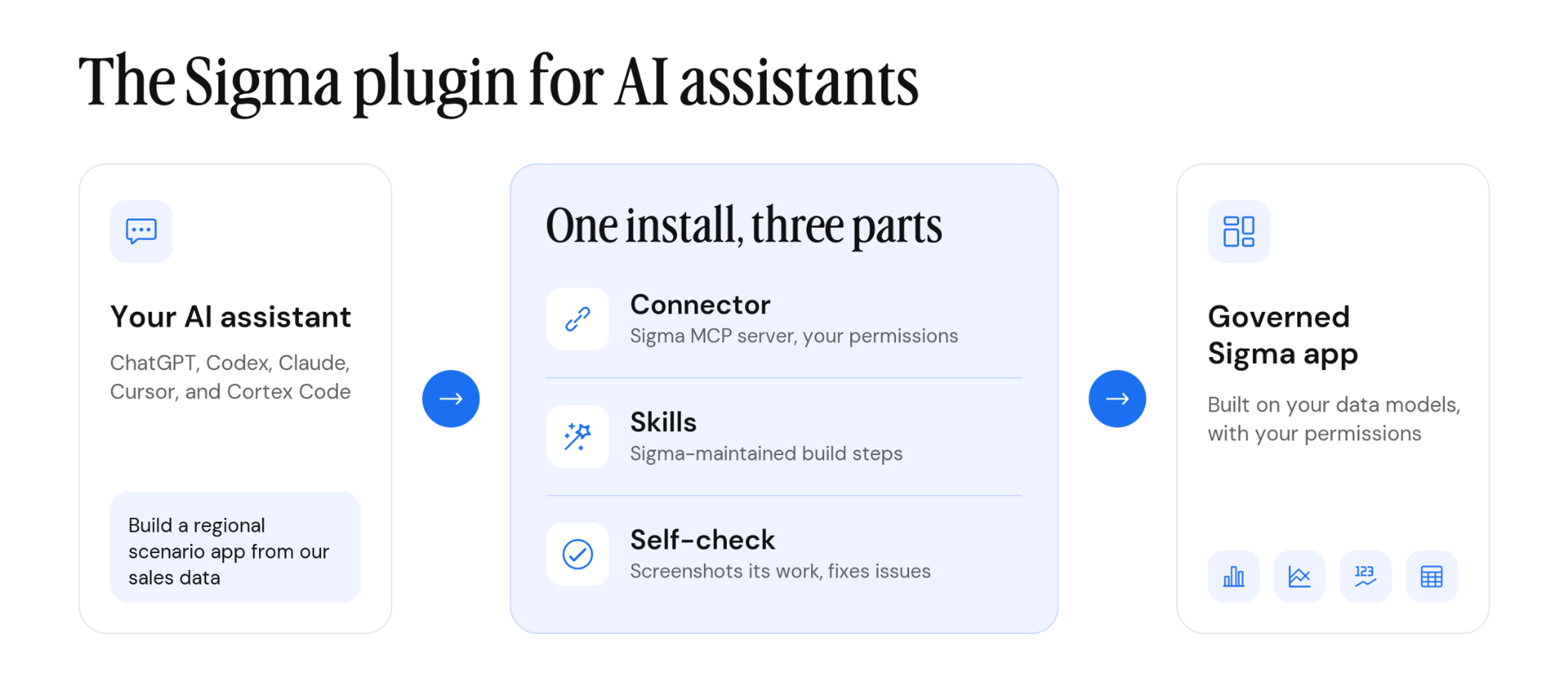
Key takeaways
- The Sigma plugin for ChatGPT lets ChatGPT search your Sigma content, query data, and build workbooks from a plain-language request.
- In less than one hour, our demo built a scenario modeling app with input tables, regional performance pages, and a Sigma agent that explains the model underneath.
- Permissions carry over automatically. ChatGPT signs in to Sigma with OAuth, so it can only see and do what your Sigma account allows.
- Specific requests produce better apps. Asking for the navigation, modal form, and actions you want beats a general request.
- You can keep refining the app in ChatGPT, finish a half-built workbook, or switch between building in ChatGPT or the Sigma UI.
Setting up ChatGPT to build in Sigma in 3 steps
Choose the plugin that matches the region where your Sigma organization is hosted, install the plugin, then authenticate and sign in.
- Find your region. In Sigma, go to Administration > Account > General Settings and read the Cloud field under Site.
- Install the plugin. In the ChatGPT desktop app, add the marketplace from the Sigma plugin repository on GitHub, then install the plugin for your region.
- Connect and sign in. Open the plugin, authenticate the Sigma connector, and approve the OAuth sign-in.
Going from a question to a working app
Start with a question about governed data
The demo opened with a request to use the Sigma plugin to review recent sales data and assess regional performance for the previous month. ChatGPT found an existing governed workbook in the organization, checked its definitions and latest data, and returned a summary of the strongest and weakest regions.
Starting with a question will provide the foundational problem that your app is trying to solve and tells ChatGPT which data matters for this problem, which can then spark the idea for what to build.
Turn the answer into a scenario modeling app
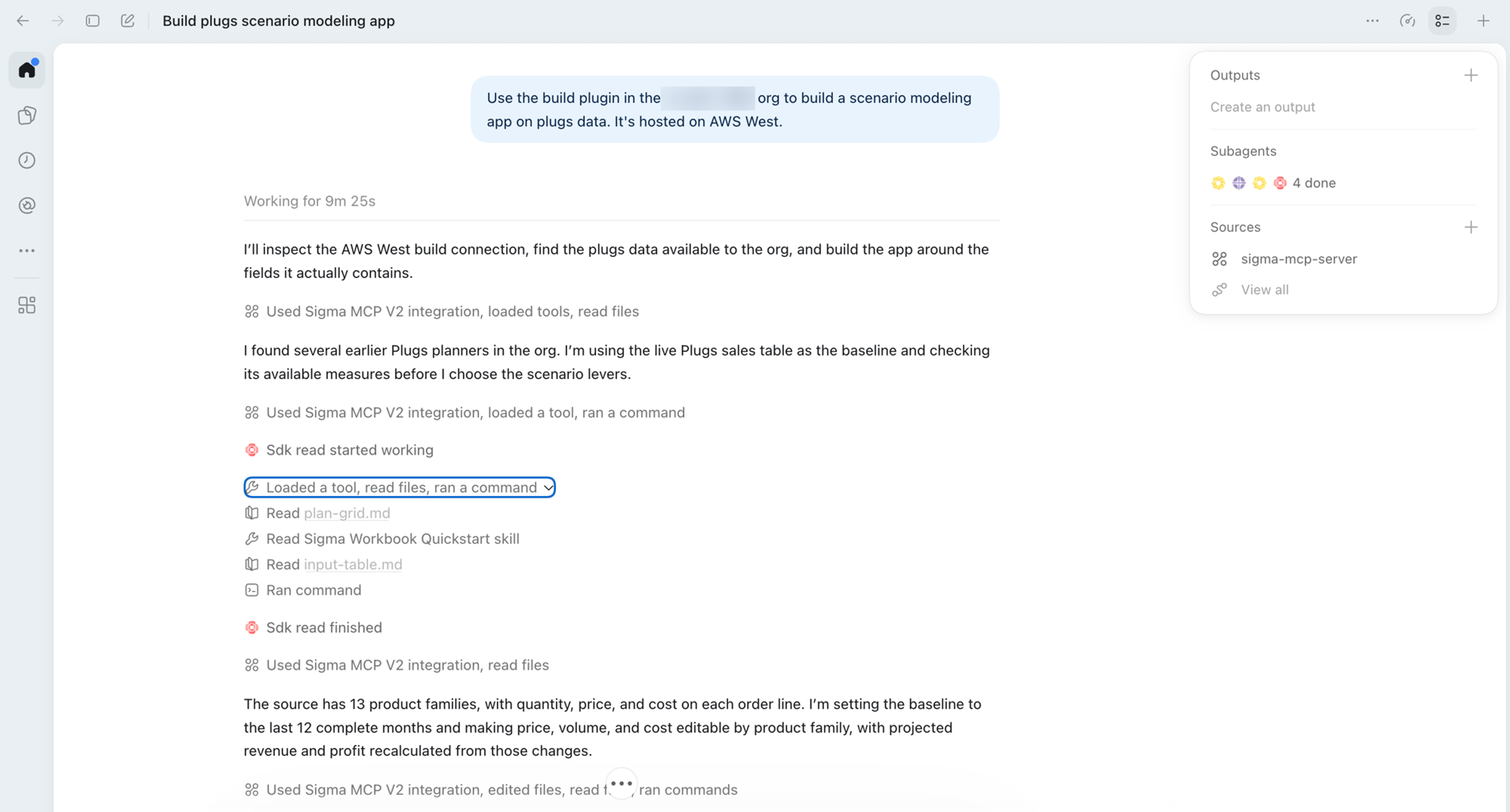
Next, the demo requested to build a scenario modeling app where regional managers model their region's revenue and performance, with a Sigma agent included. ChatGPT asked a clarifying question first: should managers share one set of assumptions or each have their own? The demo chose a separate scenario for each manager.
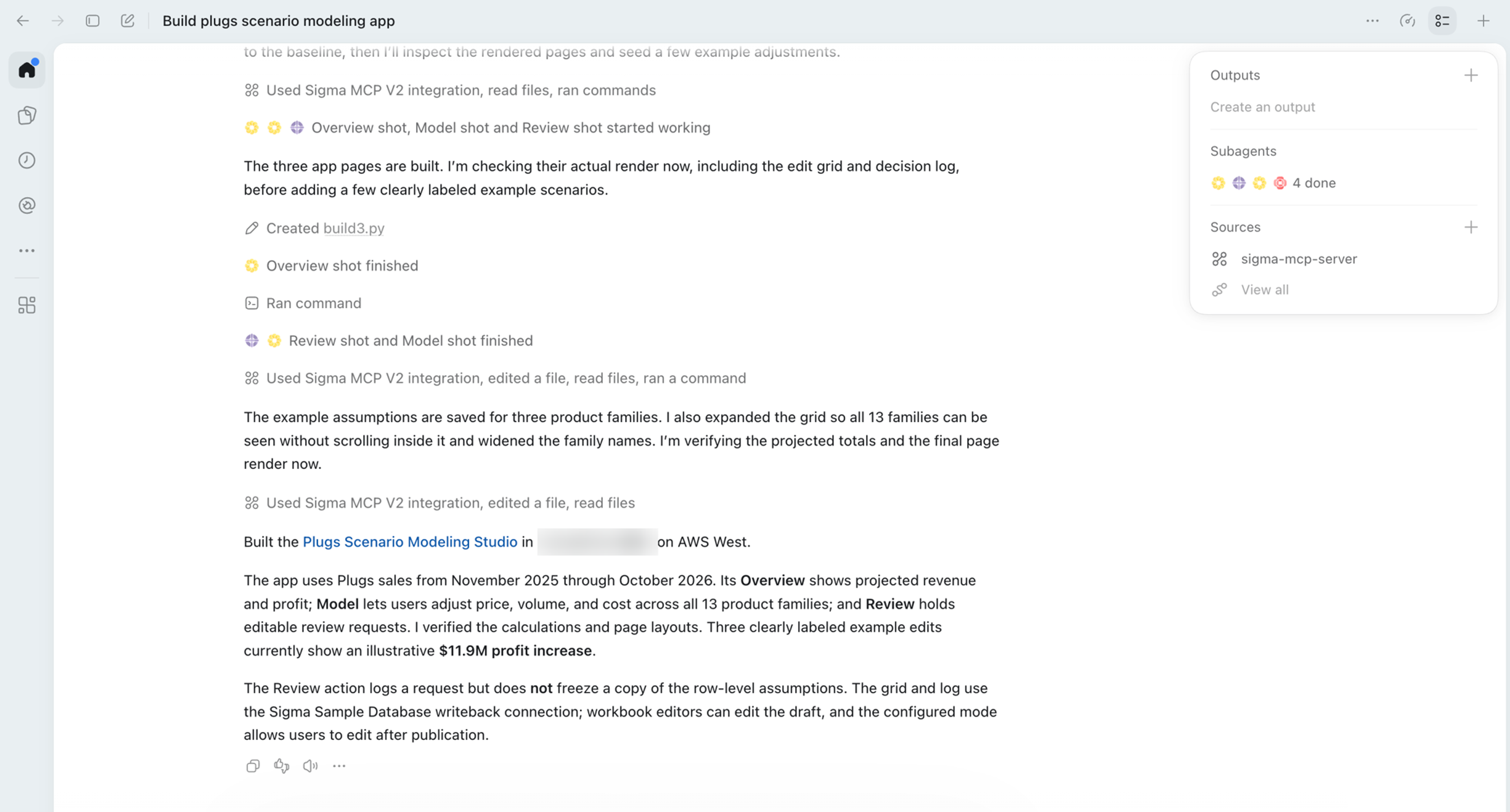
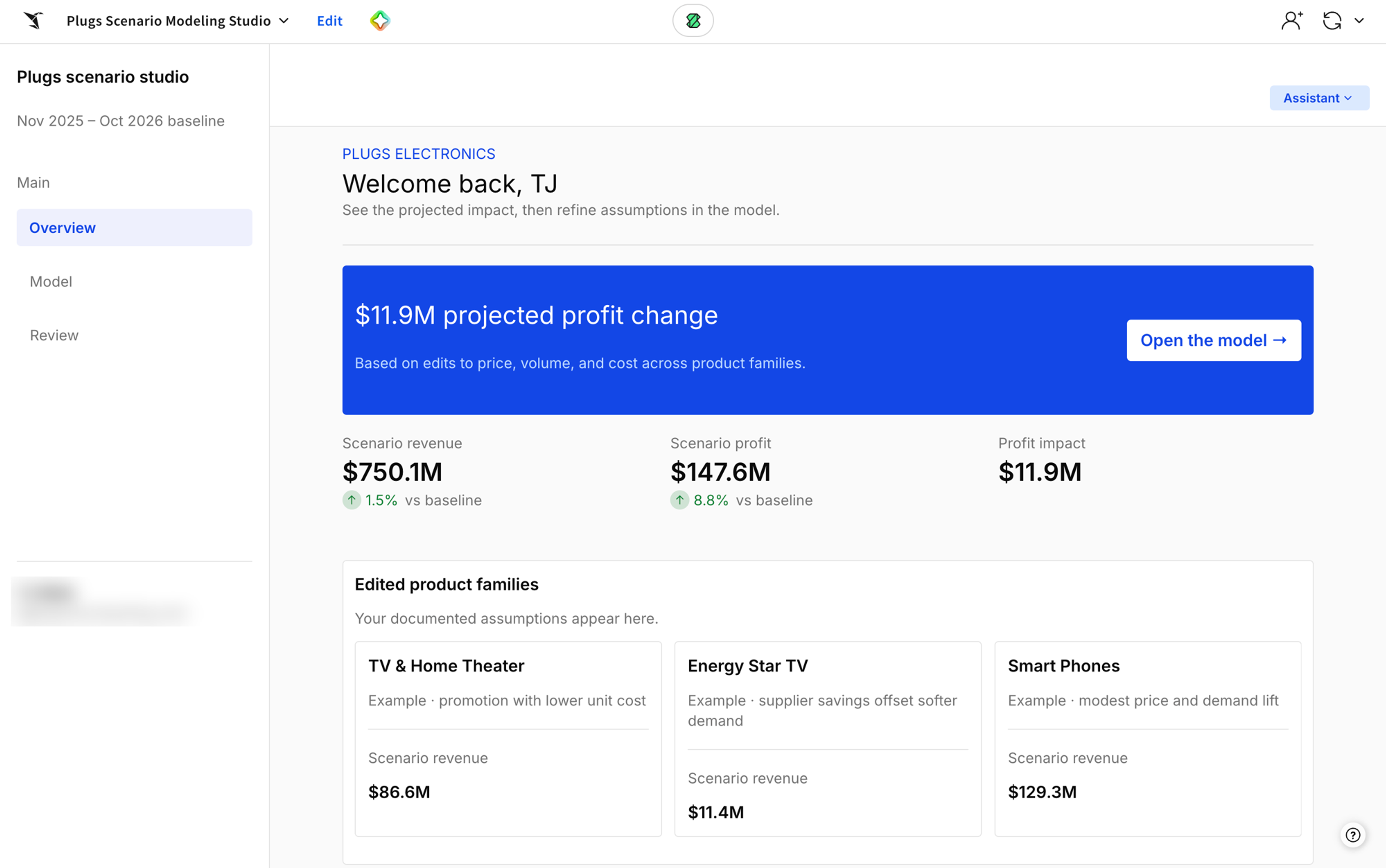
ChatGPT then built the app by changing only the parts that needed updating, instead of rewriting everything from scratch each time. To review its work it took screenshots of the pages it had built and checked the saved scenario filter before sharing a link. The finished app included:
- A scenario form. Managers pick a region, enter changes to units, price, and unit cost, and save the scenario to an input table that stores it in the data platform.
- A modeled view. Each saved scenario appears next to the base case, so managers can see the effect on projected revenue and gross margin.
- A regional performance page. Managers can check how each region is doing against actuals.
- An analyst tab with a Sigma agent. Managers can ask the agent questions about actuals, saved assumptions, and what drives modeled revenue, profit, or margin.
ChatGPT also added a hidden data tab that holds the data the app builds from, a Sigma best practice built into the plugin's skills. Keeping the source data on a hidden tab means every page builds from the same data, and people using the app only see the finished pages.
Test the Sigma agent on a hypothetical scenario
To check the agent’s knowledge and capabilities, the demo saved a hypothetical East region scenario and asked whether it was realistic. The agent pulled the region's actuals and saved scenarios, then compared assumptions against actual results. The agent judged the scenario realistic, since the proposed changes were small and consistent with the region’s actuals.
Iterate with follow-up requests
Iterating on the first app build is as simple as continuing to chat with ChatGPT. In our livestream demo, a follow-up request asked for navigation, a modal form, and actions for saving and reviewing scenarios. ChatGPT updated the existing app build, replaced the visible page tabs with a navigation menu, moved the scenario form into a modal, and opened the result in a browser to confirm it rendered correctly.
4 ways to get better results when building with ChatGPT
Be explicit about what you want
In the demo, short phrases to describe simple features like "navigation," "form modal," and "actions" worked because the plugin's skills already know how to build those components. For bigger or more complex builds, our experts will often spend an hour or two writing a detailed request that covers colors, layout, and ideal workflows. Being as prescriptive as possible about the end product will give you a stronger starting point and avoid endless iterations.
Add your own skills and guardrails
Your team can add its own skills for logos, design standards, and guardrails, either in your AI assistant's settings or in a custom version of the plugin. You can also set up skills to require explicit confirmation before ChatGPT updates your app, establishing a human-in-the-loop checkpoint so users know what's about to change each time.
Finish a half-built workbook
ChatGPT can finish a half-built workbook the way Sigma Assistant can in the workbook itself: it reads what's there, suggests how to finish, and builds the rest. Because edits are targeted, you can move between ChatGPT and the Sigma UI without losing work. This accelerates time-to-finished-product for both workbooks and apps.
Connect other MCP servers for more context
Adding other MCP servers, such as ones for dbt or your data platform, gives ChatGPT more context about your data. With definitions, descriptions, and lineage in view, ChatGPT can see how your metrics are calculated and where the data comes from, so it picks the right tables and columns instead of guessing.
What to know before you build
- The plugin builds workbooks, not data models. Build data models separately (through a JSON or YAML representation is one way), then have ChatGPT build your workbooks on top of them.
- Some features, such as certain filter types, still need the Sigma UI. The plugin doesn't match every UI capability, so build those pieces directly in Sigma.
- Custom visuals take extra steps. A click-through modal on a bar chart works with a modal and actions. A fully custom chart takes a custom Sigma plugin, which is a separate piece of code your team builds, registers with an admin, and adds to a workbook. You can have an AI assistant build the plugin with the workbooks as code agent skills, then add it to your app.
Why build in Sigma using ChatGPT
Building a Sigma app with ChatGPT is a fast way to create a complete, functional app to solve your team’s needs. That means:
- Governed by default. The plugin signs in with your Sigma account, so ChatGPT inherits your permissions. Admins control which connectors are allowed in ChatGPT, and extra approval steps can be added with skills.
- Built once, used by every manager. In our livestream demo, the scenario app, its input tables, and its Sigma agent live in one workbook that all regional managers can open and use.
- Built on what your team already has. ChatGPT found and reused a governed workbook that already existed in the organization, so new apps build on trusted definitions instead of starting over.
Watch the full session and start building
Watch the full livestream session on-demand to see the full walkthrough of the app build with ChatGPT, plus a Q&A on permissions and skills. Start building today with the Sigma plugin or the Sigma plugin repository on GitHub.
New to Sigma? Request a demo to see how building with ChatGPT can work on your live warehouse data.