Connect the Sigma MCP Server to AI Chat Assistants like ChatGPT & Claude

In the last year, the way people work with data has shifted. Instead of opening a BI tool, switching between different browser tabs, and juggling CSVs to get data, they are centralizing their workflow in AI assistants like Claude and ChatGPT. The most forward-thinking teams are automating work they couldn’t before and coming up with novel ways to use data.
It’s an exciting time for the data space, as we reimagine how technology can help every individual go fast—while going safe—with the help of AI.
To that end, we’re excited to share how the Sigma MCP Server can help every business stakeholder get answers to live, governed data in their favorite AI Assistant. The Sigma MCP Server connects directly to any technology with an MCP client, including popular tools like Claude and ChatGPT.
The Sigma MCP Server provides a critical layer of business context for AI Assistants. Sigma ensures your AI assistants get access to your organization's governed analytics layer — curated data models, semantic definitions, and validated workbooks — with your existing Sigma permissions enforced automatically. The result is AI you can trust to answer business questions.
Search, analyze and build with Sigma assets from the AI chat interface
Sigma's MCP Server is built around three core capabilities — Search, Analyze, and Build (coming in May) — each designed to eliminate the back-and-forth between asking a business question and getting a finished data deliverable. Together, they bring the full workflow of data discovery, analysis, and content creation directly into your AI conversation. Here's how each capability works:
1. Search
Once you connect your AI assistant to the Sigma MCP Server, you can discover, inspect, and query data within the chat interface. Discover assets by asking simple questions like, "What data do we have on customer retention?" Sigma’s semantic search capability will automatically surface the most relevant data model, workbooks, and connections, giving you full context on the shape and meaning of the data.
2. Analyze
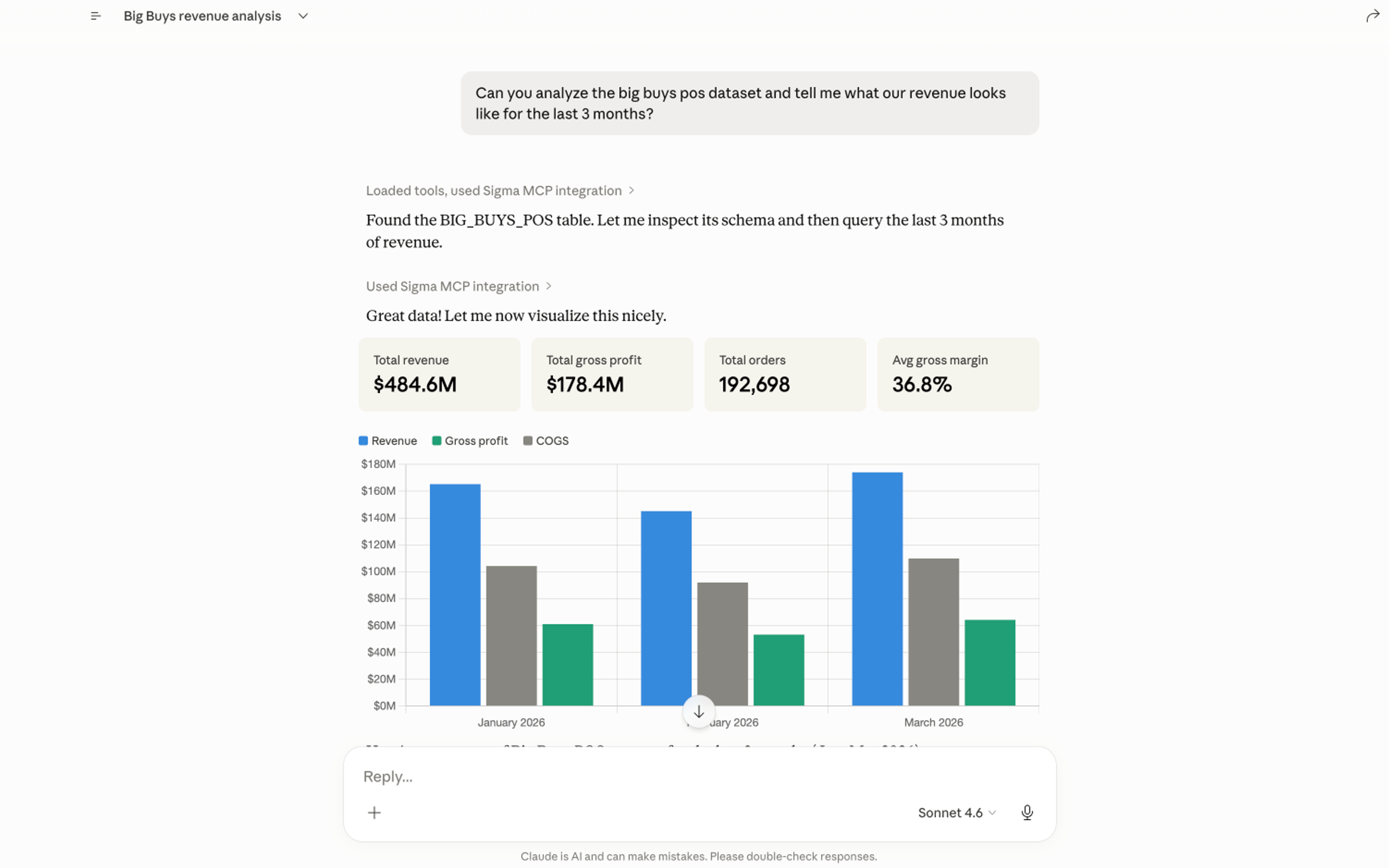
Once your AI Assistant finds the right asset, the Analyze capability takes over: it runs queries and returns results directly into your conversation. The entire workflow from discovery to insight can happen without ever leaving your conversation.
3. Build
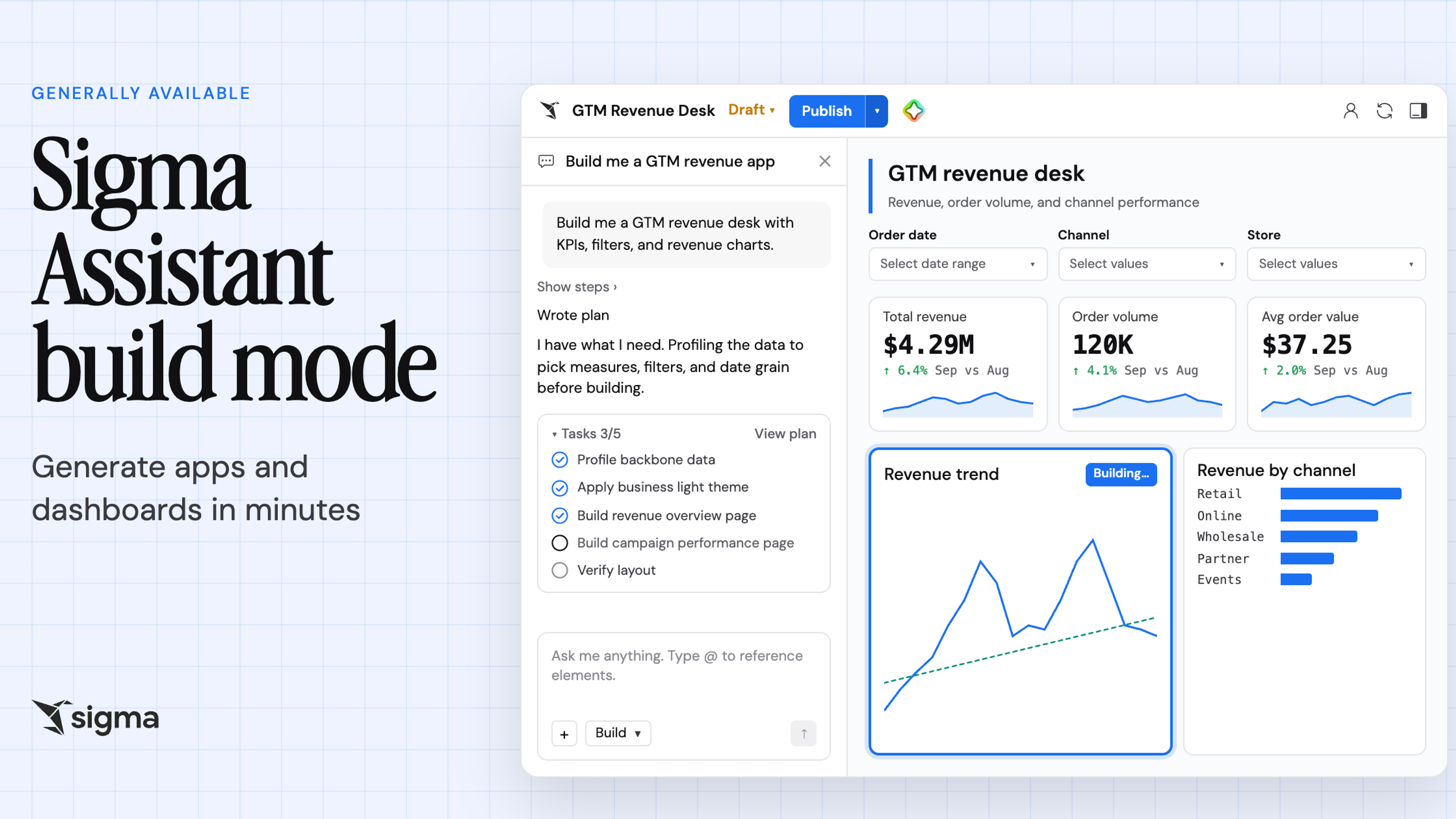
In the next few weeks, we’ll be releasing a new capability to the MCP Server, the Build tool, that extends this functionality. With Build, the AI assistant can generate workbooks and dashboards in Sigma from a prompt, and create data models so the entire workflow from data discovery to data deliverable can happen without leaving the conversation.
How are data permissions enforced across AI assistants?
Security is always top of mind when querying sensitive internal data. The Sigma MCP Server doesn't create a new security surface. Instead, existing Sigma permissions apply to every AI Assistant, across four layers:
- Account-level access: Search & Analyze capabilities inherit user scoped permissions, which map to the same license they already use in Sigma.
- Connection-level access: Chat assistants can only reach the data sources an account has been granted, meaning a user is never over-permissioned — the assistant inherits the user's exact credentials and cannot access anything beyond what that account already allows.
- Column-level and row-level security: Any CLS or RLS filters that apply in Sigma will apply to chat assistants too. The conversational AI assistants (ex: ChatGPT, Claude) can't describe a column the user can't see in Sigma, and can't return rows that the user is not authorized to read.
- Workspace permissions: Chat assistants can't find or query a workbook that isn't shared with the end user.
In short, the AI assistant sees exactly what the user sees in Sigma — nothing more, nothing less. With that foundation in place, let’s dive into some of the use cases that become possible.
Common use cases for AI Assistants + the Sigma MCP Server
Ask questions, get answers
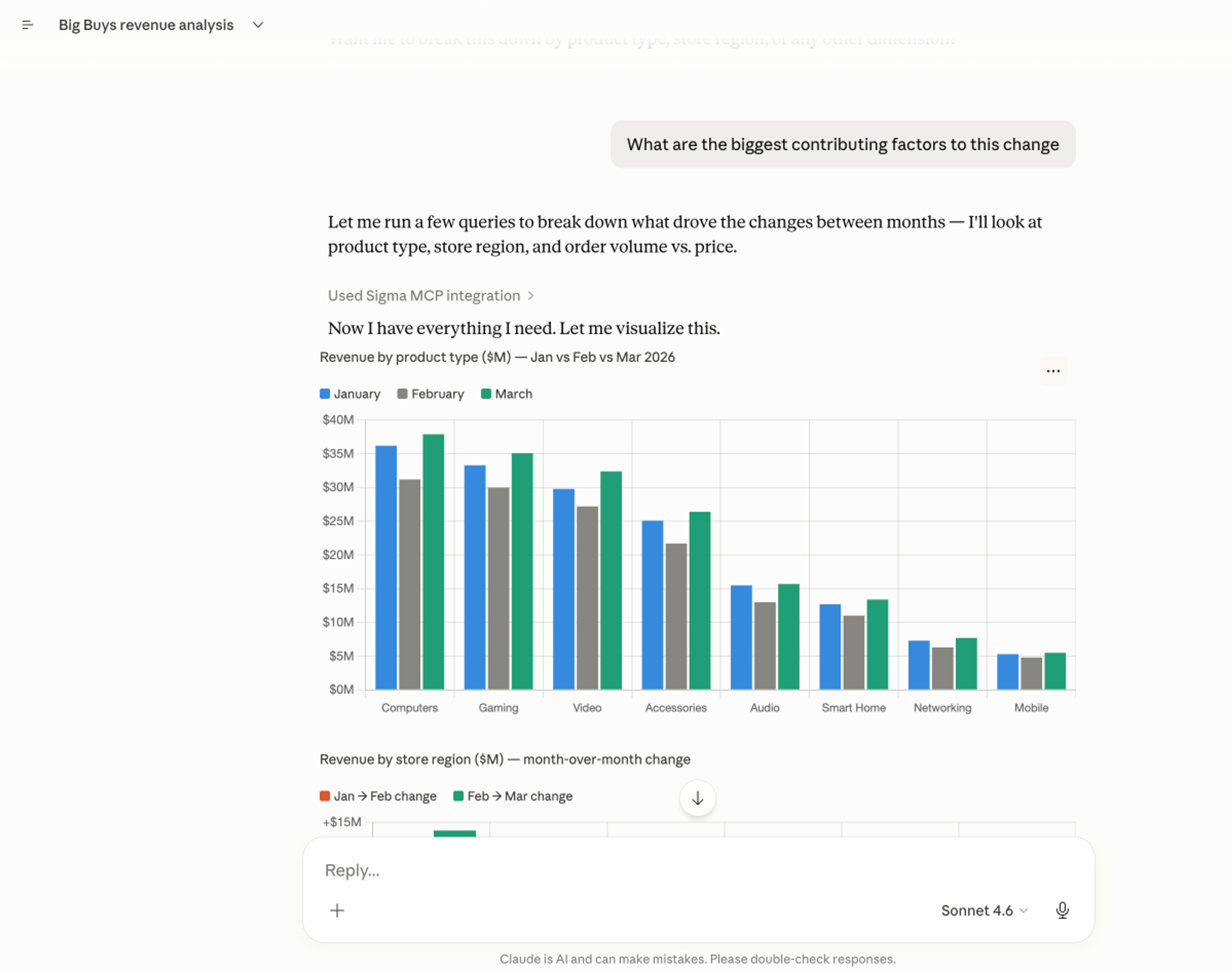
Ask your AI assistant anything: "What is the profit margin percentage for each product family?" Or, "Who are the top loyalty program customers by total spend?"
A natural language question produces a real answer from the warehouse, in the same conversation where you were already working. And because these AI assistants maintain context across the session, follow-up questions — like drilling into an anomaly, cross-referencing a second model, or slicing by a different dimension — work the same way. You're not starting over with each query; you're building on the thread.
Investigate anomalies before anyone has to ask
The most valuable agentic workflows aren't the ones that answer your questions — they're the ones that catch the questions you didn't know to ask. You can set up an agent that runs on a schedule, monitors your key metrics in Sigma, and automatically investigates when something looks off. Revenue down week-over-week? The agent pulls the relevant workbooks, slices by region, product, and channel, and surfaces a plain-English summary of what happened and why — before your morning standup.
What comes next
We’re thrilled that business users can now use Sigma seamlessly with the most advanced AI chat assistants like Claude and ChatGPT.
Next, we’re bringing the same seamless experience to developers with a Sigma CLI, giving coding agents direct access to bulk operations, governance workflows, and other admin capabilities without leaving the terminal or context-switching. We’ll be sharing more about this soon.
To get started with the Sigma MCP Server, review the documentation or request a demo. If you have questions about connecting Sigma to an MCP Client, reach out to your Sigma representative.