Introducing the Sigma CLI: Manage Sigma from your terminal or coding agent


Today we're announcing the Sigma CLI. The Sigma CLI (command-line interface) puts Sigma's entire public REST API in your terminal.
To use it, install the CLI, run a single login command, and then you can read and change anything in Sigma that our API exposes. This includes workbooks, data models, connections, teams, permissions, schedules, and more. Just as importantly, it gives AI coding agents like Claude Code, Codex, Cursor and CoCo a structured way to build in Sigma on your behalf, without first teaching them how our API works.
The CLI is now available to every Sigma customer on macOS, Linux, and Windows.
Why did we build the Sigma CLI?
We built the Sigma CLI because more work now happens outside the browser. Administrators and developers increasingly use terminals, scripts, CI pipelines, and coding agents to manage systems and build applications.
Each of these workflows needs a reliable, governed way to take action in Sigma. Without a shared interface, teams have to create and maintain separate integrations for every tool or agent.
The Sigma CLI provides that shared interface. It brings Sigma’s public REST API into the terminal, where it can be used directly by people, automation, and coding agents with terminal access. Authentication, permissions, validation, and output formatting are handled consistently across each workflow.
This gives teams two complementary ways to work:
- They can continue building interactively in Sigma’s browser experience
- or use the CLI for code-first development, automation, and agent-driven workflows.
No matter whether a command is run by a person, a CI pipeline, or a coding agent, it follows the same governed path into Sigma.
What can I do with Sigma CLI?
The Sigma CLI brings Sigma workflows into the terminal, giving developers and administrators a consistent way to work with workbooks, data models, and other Sigma resources. You can use it interactively for day-to-day administration, automate it through scripts and CI pipelines, or connect it to coding agents that build and manage Sigma content on your behalf. Here are three common ways to get started:
1. Admin and bulk-operation workflows
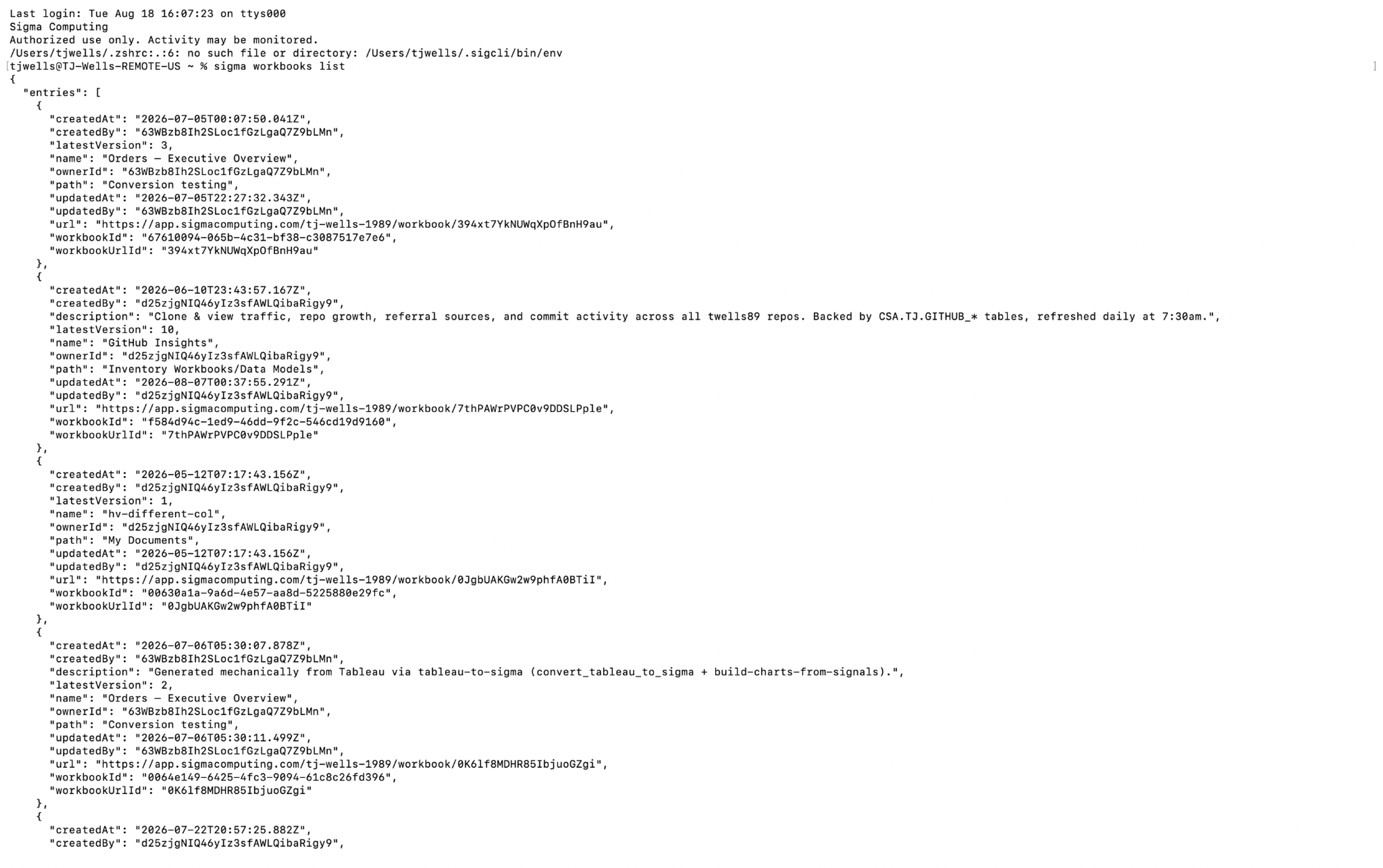
The Sigma CLI is the strategic home for admin and bulk operations. This includes managing workbooks, data models, and other resources at scale.
2. Scripted/CI automation
Since auth, output formatting, and validation are handled in-tool, you can script it directly — e.g. sigma auth login to authenticate (credentials persist to ~/.sigma/credentials.toml), then run commands like sigma api workbooks list as a smoke test or as part of a repeatable pipeline.
3. Driving it through coding agents
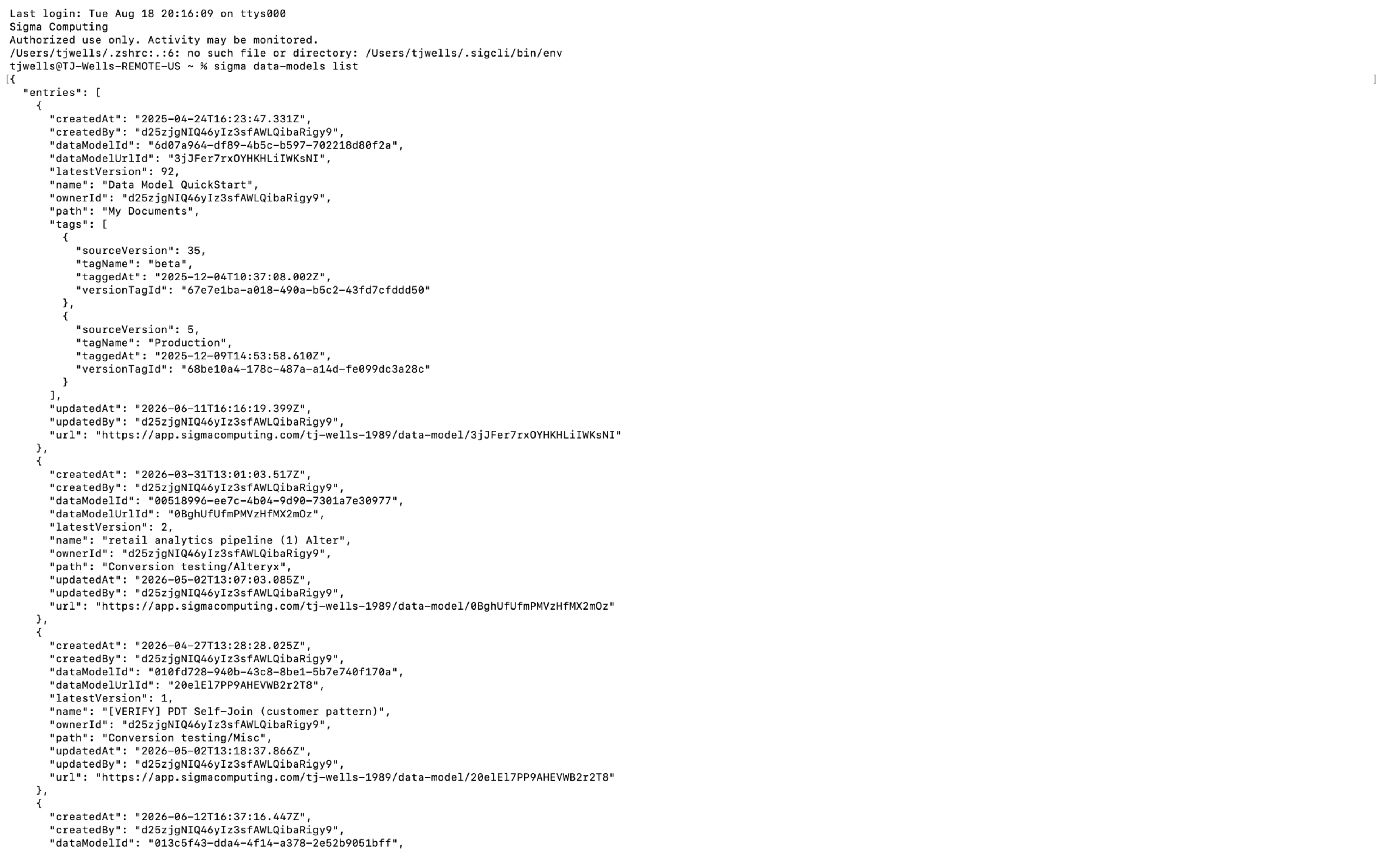
Humans, scripts, and coding agents (Claude Code, Cursor, Codex, CoCo) can all drive the Sigma CLI. Every command is self-documenting via --help, which is especially useful for agent workflows.
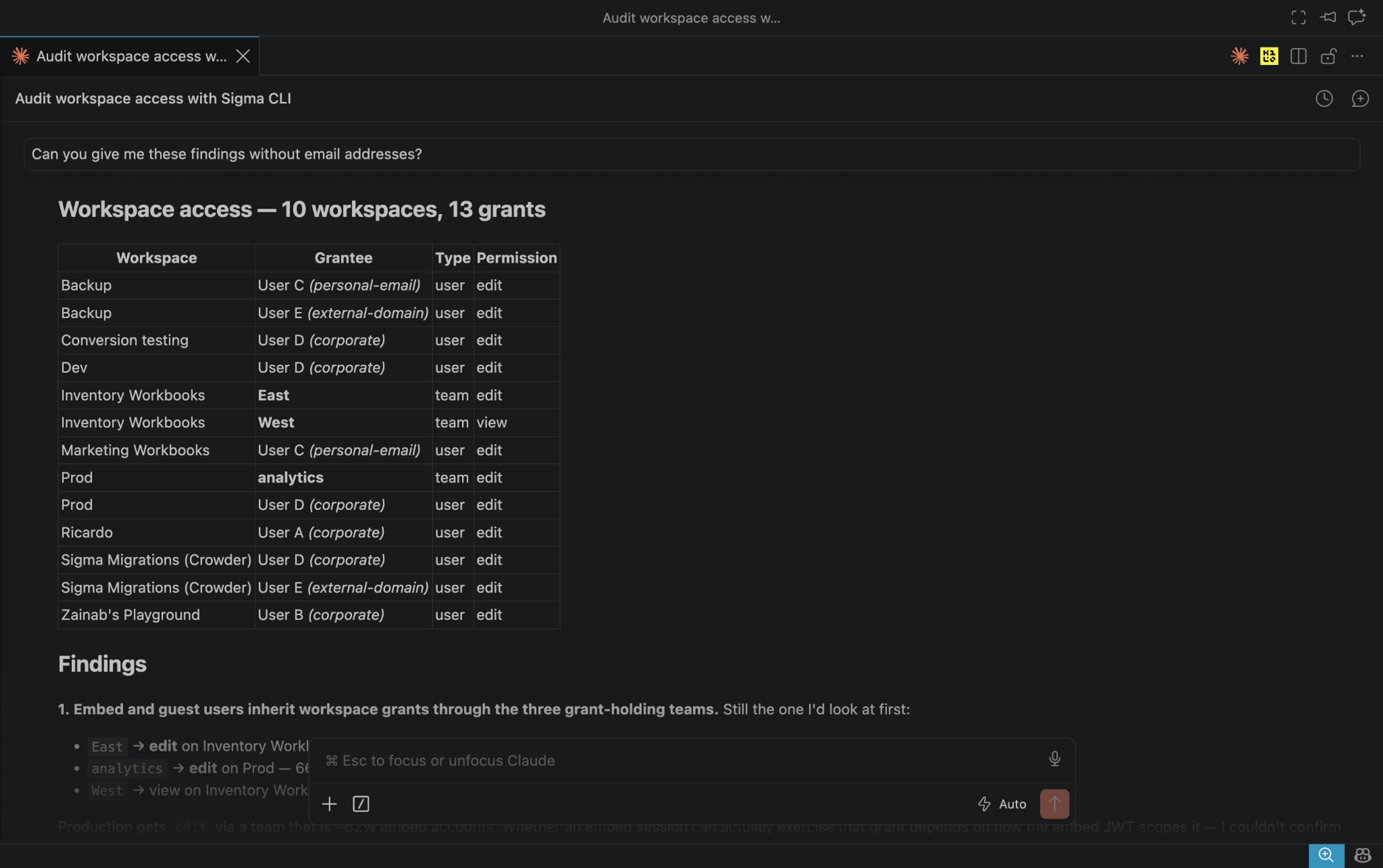
Why this is different in Sigma
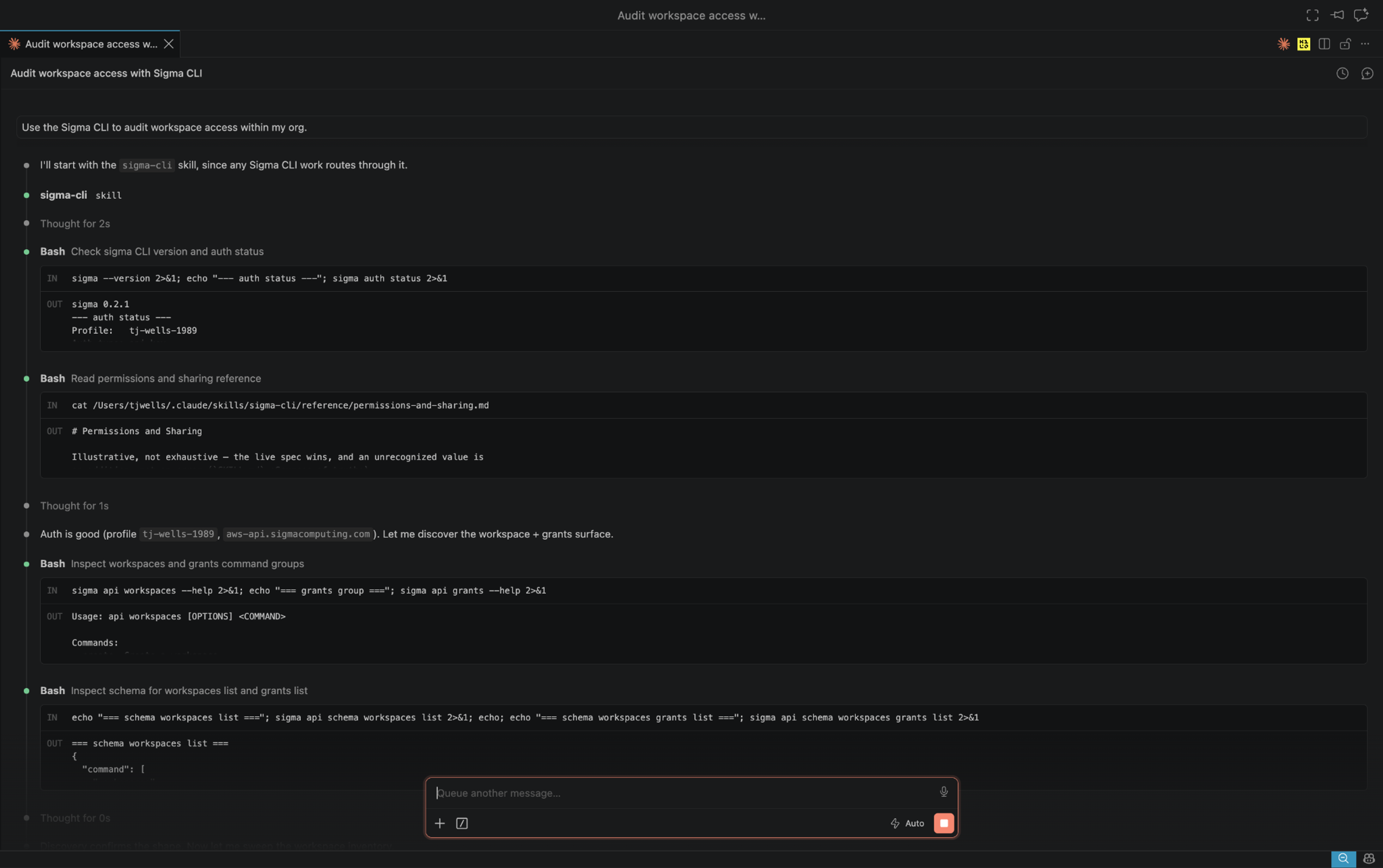
The Sigma CLI simplifies how you interact with the Sigma API. It signs in as a Sigma API client over OAuth and inherits existing account types and permissions, so there is no separate access model to manage. It also uses Sigma's existing public REST API, so your team already knows the endpoints, auditing, and limits. Each release can be verified through cryptographic signing, and the same CLI works for both people and agents, giving teams one shared workflow.
Get started
Already a Sigma customer? Install the CLI in one command, then set up authentication.
brew install sigmacomputing/tap/sigma-computing-cliFrom there, browse the full command reference, and install the sigma-agent-skills plugin to bring it into your coding agent of choice. You'll need an account type with the "Use Sigma API with OAuth" permission — ask your Sigma admin if you're not sure.
New to Sigma? Request a demo to see how teams build and govern analytics in Sigma.
What's next with the Sigma CLI
The Sigma CLI is available to use today, but our team will continue to expand it. Here's what we're working on next:
1. Native file input
Supply a request body from a local file, allowing large workbook and data model definitions to remain on disk rather than passing through a terminal command or an agent's context window.
2. API header support
Set request headers directly from the command line, including content type. This will enable YAML request and response bodies alongside today's JSON support.
Roadmap: user requests
Feedback from teams using the CLI directly informs our roadmap. Share your feature requests with your Sigma representative.
Frequently asked questions
How is this different from the Sigma MCP server?
The Sigma CLI and the Sigma MCP server perform different jobs. The MCP server lets you ask questions about your data in natural language from an AI client. The CLI is for programmatic control of Sigma across the full API, including administration, governance, and bulk changes.
Many teams use both. See Sigma as part of your connected workspace for how these fit together.
What do I need before I install it?
You need a Sigma account whose account type includes the "Use Sigma API with OAuth" permission. Alternatively, an admin can generate API client credentials in Administration → APIs & embed secrets. No other setup, license tier, or feature flag is required.
Which platforms are supported?
The Sigma CLI is supported on macOS (Apple silicon and Intel), Linux (x86_64 and arm64), and Windows (x86_64). Linux builds need a reasonably current set of system libraries. Very old distributions such as Ubuntu 20.04 aren't supported.
Does the Sigma CLI cover the whole Sigma API?
The Sigma CLI covers roughly 230 operations across 26 resources, and because the command tree is generated from our published API specification, new endpoints become available without a CLI upgrade.
Is the Sigma CLI open source?
No. The Sigma CLI is proprietary and covered by the Sigma CLI License Agreement, which you accept when you install it.