Traceable answers are now in Sigma Assistant


Today, we're introducing an update to Sigma Assistant that allows you to easily trace and verify any answer it returns to you.
Every number in an answer from Sigma Assistant can now be traced back to its calculation and data lineage, so you can see exactly how it was reached. You can also drill down into a number and explore the other dimensions, straight from the chat. These updates are generally available in Sigma Assistant for all customers today.
3 ways to verify and explore Sigma Assistant answers
With this release, each number that Sigma Assistant pulls from your data links to the work that produced it. Users can choose the level of detail in each analysis, and where to take the analysis next. Here are three ways to expand upon the answers that Sigma Assistant provides.
1. Trace each number to the query or metric behind it
You can match a number in Sigma Assistant's response to its source right away, without reading through a list of queries.
Hover over a linked number in the answer to see its source table, filters, calculation, and matching record.
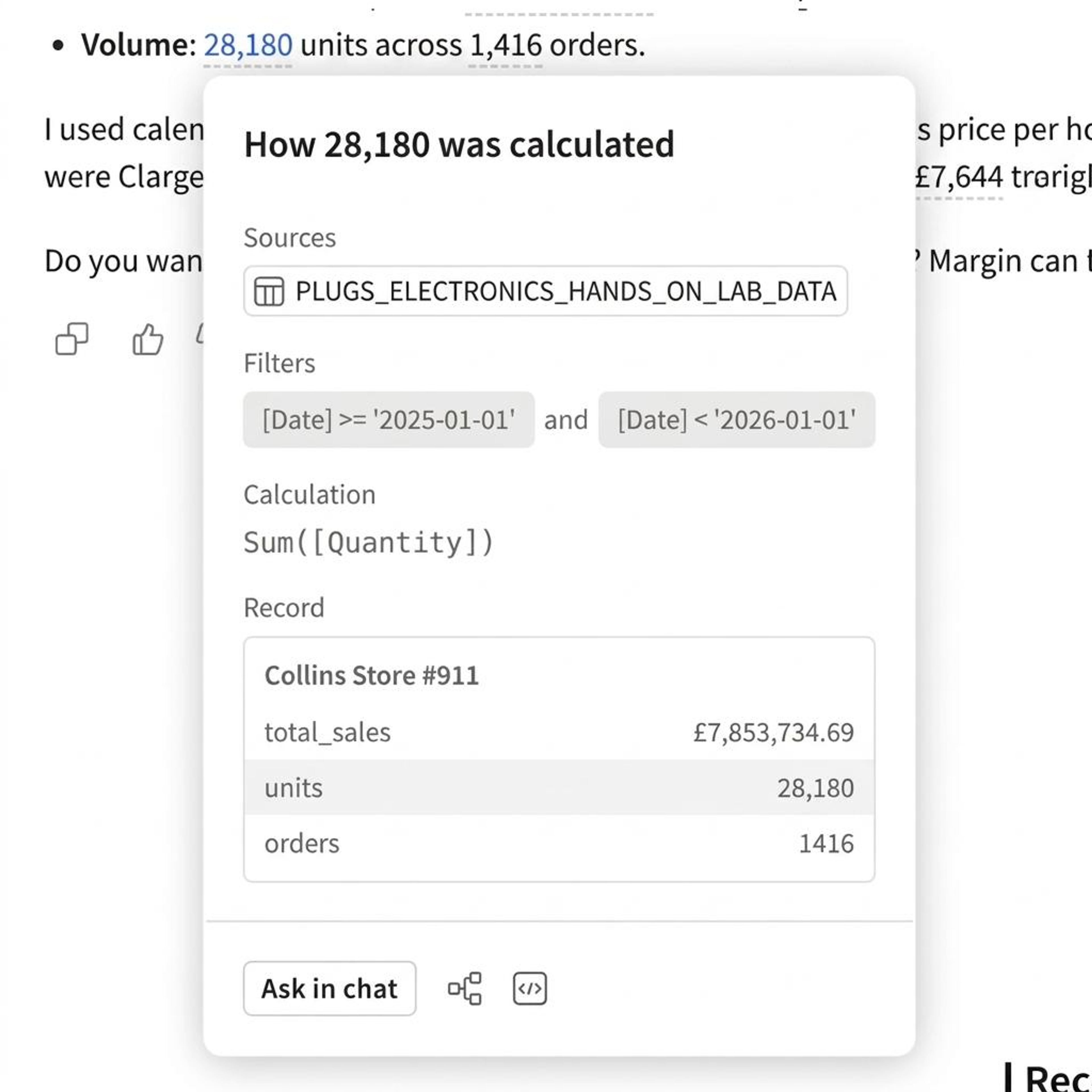
When the number comes from a defined metric, Sigma Assistant labels it as a metric and shows the definition, so you know it's governed.
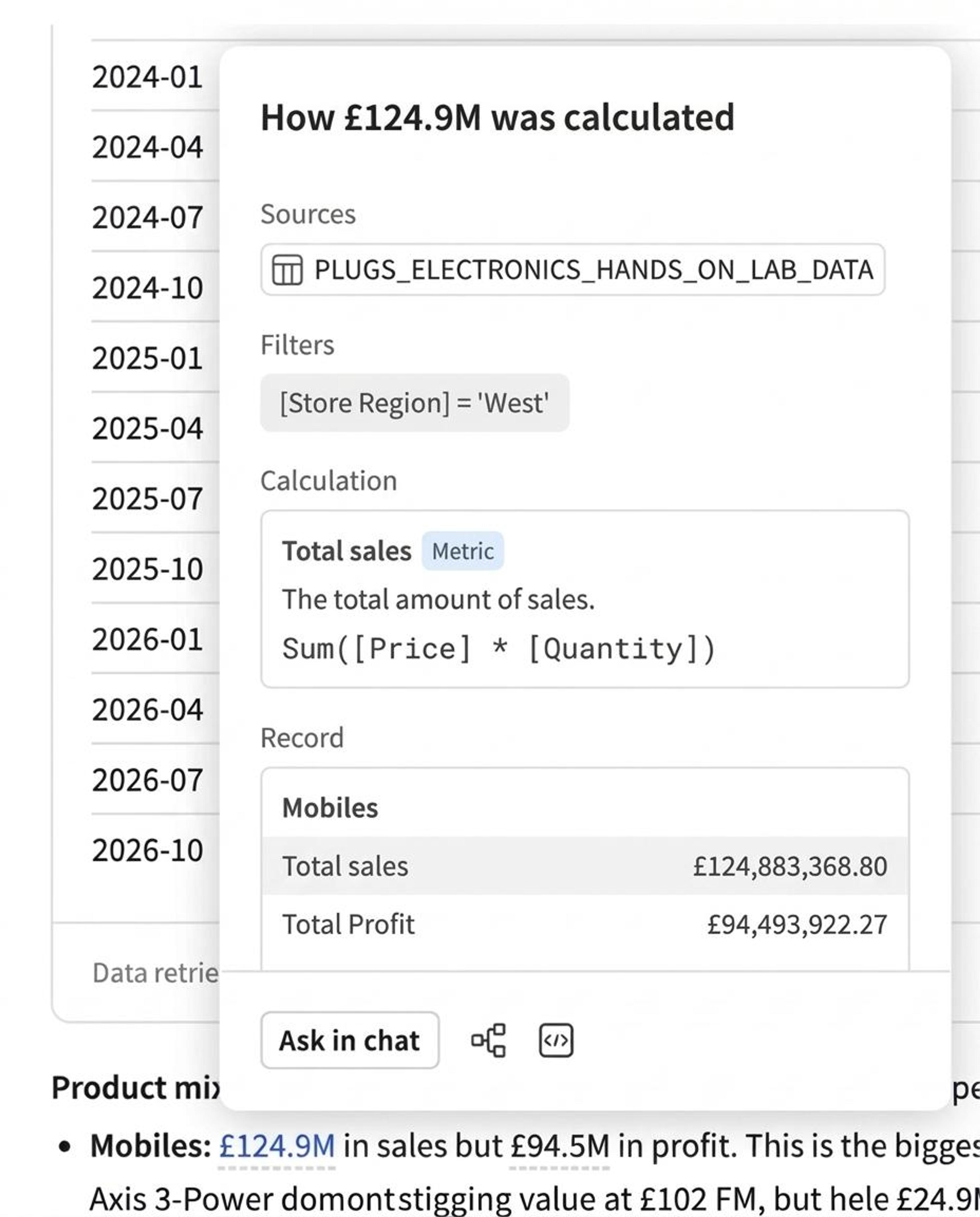
Either way, you can see how any number was calculated in one glance.
2. Dive deeper into the full analysis behind any answer
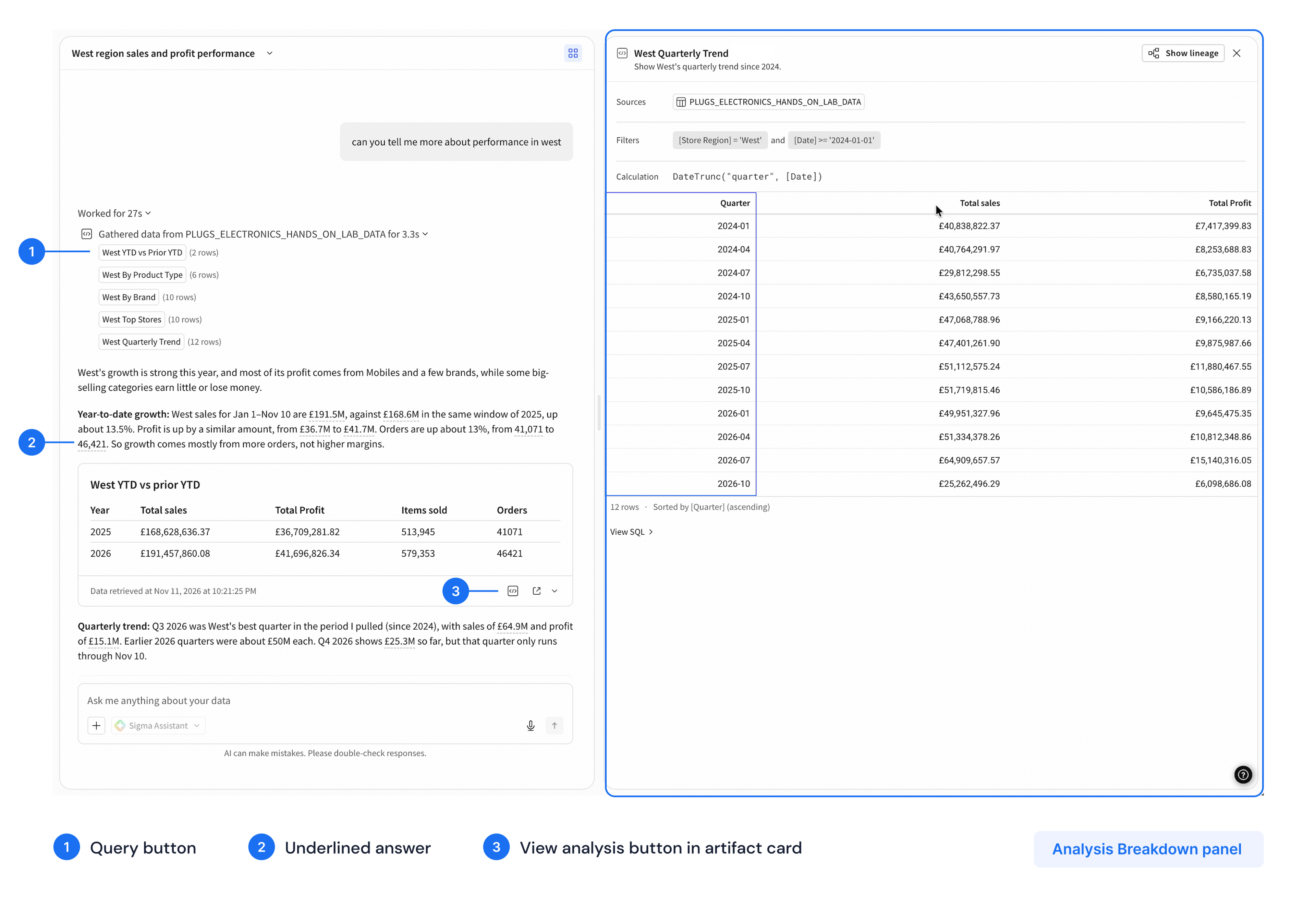
When you're looking for more detail, you can click on an underlined number to open the full analysis in a side panel. You can see an overview of the sources, filters, joins, and unions in plain language beside the full results table, and click into any column to see how it was calculated.
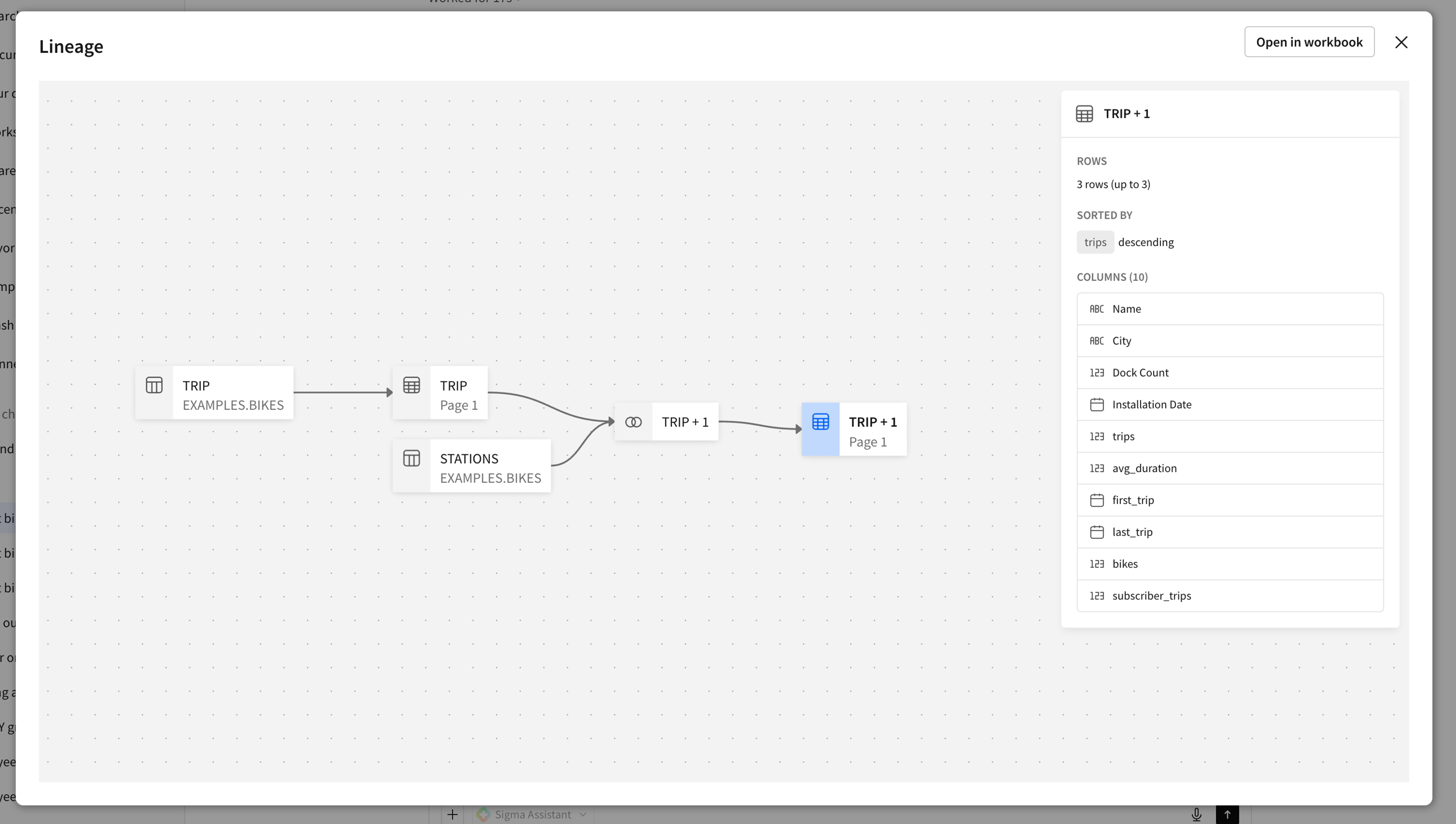
Some answers are the end of a long chain of data transformations. By the time data reaches the table in your view, it may have been joined, combined, filtered, and recalculated several times, and any one of those steps can change what a number means.
Click on “Show lineage” to see that chain. It maps the full path from the source warehouse table or data model to the result, including where filters were applied and which calculations were added. You can see exactly how the answer took shape without reading through complex SQL.
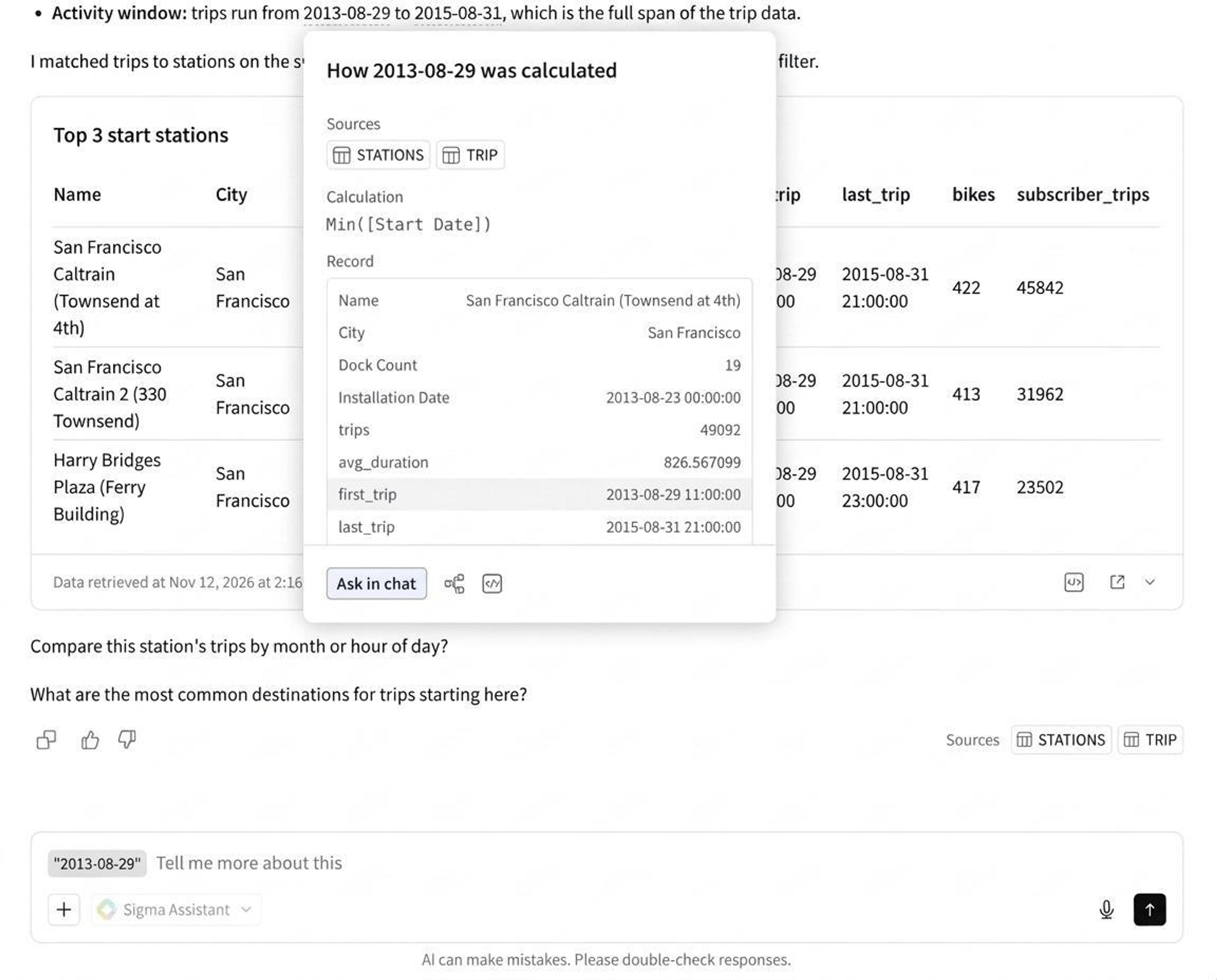
3. Continue exploring in chat
Hover on any number in the Sigma Assistant response and click on “Ask in chat” to refer to it in your next question, or to follow up on that specific number. You can ask Sigma Assistant additional questions about how this value was calculated, or ask to analyze other dimensions.
Why use Sigma Assistant for answers you can trust
Sigma gives you answers you can trust, built on your business's own metrics and context. Any user can trace a calculation back to its source, or drill into the data behind it.
- Governance is inherited: Sigma Assistant respects your existing warehouse permissions, including row-level security and column masking, so every number you trace comes from data you're allowed to see.
- Answers are auditable: Every number traces to its source, filters, calculation, and lineage in plain language, with the SQL ready for anyone who wants a deeper analysis.
- Built on your existing work: Sigma Assistant answers with your data models, certified metrics, and endorsed workbooks. When a number comes from a defined metric, Sigma Assistant labels it and shows the definition your data team certified.
- Exploration continues in a workbook: Follow up on any number in chat, or move the results to a workbook your team can keep building on, using Sigma Assistant in that workbook or iterating yourself in the workbook UI.
Start using Sigma Assistant
Already a Sigma customer? This functionality for Sigma Assistant is available by default. Explore and verify AI-generated responses with ease.
New to Sigma? Request a demo to see Sigma Assistant work on your own data.
Frequently asked questions
How do I set up traceable answers in Sigma Assistant?
This is enabled by default for anyone with access to Sigma Assistant. Your organization needs an AI provider set up, and your account type needs the “Use Assistant” permission.
Do I need to know SQL to verify an answer?
No. Sigma Assistant describes sources, filters, joins, unions, and formulas in natural language. The SQL is still available for anyone who wants it.
How can I tell whether a number uses a defined metric?
Hover over the number. If it comes from a defined metric, Sigma Assistant labels it as a metric and shows its definition and formula.
Can I trace numbers when I chat with a warehouse agent?
No. Tracing numbers is only available when you chat with Sigma Assistant itself. It isn't available in a warehouse agent conversation when you reach the agent through the picker in Sigma Assistant.