Introducing the Excel migration skill: Turn a spreadsheet forecast into a live Sigma app

The Excel-to-Sigma skill helps a coding agent rebuild Excel planning models as Sigma apps, preserving editable assumptions and their dependent calculations. It audits the workbook, proposes a migration plan, and verifies migrated results against Excel. Unsupported features and custom workflows are flagged for review. The skill is available today.
This happens on every team, everywhere. In finance, we see rolling forecasts that run a business. This spreadsheet is something the entire finance org lives by. Every month someone on the team pastes a fresh GL export into a tab so the SUMIFS formulas can pull actuals. Then, during the back half of the year, they run growth rates on a drivers tab, plus a few dozen numbers typed into yellow cells. Then the file gets emailed, someone overwrites a driver, and by the end of the week there are three more versions circulating, each with a different net income.
Meanwhile, customers could already be doing all of this in Sigma. But the biggest barrier is just moving all the logic over. That's why today we're sharing Excel-to-Sigma, the newest of the Sigma Migration Skills.
Point a coding agent at an Excel model, and it rebuilds the model as a governed Sigma app. The agent also checks Sigma's totals against Excel's before returning the app. The Excel-to-Sigma skill is available today and works with Claude Code, Cursor, Codex, and Snowflake CoCo (formerly Cortex Code).
Why is Excel the hardest migration in BI?
In June, we open-sourced migration skills for Tableau, Power BI, Qlik, and ThoughtSpot. Those sources have something in common: a semantic layer. A dashboard's logic sits in measures and calculated fields that an agent can read and translate.
In many Excel planning models, the business logic is distributed across cells and sheets. Some cells pull actuals from another tab, some apply a growth rate to last month's value, and some hold the hand-typed “source of truth” (which was really just a judgment call). They also typically include the forecast, which feeds into a read-only dashboard.
So a spreadsheet migration has to bring over three things together: the actuals logic, the driver formulas, and the inputs people type. We make this possible with two coding-agent building blocks: (1) the Sigma CLI lets an agent work with Sigma's full public API from the terminal, and (2) Workbooks as Code (currently in public beta) lets it build a data model and workbook programmatically.
How the Excel migration skill works
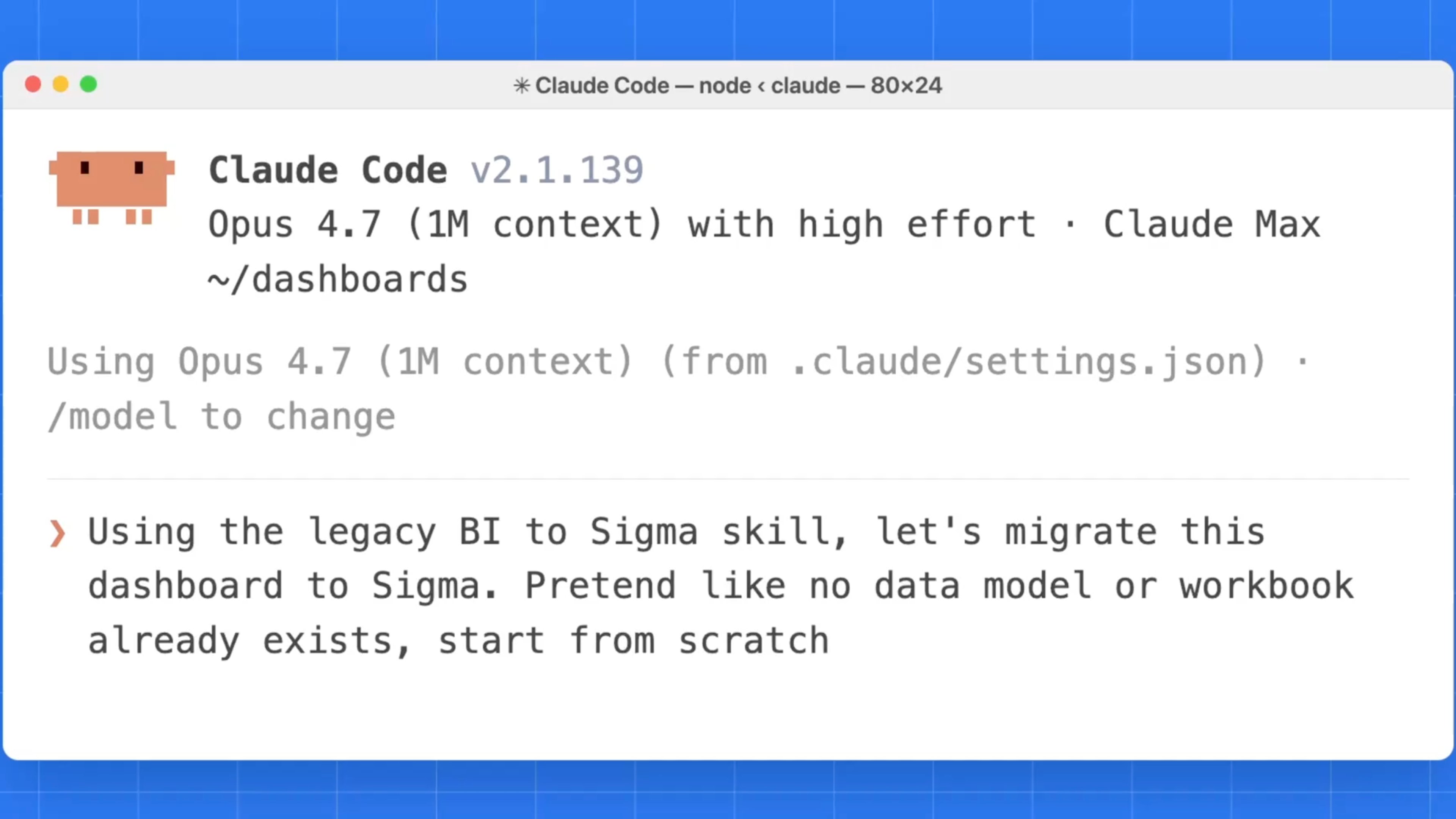
Start with one prompt: "Migrate this forecast to Sigma with the excel-to-sigma skill." The agent audits the workbook, proposes a plan for review, builds the approved model, and verifies the results. Behind that prompt are five steps. Each one is a readable script, and the agent shows its output as it goes.
1. Audit and map the workbook, cell by cell
First, the skill inventories the workbook and classifies every formula cell by its job. SUMIFS formulas that read from a pasted export become a read-only data model element. When actuals are mapped to an existing warehouse source, the migrated model queries that source. If the data exists only inside Excel, it must first be loaded into the warehouse and connected to a refresh process. Driver rates become an editable rates table. Forecast cells become driver-grown, manual, or flat lines. The skill also checks Sigma's API to confirm the build is supported before it builds anything.
2. Flag anything that needs a decision
When the skill finds something it can't convert mechanically, it stops and asks before building. Charts are a common example, since you have to choose chart type, encoding, and aggregation. The skill records each decision so you can review what was signed off and why. It also asks what the model is for: a read-only report, an editable plan, or a live what-if model. Your answer shapes which cells stay editable.
3. Build the Sigma data model and workbook
With the plan approved, the skill posts the data model and builds the workbook as code. Actuals and forecast are combined in one model, and subtotals and margins become workbook calculations. KPIs, the trend chart, and the P&L land on a single page. Driver rates and manual inputs become Input Tables.
4. Verify parity against Excel to the cent
Next, the skill queries the live Sigma workbook, compares migrated calculations with Excel and reports differences for review. Revenue, gross profit, EBITDA, and net income are checked to the cent. If something doesn't tie, you find out from a printed diff before anyone sees the app in a meeting.
5. Turn on writeback in the published app
Last, the skill makes the inputs editable in the published version of the app. Anyone with the right permissions can change a rate, and the change writes back to your warehouse with the same governance as the rest of the data.
What an Excel forecast migration looks like in Sigma
The video above shows a live run against a demo model: a fictional software company's FY26 rolling forecast. The first six months are actuals pulled with SUMIFS from 258 rows of GL data. The last six are forecast from 10 monthly growth drivers and 42 hand-typed cells. The workbook also has a quarterly chart of revenue, EBITDA, and net income.
After approval, it rebuilt the same 3 series at monthly granularity, an approved change from Excel’s quarterly view. The parity check compared 378 live rows of actuals and forecast with Excel and found a $0.00 difference across all four fiscal-year totals: $12,978,897.95 in revenue, $10,044,179.56 in gross profit, $763,473.78 in EBITDA, and $283,411.78 in net income.
Then we tested the forecast. In the published app, we raised enterprise subscription growth from 3.5% to 6% and saved the rate, which was written back to Snowflake. Projected revenue went up by about $294,000, EBITDA rose from $763,474 to $1,057,713, and net income roughly doubled to $577,651. In the spreadsheet, that question meant opening a copy of the file. In Sigma, it took one edit in the app everyone already uses, and all 52 inputs stay editable.
Migrating the forecast also creates a foundation for a shared scenario modeler. A separate enhancement can let teammates save named assumption sets, compare outcomes, and submit scenarios for review and acceptance. That workflow should be scoped and verified separately from the original spreadsheet migration.
Where else have spreadsheets become the app?
The forecast is one example of a broader habit. When a team needs a small app, and the request queue is months long, someone builds it in Excel. The file works, and then it becomes part of how the business runs. Here are two patterns we hear about often from data and finance teams:
- Production targets across plants. Schedulers keep production targets in a spreadsheet on SharePoint, then update reports by hand for each of six plants. In Sigma, the targets become an Input Table, and every plant's report reads from that table live.
- Demand plans pasted into the ERP. Planners build the monthly forecast in Excel and then copy it, cell by cell, into SAP. Every handoff is a chance for a number to change without anyone noticing. In Sigma, planners enter the plan, it writes back to the warehouse, and downstream systems read one version.
Each of these spreadsheets has the same structure as the forecast: some cells have data pulled from elsewhere, some cells calculate, and some cells have numbers people type. We use that as the standard for the migrations from Excel-to-Sigma.
Move your spreadsheet apps out of the inbox
Remember, the goal of spreadsheets has been sharing information, whether that's the forecast the CFO presents, the targets a plant manager runs to, or the plan the ERP depends on. Spreadsheets made that sharing fragile, and the fragility kept the work in Excel. With Excel-to-Sigma, the same model runs live on your warehouse, and the numbers tie to the original before anyone relies on them. The Excel-to-Sigma skill is available today, and we're continuing to expand supported formula families and model complexity.
Get started with the Excel migration skill
Already a Sigma customer? Install the skill in your coding agent, connect it with a Sigma CLI profile, and point it at a workbook. The full set of Sigma Migration Skills is on GitHub.
New to Sigma? Request a demo to see a spreadsheet model rebuilt live on your own data.
Frequently asked questions
What kinds of Excel workbooks can the skill migrate?
The skill is designed for planning, forecast, and financial models built with standard lookup, math, and logic functions. Multi-sheet workbooks with SUMIFS actuals, driver rates, and manual input cells are supported out of the box.
Do the yellow input cells stay editable after migration?
Yes. Driver rates and manual forecast cells become Input Tables in the published app. Edits write back to your warehouse and flow through the forecast right away.
How do I know the Sigma numbers match Excel?
Every run ends with a verification step that queries the live Sigma workbook, compares migrated calculations against Excel's values, and prints a diff of any discrepancies for review before sign-off.
What happens to formulas or charts the skill can't convert automatically?
The skill records unsupported features and proposed replacements for review. Custom macros require examination of their inputs, helper procedures, affected records, and side effects before an equivalent workflow can be approved and tested in Sigma. The migration report identifies unresolved items and distinguishes approved replacements from behavior verified in Sigma.
Where does the data live after migration?
When actuals are mapped to an existing warehouse source, the migrated model queries that source live, and input edits write back to the warehouse. If actuals exist only inside the spreadsheet, they must first be loaded into the warehouse and connected to a refresh pipeline.
Which coding agents work with the skill?
The skill works with Claude Code, Cursor, Codex, and Snowflake CoCo (formerly Cortex Code).