Introducing the workbook-to-report converter: Create pixel-perfect reports in 1 click

Today we're announcing the workbook to report converter, now generally available to all Sigma customers.
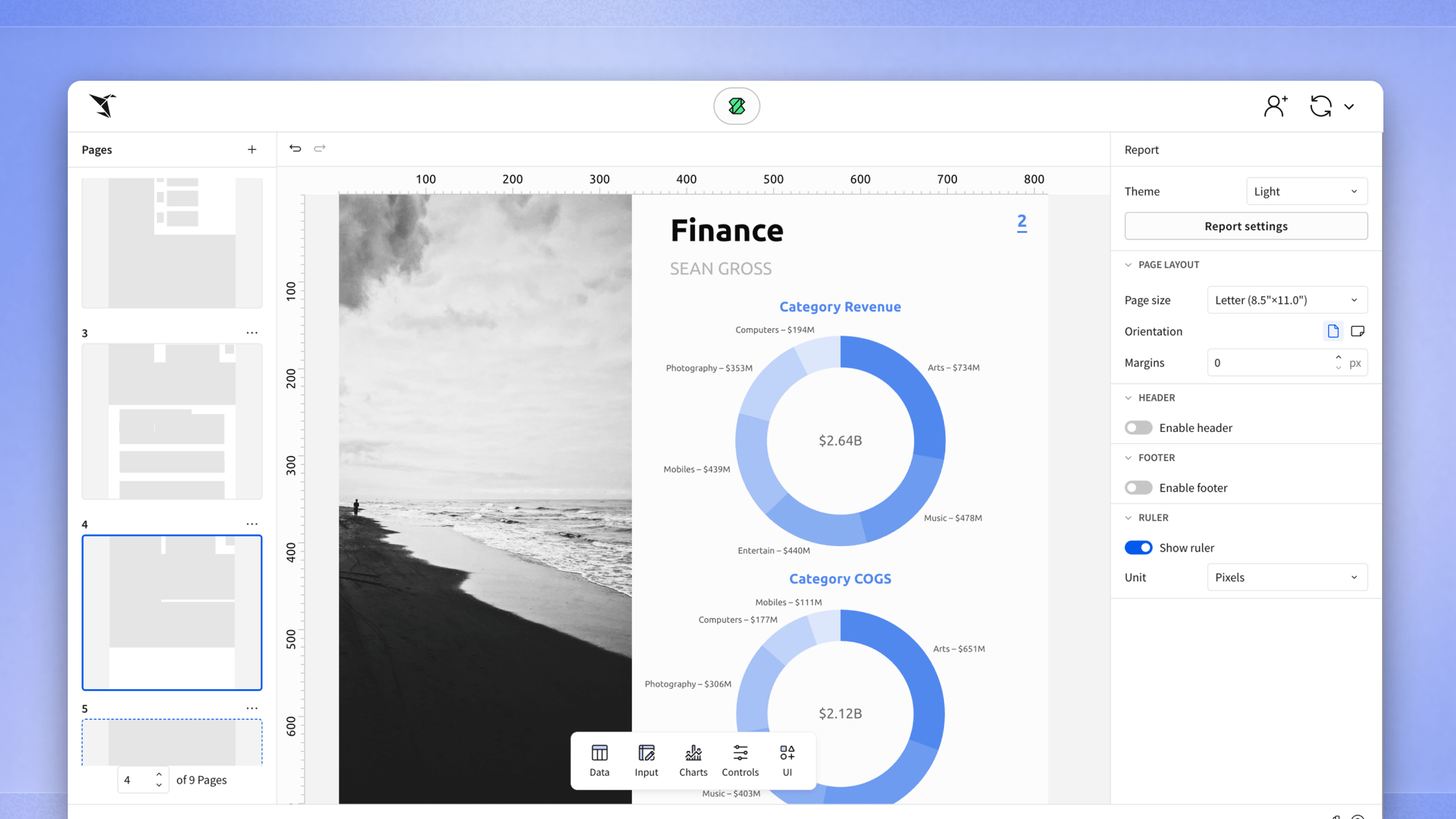
This feature can take any existing workbook and convert it directly into a pixel-perfect report, with live data included. If you've ever built the right analysis in Sigma and then had to manually rebuild it as a polished report for stakeholders, this removes that second step entirely.
Live data and precise layouts rarely live in the same document—until now
Turning a workbook into a report has always meant starting over on layout: headers, spacing, brand colors, and precise formatting all had to be rebuilt by hand, and any upstream change meant redoing the work.
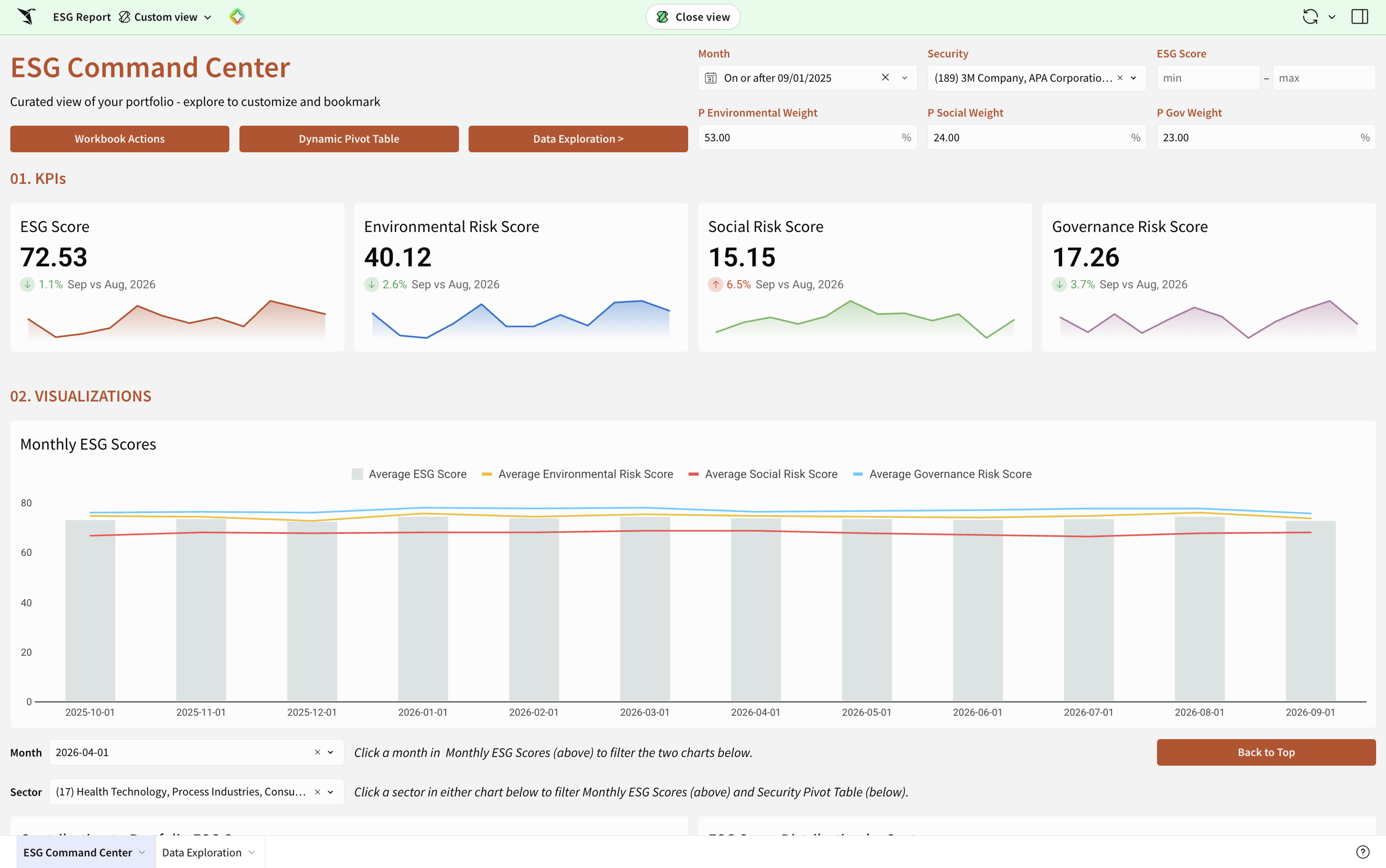
Consider a financial analyst who has already built a dashboard tracking quarterly performance. Leadership wants that same analysis delivered every week as a clean, on-brand report with current numbers—not a static export. Recreating that layout manually, week after week, is exactly the kind of expensive, repetitive work that shouldn't require a person.
Similarly, customers working in retail often have a workbook where they run their processes, but need to send out paginated PDFs to their end users, or an invoice to a store. Converting the workbook to report and then making light edits speeds up this workflow significantly.
This hasn't been easy to solve because connecting live, changing data to a precise, pixel-perfect layout is a hard problem; there are many edge cases in which rendering pixel perfect reports—with paginating tabular data and thousands of pages of data—is also a challenging engineering problem. Many teams have relied on legacy reporting tools or Excel to get the formatting right, at the cost of speed and freshness. The workbook to report converter is a new way to quickly and easily produce pixel-perfect reports at scale.
How the workbook-to-report converter works
With one click, the workbook to report converter takes an existing workbook and outputs a pixel-perfect report document in Sigma. This conversion is most useful after you’ve built out the entire workbook per your needs, and then want to have a pixel perfect layout for exporting as a PPT/PDF along with the interactive workbook.
In the workbook you've already built, open File > Convert to report. Sigma shows you which elements will and won't carry over, then asks which pages to convert (the entire workbook, or specific tabs), a page size, and portrait or landscape. Select Convert, and the new report saves to Your documents as [Workbook name] (Report). Your original workbook is unchanged.
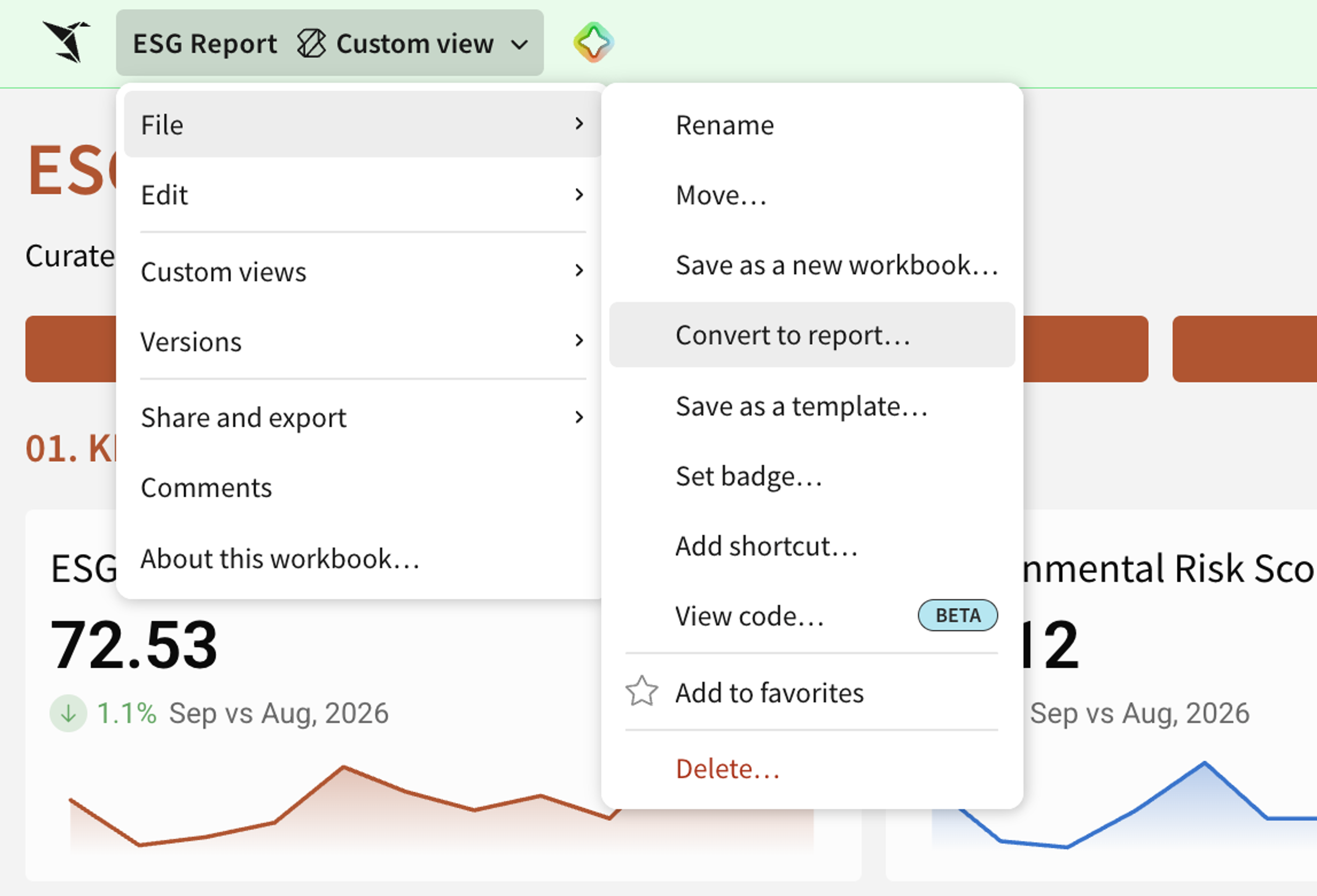
From there you can edit, export, or schedule the report. If you'd rather script it, the Convert a workbook to a report API endpoint does the same thing.
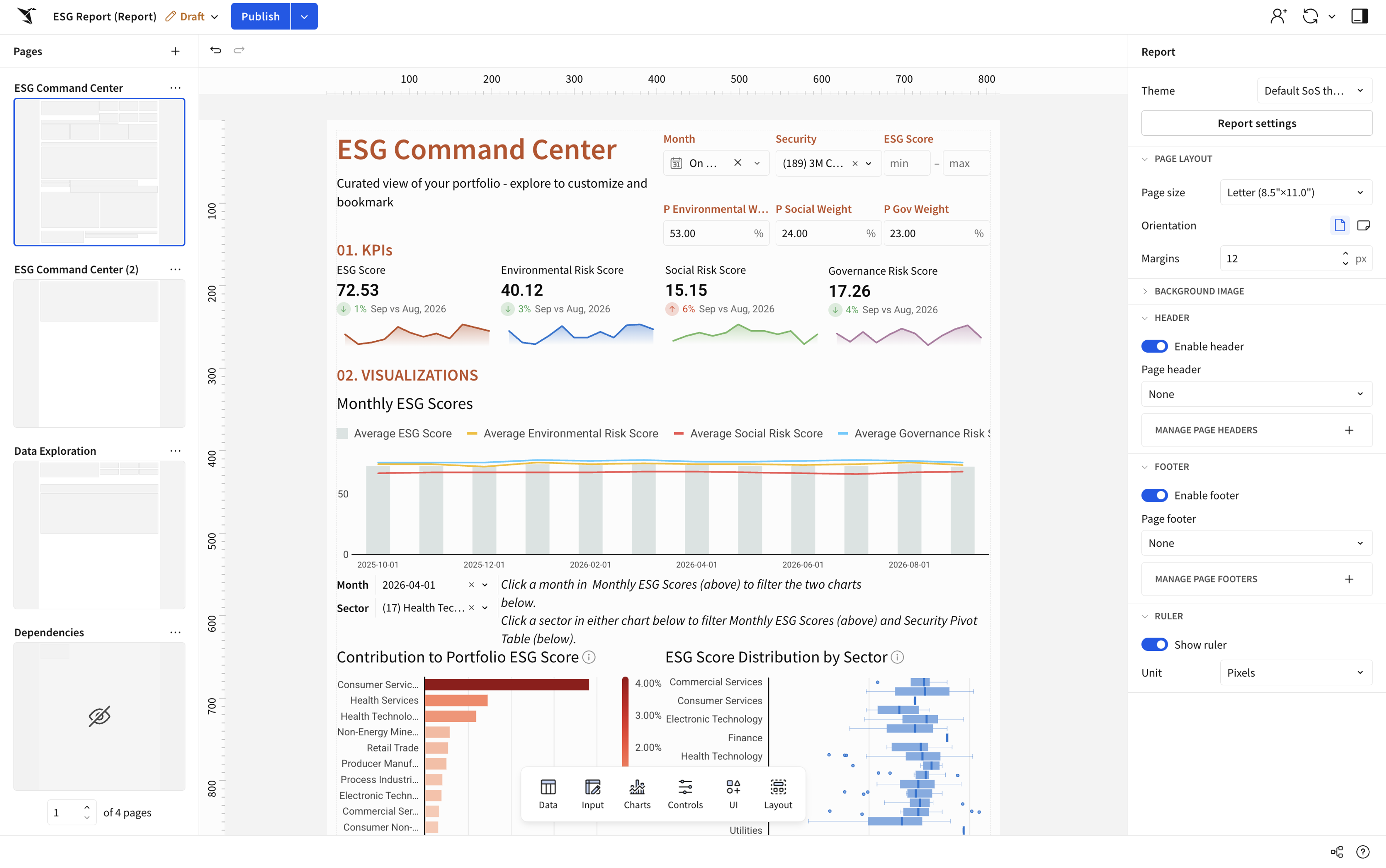
With this process, there’s no need to rebuild the layout or formatting. It's a single conversion step rather than a multi-step journey, which is the point: the speed-up comes from removing manual reporting work, not adding a new workflow to learn.
The result: analysts get their time back, and the reports going out the door still reflect the live analysis they built.
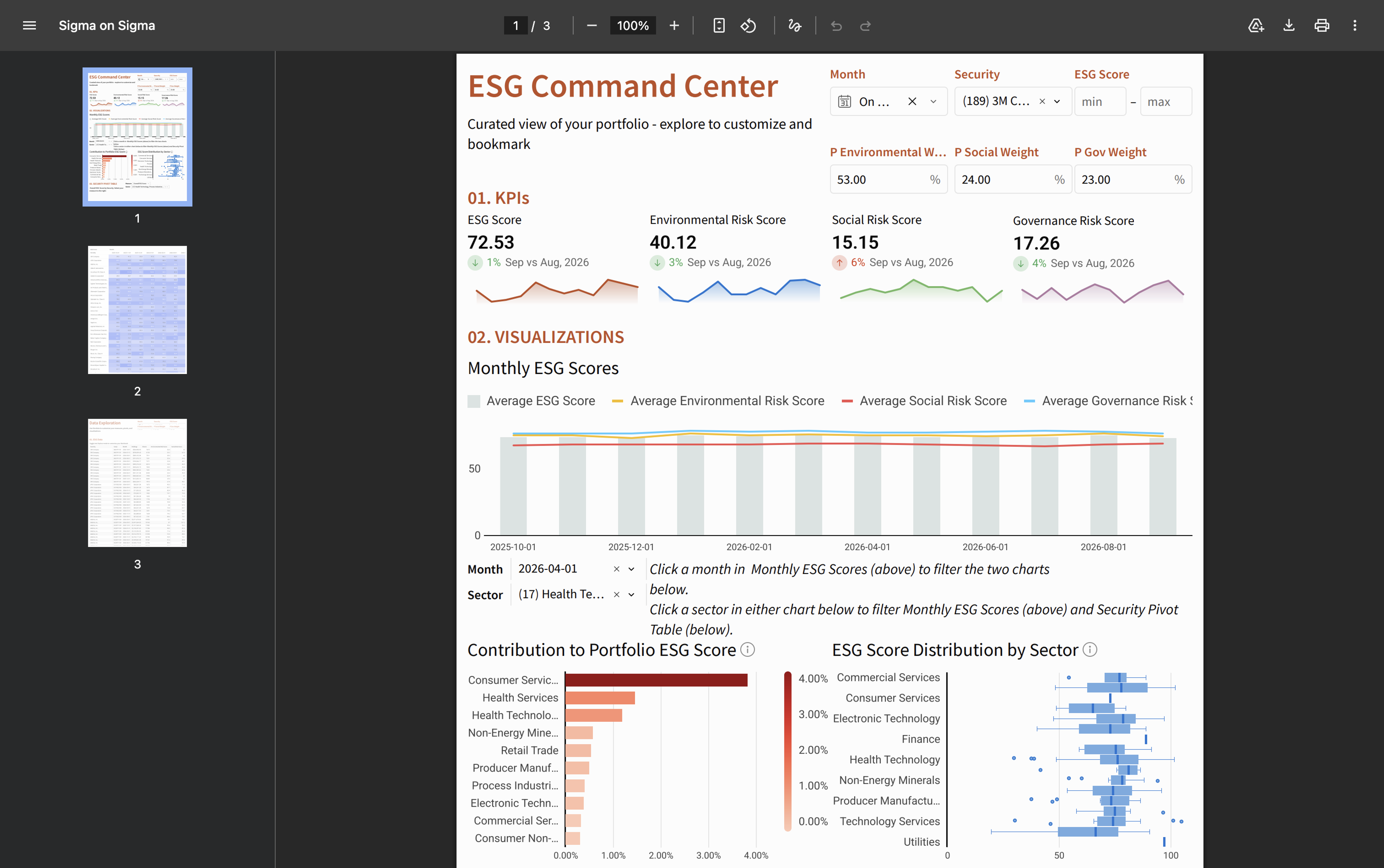
Reports built this way start from a workbook you've already built, which is what makes them different from a static export that users usually build off of Word docs or Excel files:
- Live, not static: because the report is generated from the workbook, it reflects the underlying data on each export rather than a point-in-time snapshot.
- No second version to maintain: you're extending the analysis you already built instead of rebuilding it in a separate tool.
Get started
This feature is already available in your Sigma workbooks. You’ll find the “Convert to report” option under the file menu in a workbook. Read the documentation to learn more.
New to Sigma? Request a demo to see how you can easily turn workbooks with live data into paginated, pixel-perfect reports.
Frequently asked questions
Does saving changes to a workbook automatically update the report and keep them in sync?
No. Converting a workbook to a report is a one-time conversion. You can re-convert whenever you want an updated version, and reset any schedules as needed. If you need the report to stay continuously in sync with the workbook, you can set that up yourself using workbooks and reports as code together with an agent, as a workaround.
Do reports inherit all properties of the workbook?
No. Reports on conversion become new documents for which you can set your own permissions and sharing. They do not inherit all the sharing and settings from workbooks.
Does it convert a workbook to a report perfectly, or will I have to edit it after?
We try our best to convert a workbook to a report and make sure the layouts match, but sometimes, due to page size differences and element sizes, the converter might not be able to give you perfect output. You can either choose the right layout for the page before the conversion, or edit and move things around after the conversion in the report.