Introducing AI columns: Run a prompt on every row, right in your table


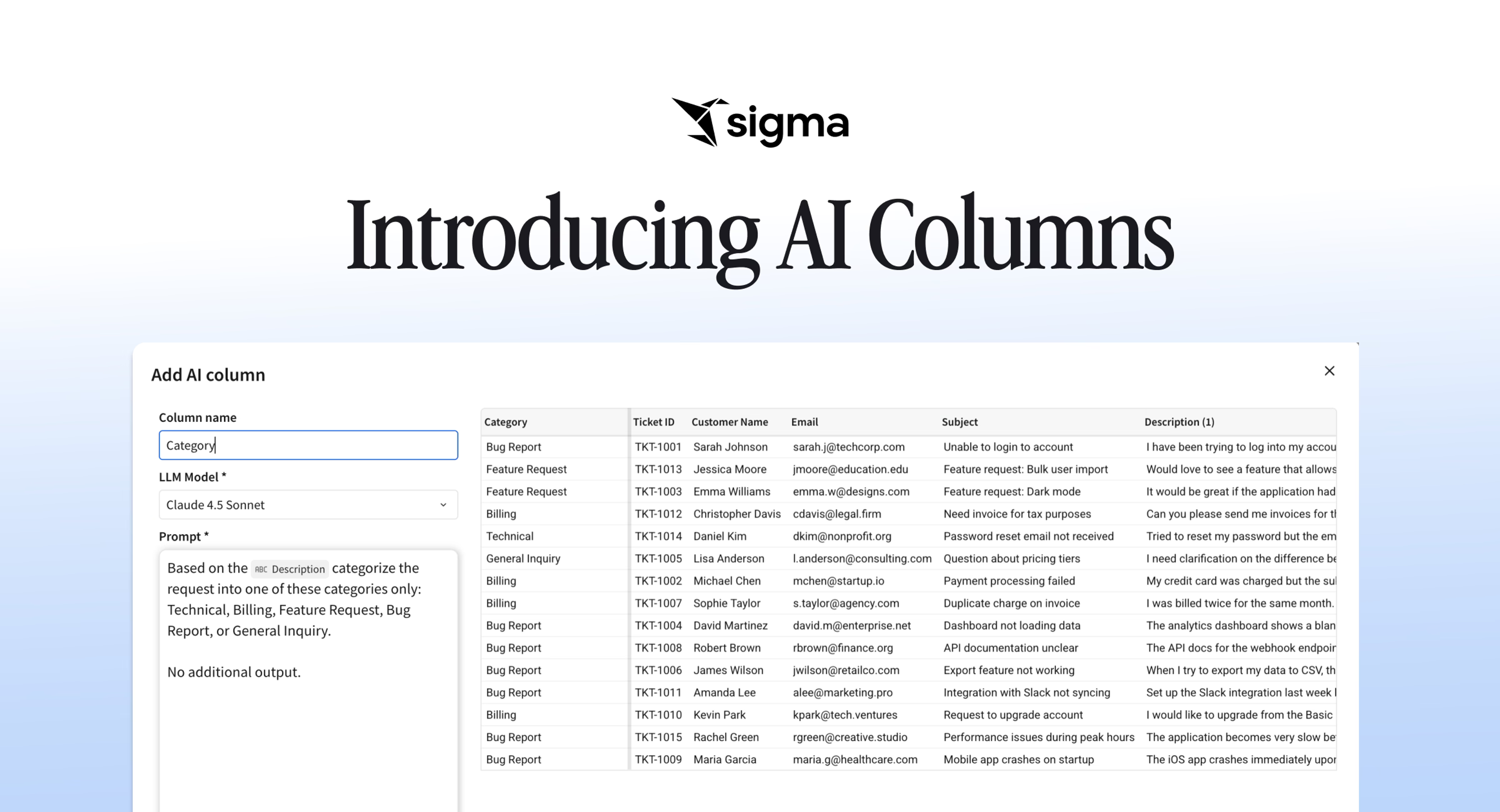
Today, we're launching AI Columns in beta for Snowflake and Databricks customers. An AI Column is a new kind of column that runs a plain-language prompt against your data and returns an AI-generated result for every row. Use it to fill in a missing field or add context to your data, drawing on the knowledge available through LLMs.
For example, you can use AI Columns to summarize a call transcript or classify a support ticket. Point an AI Column at one or more columns in your table, and it returns a response from an LLM. This is especially useful when you need information that doesn't live in your warehouse. Prompt an AI Column to explain a sudden shift in supply chain data, and the LLM can surface current events that may have caused the disruption. It's a practical way to bring external knowledge alongside your internal data, and unstructured inputs alongside structured ones.
The problem AI columns solves: useful answers trapped in unstructured text
Most of the data worth reading in plain English already sits in your data platform as raw text. This can be in the form of transcripts, support tickets, and/or free-text notes in a CRM. Pulling something useful out of it usually means one of a few unappealing options:
- Exporting the data and pasting it into a chatbot
- Writing custom Python
- Filing a ticket and waiting for the data team to build a job.
Consider where that leaves the people who need the answer:
- A revenue operations analyst stares at thousands of leads with blank industry and company size fields, knowing the answer is right there in the company name and domain, with no quick way to fill them in.
- A customer success manager wants to spot at-risk accounts from the tone of recent call notes, but reading every transcript by hand is a non-starter.
For many teams, solving this situation in the past has meant copying data out, passing it to the LLM to enrich, and then importing the data back in. Copying and pasting into LLMs is a huge security and governance problem everywhere today, and it can run up an unpredictable bill. AI columns store data in the warehouse and let teams use LLMs directly on the tables.
How AI columns work
An AI column takes a prompt you write in plain language, reads one or more columns in your table, and returns a result for every row as text or structured JSON. You preview the output on the first 100 rows, adjust the prompt until it behaves, and then apply it across the whole table.
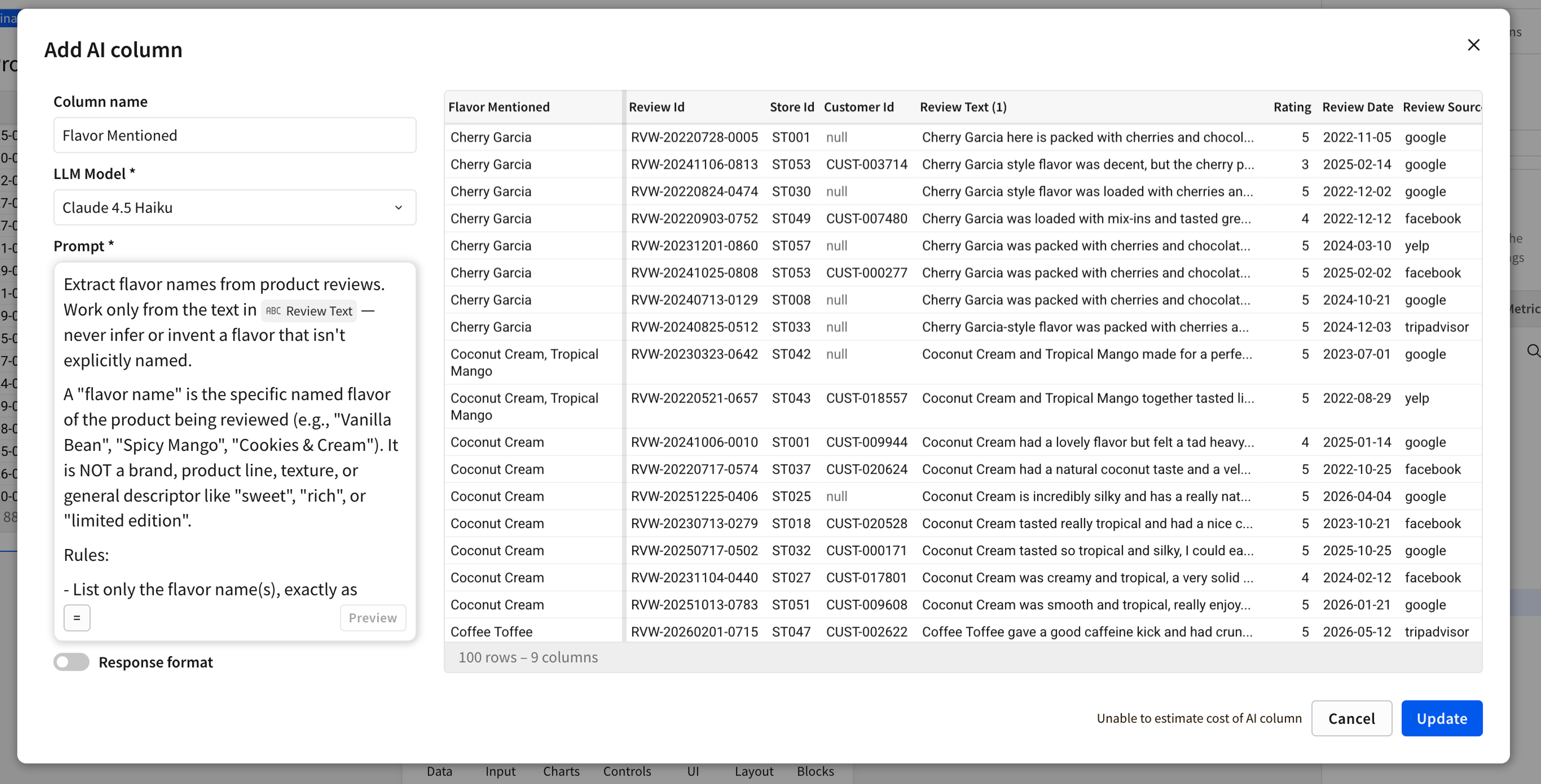
Under the hood, an AI column runs a query through your data platform's built-in AI function. The result is written back to your data platform, and Sigma caches it so the model runs only on rows whose inputs change.
Ways to use AI Columns
Enrich records that are missing context
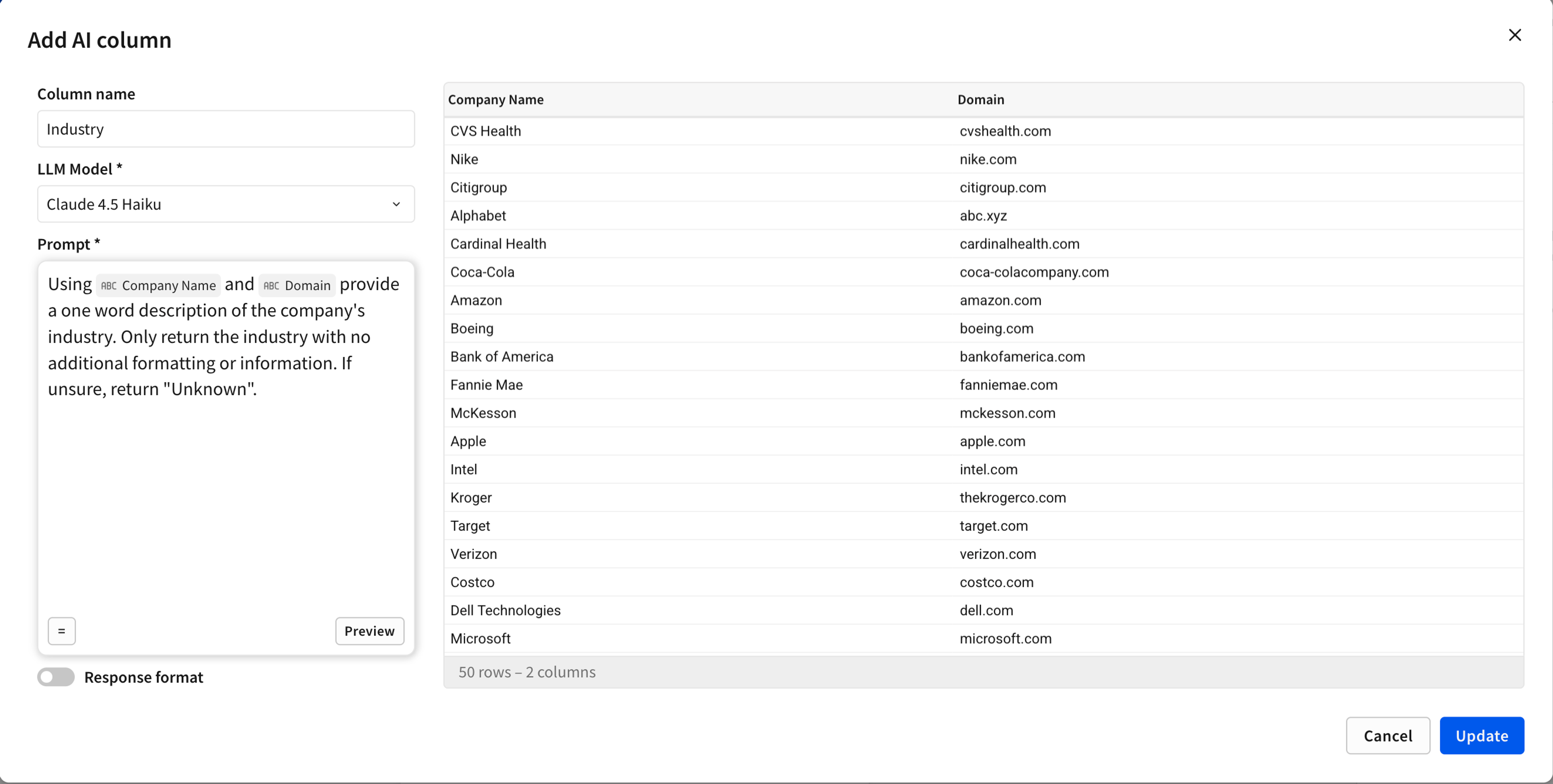
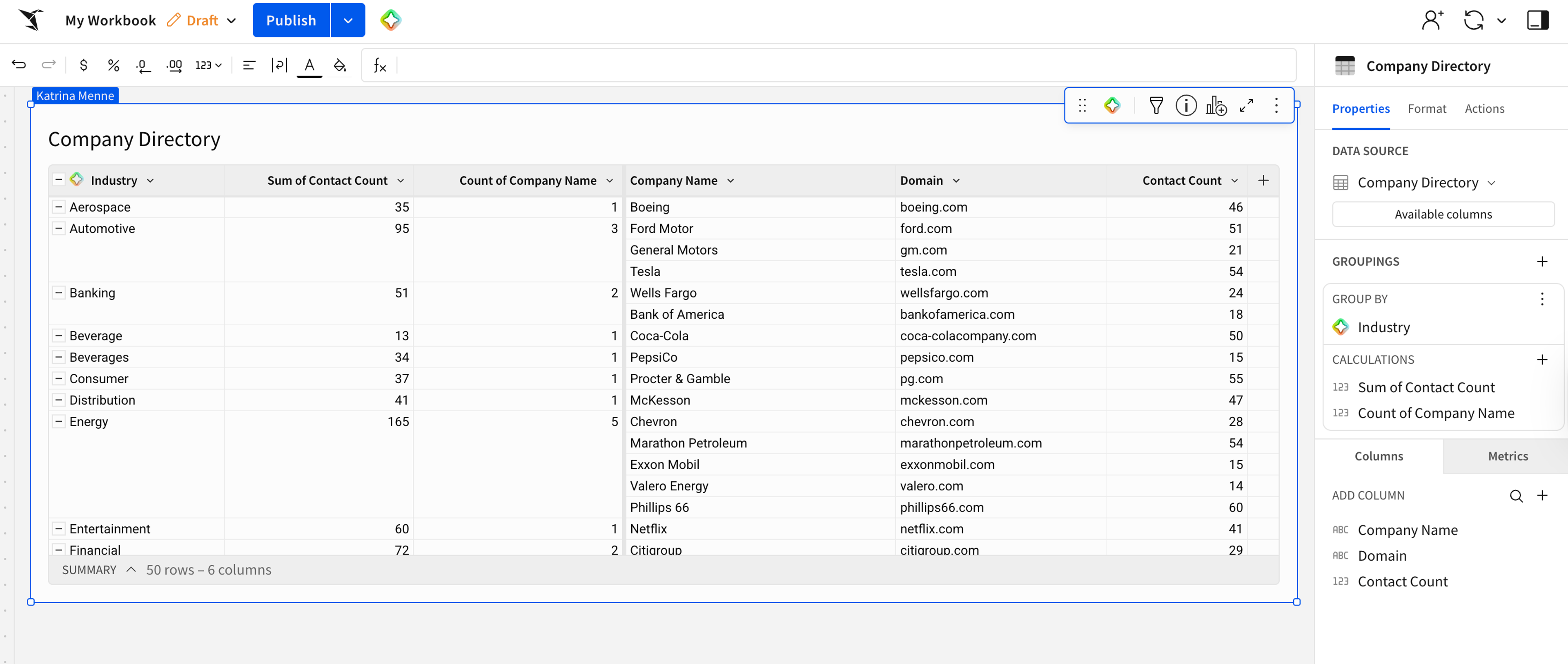
Point a prompt at the columns you already have and fill in the ones you don't, which will result in cleaned-up records that you can complete a more robust analysis in. For example, using a company name and domain, you could create an AI column that describes that company's industry. Then you could roll up the analysis to the industry level.
Classify and tag at the row level
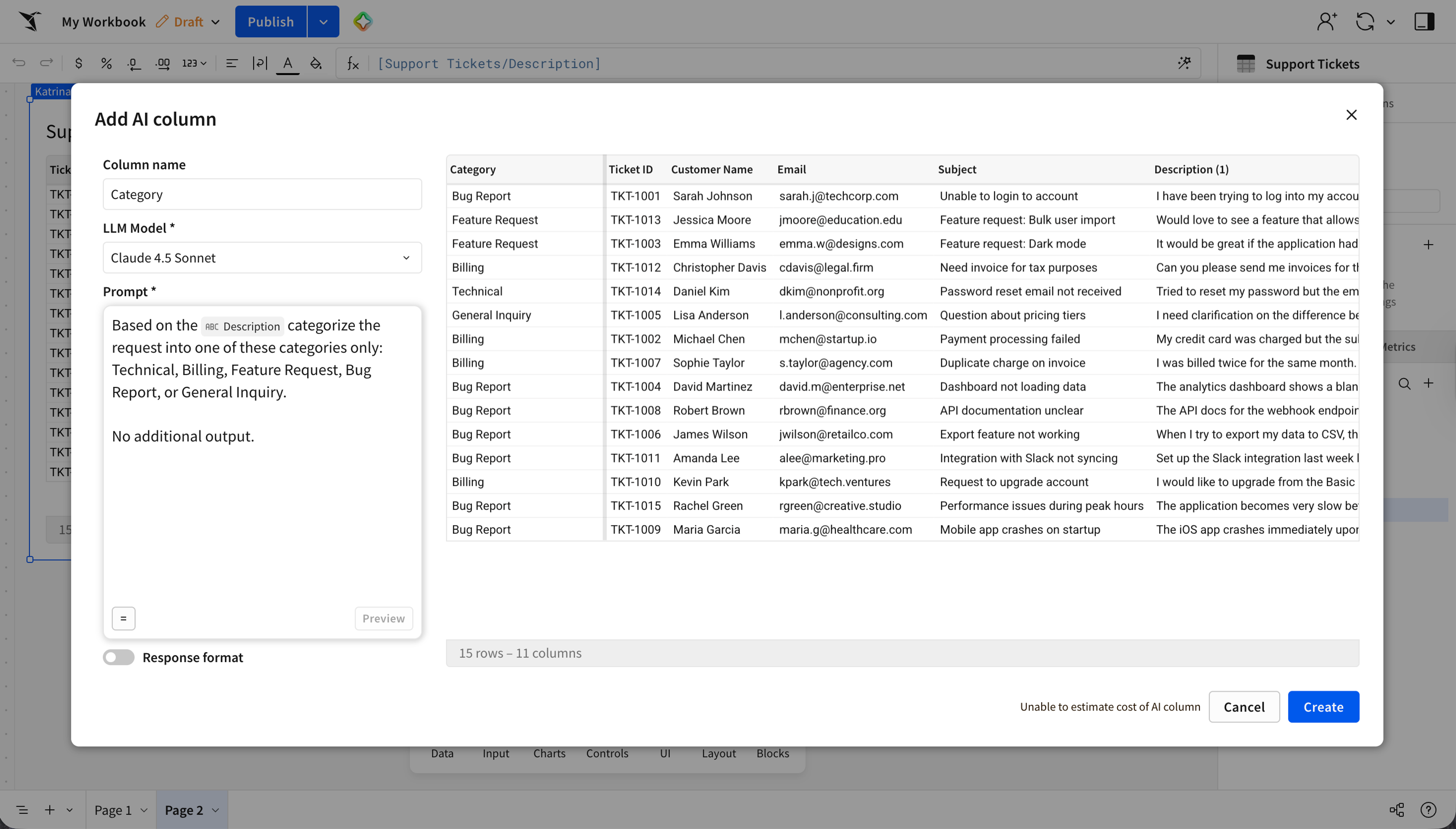
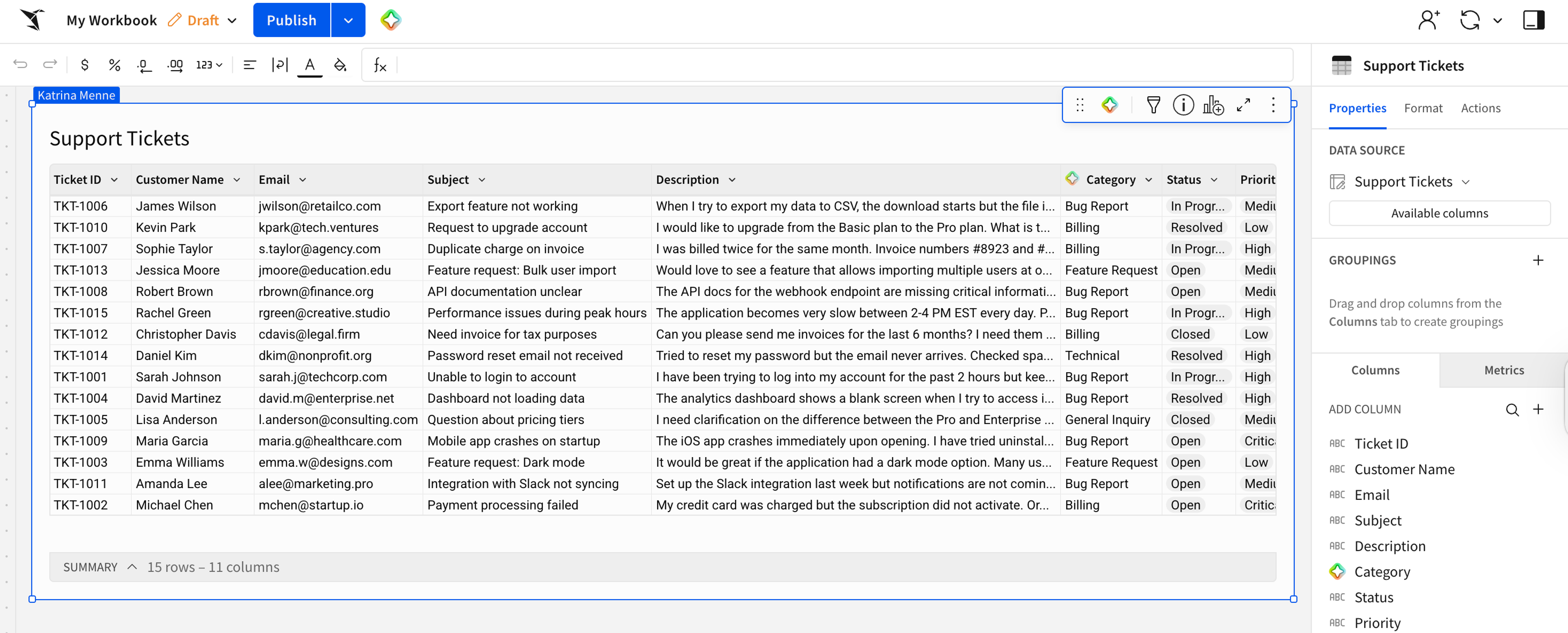
You can also give the model a fixed set of categories and let it sort every row, so support tickets land in themes and survey responses land in topics.
Summarize long text into something you can scan
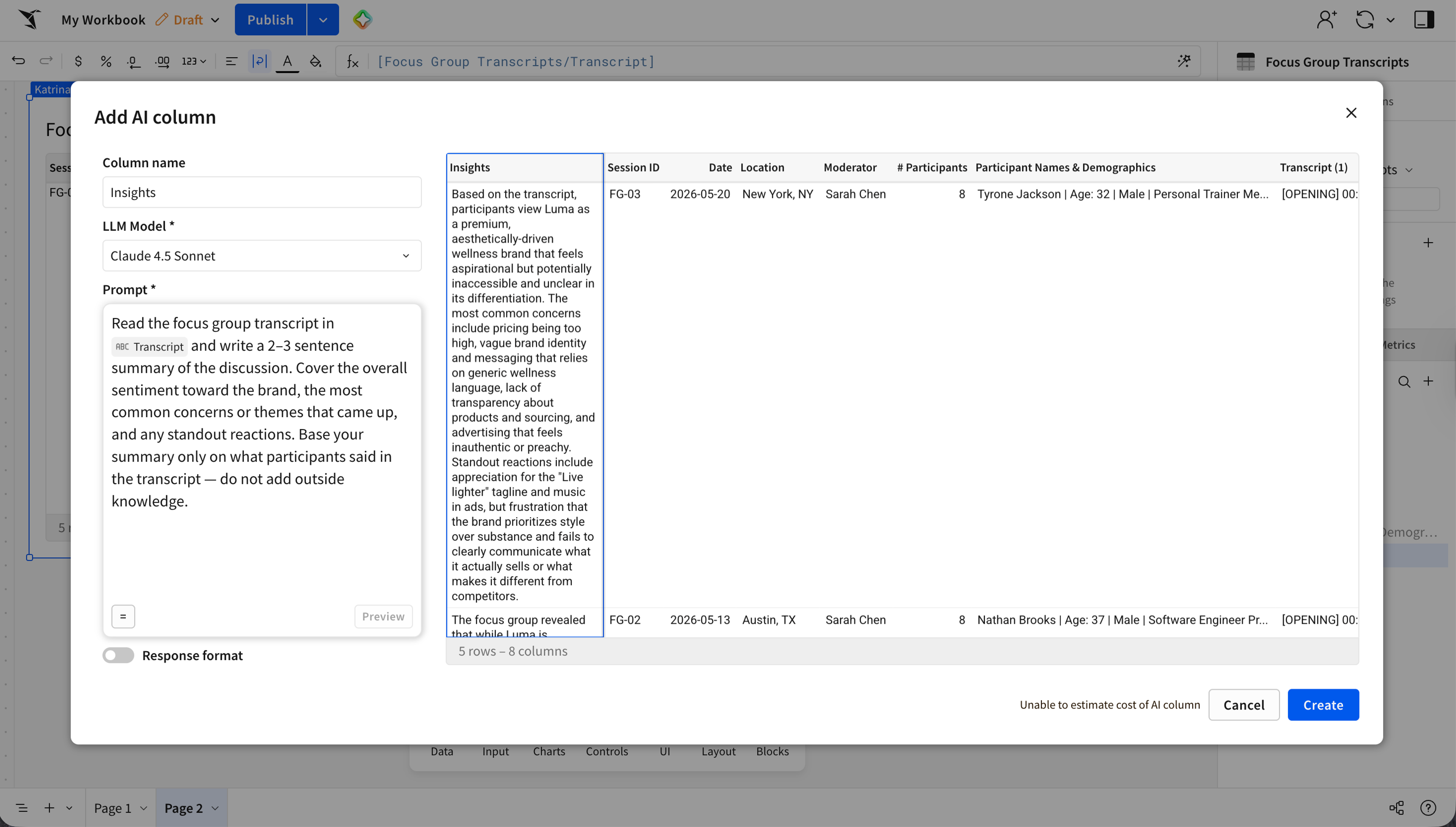
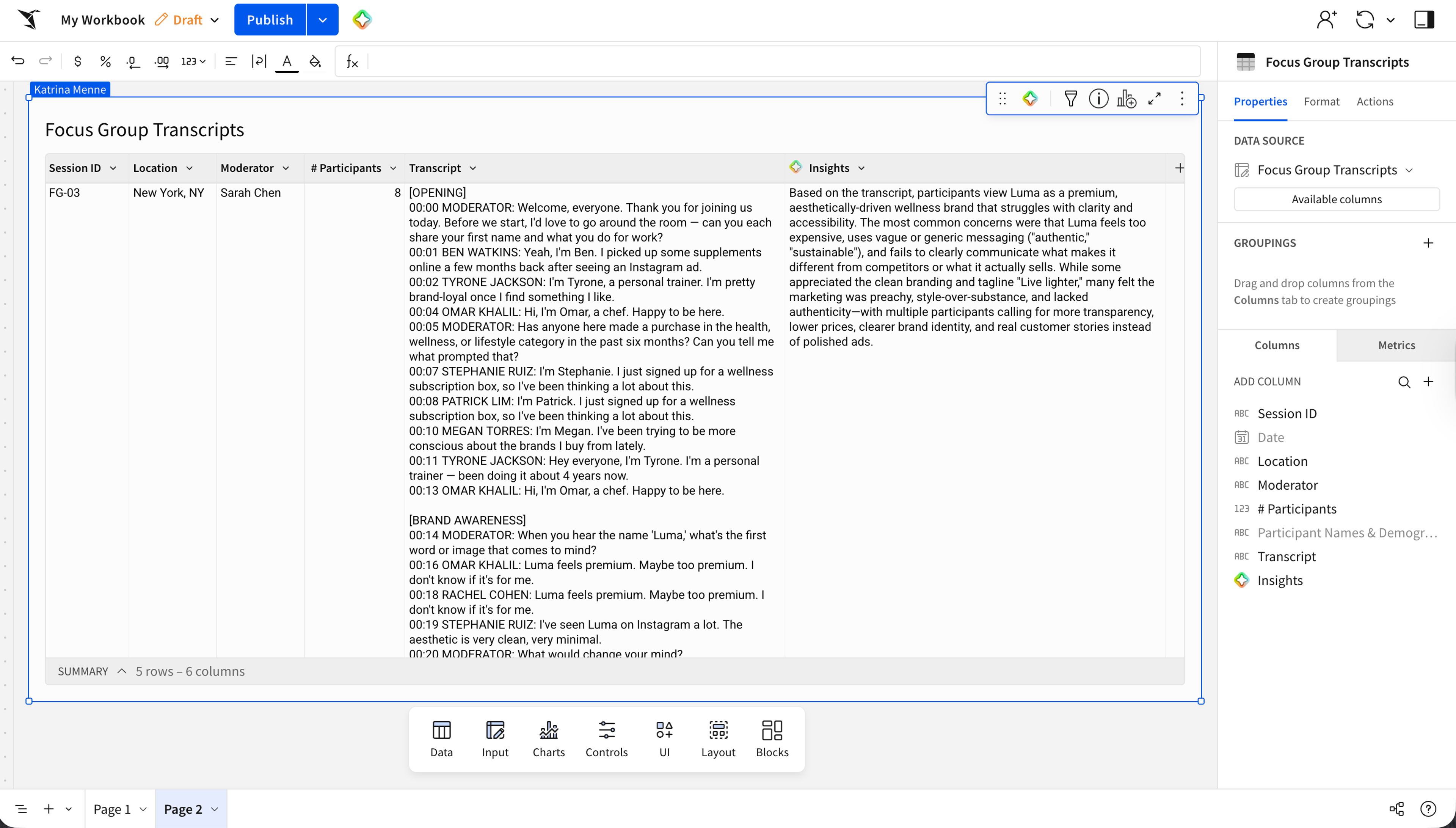
One of our favorite uses cases on the Sigma team is using AI columns to turn a column of transcripts, notes, or descriptions into short summaries that fit in a single cell. This way, you can parse thousands of records without reading them one at a time.
Why use AI columns instead of an AI chat assistance?
Both AI columns in Sigma and AI chat assistants can add helpful, structured information to existing datasets. The difference is where the work runs and who gets to do it. The advantage of AI columns is that it's:
- Governed by default: the prompt runs as a query inside your own Snowflake or Databricks connection, so your data stays in your data platform and the column inherits the access controls you already enforce.
- Built for cost control: Sigma caches every result and runs the model again only when a row's inputs change, and admins can cap spend with a token limit on each connection (10 million tokens per connection each month by default).
- No code, in the table: you write a prompt and get a column, with nothing to build or maintain between them.
- Writeback included: the output lands in your data platform next to the rest of your data, ready for the next query or app.
Get started
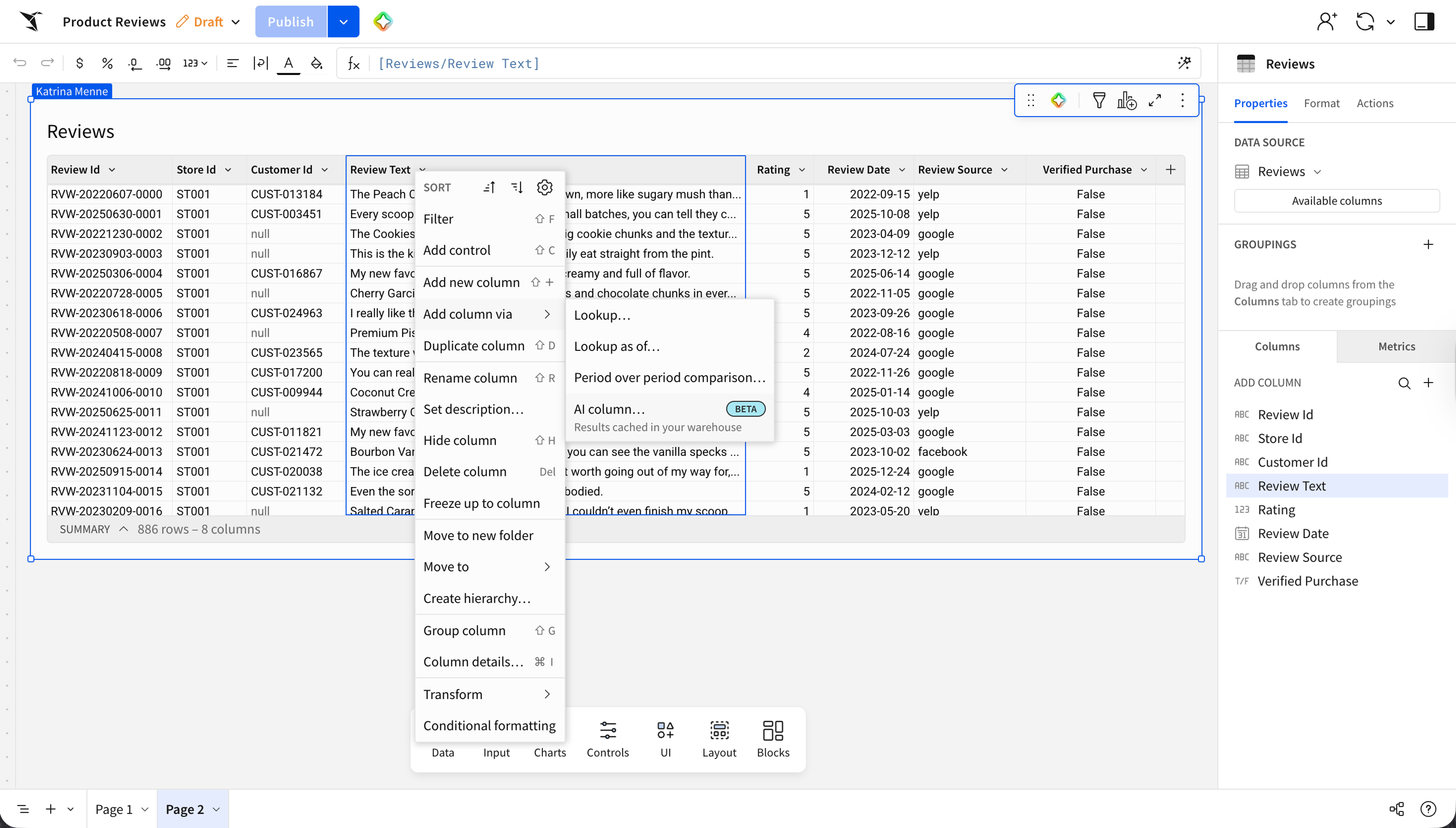
A Sigma admin can configure your AI provider for your organization and turn on a Snowflake or Databricks connection with write access. Once the Create AI column permission is on your account type, open a table, choose “Add column via” > “AI column,” and write your first prompt.
New to Sigma? Request a demo or start a free trial to see AI columns alongside the rest of the platform.
- Set up AI columns
- Keep cost predictable with token limits
- See what's new in Sigma
- Explore Sigma's AI features
Frequently asked questions
Which data platforms does this work with? Snowflake and Databricks connections today, both in beta.
Does my data leave my data platform to do this? No. The prompt runs as a query through your platform's own AI function, and the result writes back to your platform. The column also respects the access controls already on your connection.
How is this different from AI Query? AI Query lets analysts call your platform's AI functions from the formula bar. AI columns give everyone a no-code way to do that same kind of work as a column, with previews and caching built in.
How is this different from Sigma Assistant? Sigma Assistant helps you build and analyze a workbook through conversation. An AI column does one specific job: it runs your prompt across the rows of a table.
How do you keep the cost predictable? Two ways. Sigma caches results, so the model runs only on rows whose inputs change, and admins set a per-connection token limit (10 million tokens per connection each month by default).
What are the limits during beta? An AI column can't reference another AI column, can't be used with actions, and can't be added directly to an input table. To enrich Input Table data, create a child table from it and add the AI column there. Because the feature is in beta, expect it to keep improving based on customer feedback.