Getting Started with Sigma Data App

11lessons
37:11 total
by Katrina Menne

Start here

Spreadsheets gave us flexibility, and dashboards showed us data clearly, but neither was enough for making informed decisions. Sigma Data Apps combine the best parts of both: the ease of spreadsheets and the clear structure of dashboards. They also add interactive features that change how teams use data. Instead of just showing information, Sigma workbooks let teams make decisions and act on them in real-time, all within one secure platform.

Introduction to functions and groupings

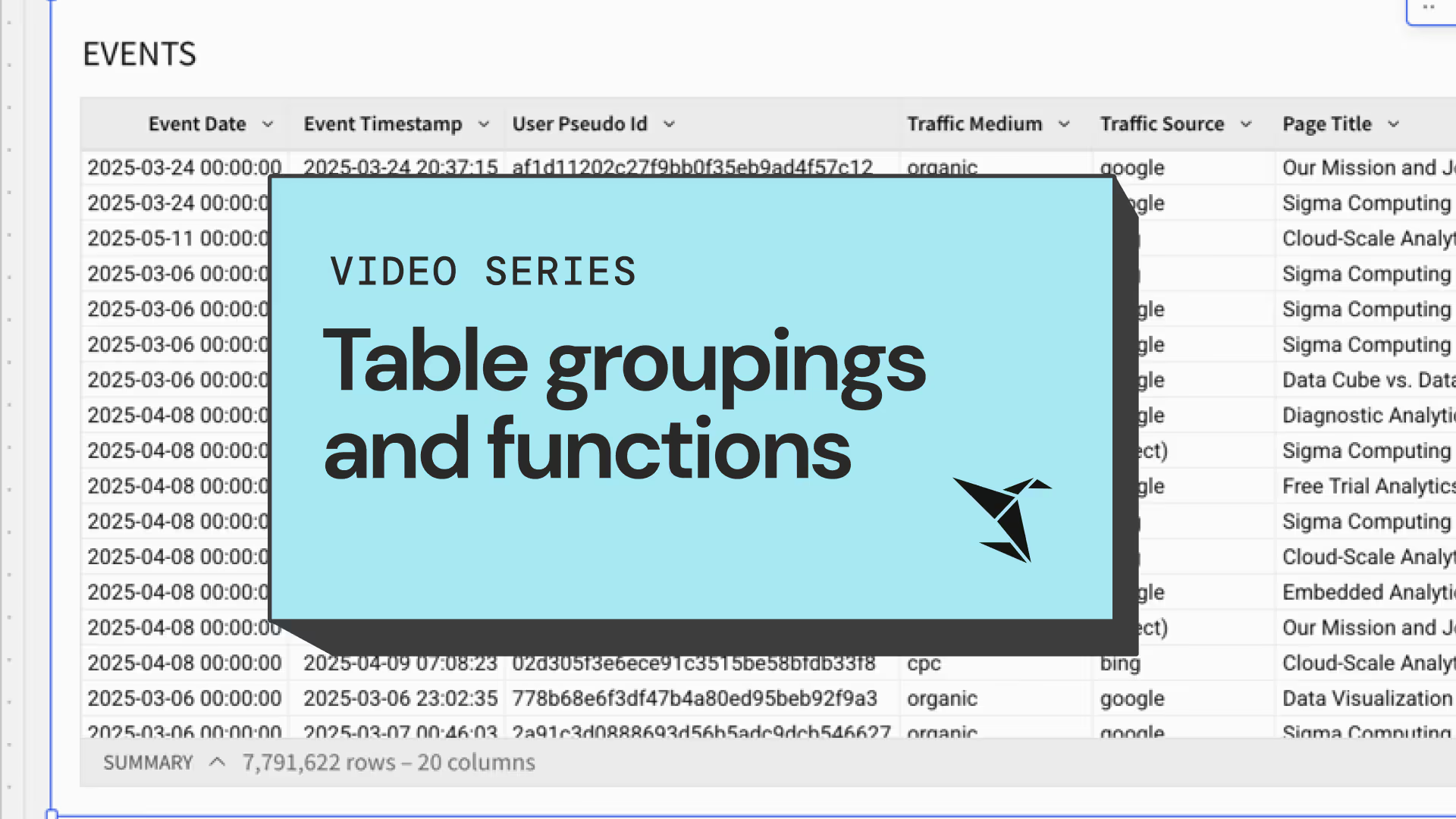
Part one of this series provides a general overview of writing functions in the formula bar and creating table groupings. Groupings and functions are essential for structuring, calculating, and displaying your data. With groupings, you can calculate aggregates across multiple rows. For example, you can group your data by quarter and then calculate total revenue for each quarter, cluster rows by store region to compare sales by region, track completed tasks by employee name, and much more.

Documentation

Input Tables

Input Tables in Sigma turn your workspace into a live spreadsheet that connects directly to your secure cloud data warehouse. Instead of dealing with multiple files, these tables keep your data current and ready for analysis at any time. Setting up an Input Table is easy—you can start with a blank table or upload existing CSV data. You can add columns for text, numbers, dates, and checkboxes, and use formulas and aggregations just like in other datasets. Features like dropdown menus for data validation and flexible editing modes for both development and user interaction make Input Tables ideal for tasks like logging updates or tracking forecasts in real-time.

Using aggregate functions with groupings

Part two of this video series introduces aggregate functions and writing formulas that work across a table grouping. Aggregate functions output a single value based on multiple rows of input, which makes them essential for creating calculations with groupings. They include familiar and easy-to-use functions such as Sum(), Count(), and Avg(), but also many other functions that differ in complexity and possible use cases.

Documentation

Linked Input Tables

Linked Input Tables in Sigma connect live data with manual entries, providing a better way to handle your data. Unlike regular input tables, these tables link directly to your existing cloud warehouse or Sigma elements, keeping your data up-to-date without needing manual updates.You can set detailed controls, add custom columns, and create workflows for tasks like approvals and tracking, all while staying connected to your source data. This feature combines the reliability of automatic data syncing with the flexibility of manual inputs, making it essential for teams that need to add business context to their live data streams.

Window functions

Part three of this series covers the basics of how to use window functions in Sigma. Window functions perform calculations based on a specified set of rows in a column. This means you can use them to perform a calculation on only the first row in a column, calculate an average over a moving three month period, determine cumulative revenue, and much more. 

Documentation

Control Elements

Control Elements in Sigma let you add interactive features to your workbooks, turning them from static reports into tools that users can engage with. Unlike basic filters, these controls can filter data and also serve as parameters in formulas, dynamic text, and workbook actions. You can create controls by converting existing filters or starting new ones, choosing from options like dropdowns, text inputs, or range selectors for dates and numbers.Whether pulling options directly from your data or setting them up manually, Control Elements help you build user-friendly interfaces while keeping your data accurate. Features like synced controls ensure consistent filtering across pages, and the ability to capture user inputs for further actions makes them key components in building advanced Sigma data applications.

Advanced window functions

Part four of this series dives deeper into window functions and the different subcategories they fall into. Window functions are divided into four categories that relate to how they function and interact with your data. Cumulative, moving, shifting, and ranking window functions each have a different purpose and produce a unique result, but are all similar in the way they work only on specified rows rather than entire columns. Some of Sigma’s most commonly used functions, such as the CumulativeSum() and RowNumber() functions featured in this video, are actually window functions. 

Documentation

Containers

Containers in Sigma help you organize your workbooks by grouping related elements together, making your content clear and easy to manage. You can use standard containers to group items like KPIs and charts, or tabbed containers to switch between different views. Customizing their appearance with backgrounds, borders, and spacing options allows you to create intuitive layouts. Naming containers clearly and nesting them thoughtfully enhances your workbook's usability.

Building complex formulas with grouped data

Part five of this series concludes the overview of window functions and covers some general concepts and fundamentals to keep in mind when using the other types of functions available in Sigma. The core fundamentals covered here apply to almost all of Sigma’s other function types, which includes array, date, financial, geography, logical, math, passthrough, system, text, and type functions. There are also several functions that combine multiple operations or calculations into one function, such as the PercentOfTotal() function and the SumIf() function, which this video covers. 

Documentation

Buttons & UI Elements

UI Elements in Sigma make your workbooks more interactive and user-friendly. Text elements let you add titles, labels, and dynamic values that update automatically with your data, providing essential context. Buttons enable users to navigate between workbook sections and trigger actions like applying filters. Incorporating images for branding and visual enhancement helps create intuitive data applications that guide users through their analysis.

Modals

Modals in Sigma help keep your dashboards clean while allowing deeper data exploration and guided workflows. They function as mini workbook pages that appear without disrupting your current view, triggered by clicking elements like table rows, chart points, or custom buttons. You can easily add a modal through the Add Element bar and customize its content with text, controls, and visuals to support various user interactions.With flexible display settings and the ability to nest modals within each other, they're perfect for creating smooth, intuitive experiences—whether you're revealing detailed records, analyzing chart drivers, or walking users through multi-step processes.

Actions

Actions in Sigma let you turn your workbooks into interactive applications by automating tasks and improving user experiences. You can set up actions triggered by elements like buttons, charts, or controls to perform tasks such as updating control values, inserting rows into tables, or opening modals. These actions can be configured to run in sequence or simultaneously, depending on your needs. By using conditional logic and action variables, you can create complex workflows that respond to user inputs. Best practices include consolidating configurations, using clear naming conventions, and leveraging action variables to build efficient, user-friendly applications that connect seamlessly with live data.

Control Value Actions

Control Value Actions in Sigma let you create interactive data applications that respond to user inputs. By using elements like buttons or chart selections, you can set or clear control values to filter visualizations, adjust calculations, or reset selections. These actions can be configured to run in sequence or simultaneously, depending on your needs. With custom formulas, you can perform dynamic calculations and automate data capture, while the clear control feature ensures users always start with a clean slate and receive confirmation of their actions.

Row Actions

Input Table Actions in Sigma let you turn your workbook into an interactive data application. Users can add, modify, or delete records directly within Sigma, with all changes tracked in your data warehouse. Setting up these actions is straightforward: define your Input Table columns, link values through visuals or controls, and select the elements that will trigger the actions.The main actions—Insert, Update, and Delete—each have specific roles but work together to create a smooth user experience. By thoughtfully implementing these features and using action conditions, you can build intuitive workflows that keep your team's data accurate and current.

Building your first Sigma Data App

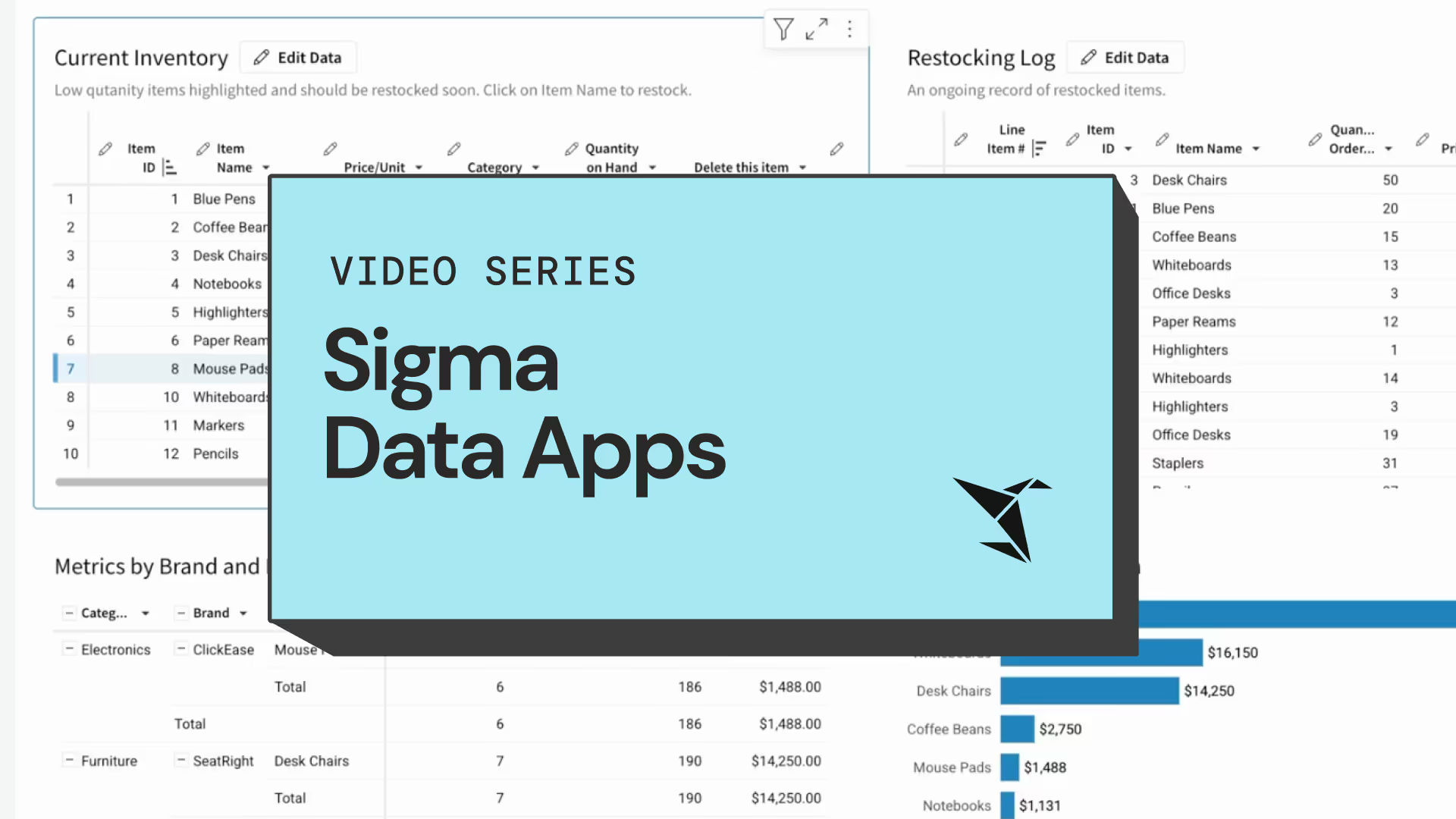
Learn how to build your first Sigma Data App by combining input tables, controls, and actions into a complete workflow. In this hands-on demonstration, we'll create an Inventory Tracker Application that helps employees monitor low-stock items, record restocking activities, and update inventory counts in real-time. Through step-by-step guidance, you'll learn how to set up input tables for current inventory and restocking logs, create user-friendly control elements, and implement actions for adding, updating, and deleting inventory items. The result is a source-free Data App that streamlines inventory management while maintaining data accuracy and user accountability.

Files

About the Author
Katrina Menne is a widely regarded as a leading expert, known for her deep technical expertise and contributions to the Sigma
As the founder and leader of the Sigma User Meetup and a WorkoutWednesday author, she drives community engagement and learning. She holds Sigma's highest certifications and was the first-ever recipient of the Golden Goat award.

Ready to build your own Data App?

Start your free trial and put these skills into practice.